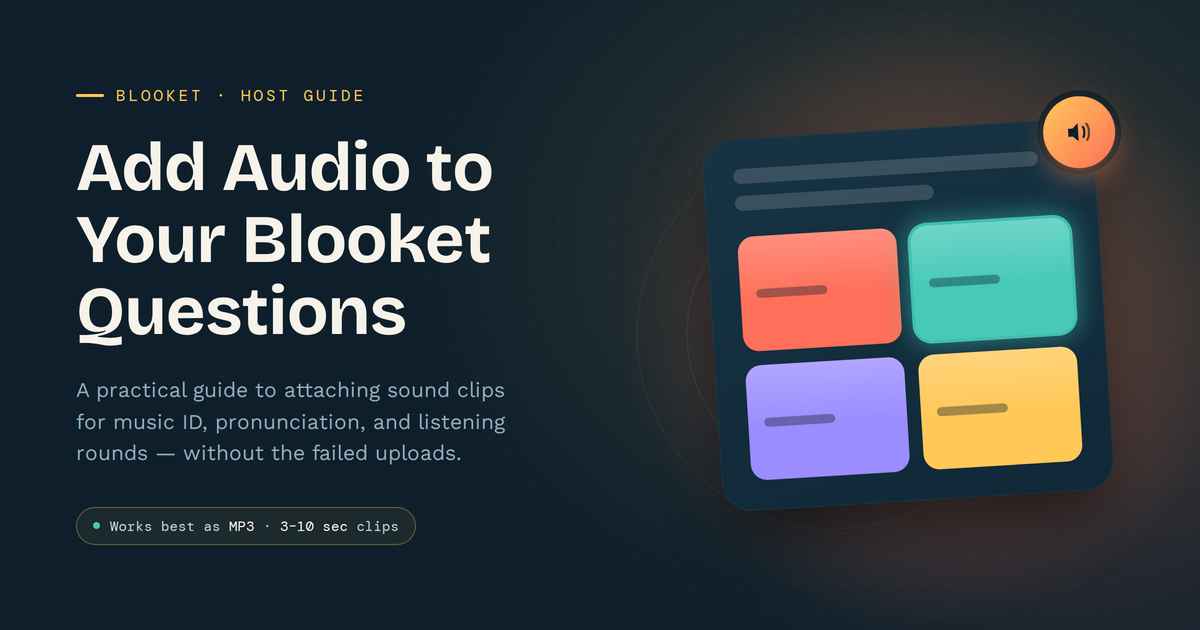
Add Audio to Blooket Questions: Step-by-Step Guide
Blooket questions support more than plain text. You can attach a sound clip to a question so players hear it before they answer, which works well for music identification rounds, language pronunciation drills, and sound-based trivia. This guide is for teachers and hosts who want audio working correctly on the first try, not after three failed uploads.
I tested audio uploads across several question sets while building review games for a vocabulary unit, and most failures came down to file format or file size, not a platform bug. Below is the exact process, the file specs that actually work, and the fixes for the playback problems players run into most.
What audio in Blooket questions actually does
Audio in a Blooket question plays a short sound clip when that question loads, before or alongside the text and answer choices. Hosts use it for listening comprehension, music or sound-effect identification, and language pronunciation practice. The audio attaches to one specific question inside a set, not to the whole game.
Where audio fits inside a question
Each question in the set editor has its own media area for an image or a sound file. Audio sits separately from the question text box, so adding a clip does not replace or shorten the written question. Players still see the full question and answer options while the clip plays.
Which game modes play audio clips properly
Most live game modes you can host on Blooket, including Classic, Gold Quest, and Tower Defense, play question audio without any extra setup. Solo and homework-style modes also play the clip the same way, since playback is tied to the question itself rather than the mode. A few fast-paced modes shorten the time players have to listen, so pick a mode that gives enough seconds for the clip to finish.
How to add audio to a Blooket question
Adding audio takes four steps inside the set editor: open the question, choose the audio option, upload a supported file, and save the set. The whole process takes under a minute per question once the file is ready on your device.
Step 1: Prepare the audio file before you upload
Trim the clip to the shortest length that still makes sense for the question, usually three to ten seconds. Shorter clips keep the game moving and reduce the chance of a slow upload. Save the file in a common format such as MP3, since that format uploads the most reliably across devices.
Step 2: Open the question editor
Go to your Blooket sets, open the set you want to edit, and select the specific question that needs audio. Click into that question to open its editing panel, where you will see the text box, answer fields, and a media section.
Step 3: Upload the audio file
In the media section, choose the audio upload option and select your prepared file from your device. Wait for the upload progress to finish completely before moving to another question, since switching too early can cancel the upload. A small audio icon or waveform usually appears once the file attaches successfully.
Step 4: Save and test the question
Save the question, then save the whole set so the change is not lost. Run a quick host preview or a solo round to confirm the clip plays at the right volume and length before using the set with a full class or live audience.
File specs, limits, and practical examples
Audio uploads work best within a narrow set of specs: short duration, compressed format, and a reasonable file size. Staying inside these ranges avoids the slow uploads and silent playback that come from oversized or unusual file types.
Supported and recommended file types
| File type | Works for upload | Notes |
|---|---|---|
| MP3 | Yes | Most reliable, smallest file size for the same clip length |
| WAV | Sometimes | Larger file size, can be slow to upload on weaker connections |
| M4A | Sometimes | Works on many devices but less consistent than MP3 |
| OGG | Rarely | Not a safe default choice across devices |
Practical example: a language pronunciation set
In a Spanish vocabulary set I built for a review session, each question used a three-second MP3 clip of a single word spoken aloud, paired with four spelling options as answers. Keeping every clip under five seconds meant the round moved at the same pace as a text-only set. Players reported the clips loaded instantly, which matched the smaller file sizes from trimming and compressing each MP3 beforehand.
Practical example: a music identification round
A music-themed set used eight-second clips from instrumental tracks, with the question asking players to name the genre. Clips longer than ten seconds caused a few players to answer before the clip finished, since some fast modes cap question time tightly. Trimming each clip to match the mode’s time limit fixed that mismatch.
Common mistakes and audio troubleshooting
Most audio problems trace back to one of four causes: an unsupported file type, a file that is too large, a browser blocking autoplay, or device volume settings. Checking these four areas in order resolves the large majority of playback issues.
Mistake: uploading a file that is too large
A long, uncompressed recording can take a noticeable amount of time to upload or may fail partway through. Compress the file or trim it to the shortest useful length before uploading, rather than uploading the raw recording and hoping it finishes.
Mistake: assuming every browser autoplays sound
Some browsers block autoplay for audio and video until the user interacts with the page first. If a clip seems silent, click anywhere on the game screen once, since that single interaction often unlocks audio playback for the rest of the session.
Mistake: ignoring device and system volume
Players sometimes report “broken” audio that turns out to be a muted device, a volume slider at zero, or headphones not connected properly. Ask players to check their own device volume before assuming the upload itself failed.
Mistake: picking a game mode with too little question time
Fast-paced modes can move to the next question before a longer clip finishes playing. Match the clip length to the mode’s time limit, or choose a calmer mode like Classic when the audio itself is central to the question.
FAQs
Can I add audio to every question in a Blooket set?
Yes, audio can be added to any individual question in a set, one at a time, through that question’s media section in the editor. There is no limit tied specifically to using audio across multiple questions in the same set.
What is the best audio format for Blooket questions?
MP3 is the most reliable format for uploading and playing back consistently across devices and browsers. Other formats like WAV or M4A sometimes work but are more likely to cause slow uploads or playback issues.
Why does my audio clip not play during the game?
The most common causes are browser autoplay restrictions, a muted device, or an upload that did not finish completely. Click the game screen once to unlock autoplay, check device volume, and re-upload the file if the icon never appeared after saving.
How long should an audio clip be for a Blooket question?
Three to ten seconds works well for most question types, including pronunciation and short sound identification. Longer clips risk running past the time limit in faster game modes, so match the clip length to the mode you plan to use.
Can players replay an audio clip during a question?
Replay availability depends on the game mode and how the host has the round set up, since some modes move forward automatically once time runs out. Testing the set in a solo or host preview round beforehand shows exactly how playback behaves for that mode.
Does adding audio slow down the game for everyone?
A well-compressed, short clip loads quickly and does not noticeably slow the round for most players. Large or uncompressed files are the actual cause of slowdowns, not the presence of audio itself.
Can I use background music instead of a question-specific sound clip?
Blooket’s audio feature attaches a clip to a single question rather than playing continuous background music across the whole game. For a sound-based question, attach the clip directly to that question instead of trying to run music separately.
Will audio work the same way on phones, tablets, and computers?
Playback generally works across devices, but autoplay rules and volume behavior vary slightly by browser and operating system. Testing the set once on the actual devices players will use catches most device-specific issues before the live game.
Wrap-up
Audio turns a plain trivia question into a listening or pronunciation challenge, and getting it to work reliably comes down to file prep, not luck. Trim clips short, save them as MP3, and confirm the upload finished before saving the set. Test one question with audio in a solo round before rolling the full set out publicly to a class or group, and the playback issues covered here should not come up at all.
Turning knowledge into action is easier than you think. Get started here.