Make Blooket Quiz Public: Step-by-Step Guide for Teachers
Making a Blooket quiz public takes under a minute once you know where the setting lives. The visibility toggle is tucked inside the question set editor, and a surprising number of teachers either miss it entirely or assume sets are public by default. This guide walks through every step, explains what public visibility actually changes, and covers a few things worth checking before you share your set with the world.
What “public” means on Blooket
When you make a Blooket question set public, you change its visibility from private (only you can access it) to discoverable by anyone on the platform. Public sets appear in Blooket’s Discover page, where teachers and students search by subject, grade level, or topic to find ready-made question sets.
Making a set public does not grant editing rights to anyone. Other users can copy your set to their own library and modify their copy, but your original stays untouched under your account. Nothing about your game-hosting ability changes either — you can host games from private or public sets with equal ease.
Private vs. public: the key differences
| Feature | Private | Public |
|---|---|---|
| Visible to others on Discover | No | Yes |
| Others can copy the set | No | Yes |
| Others can edit your original | No | No |
| You can host games | Yes | Yes |
| Direct link shareable | No | Yes |
| Default setting for new sets | Yes | No |
Every new set starts as private. Nothing goes public unless you specifically change it.
How to make a Blooket quiz public
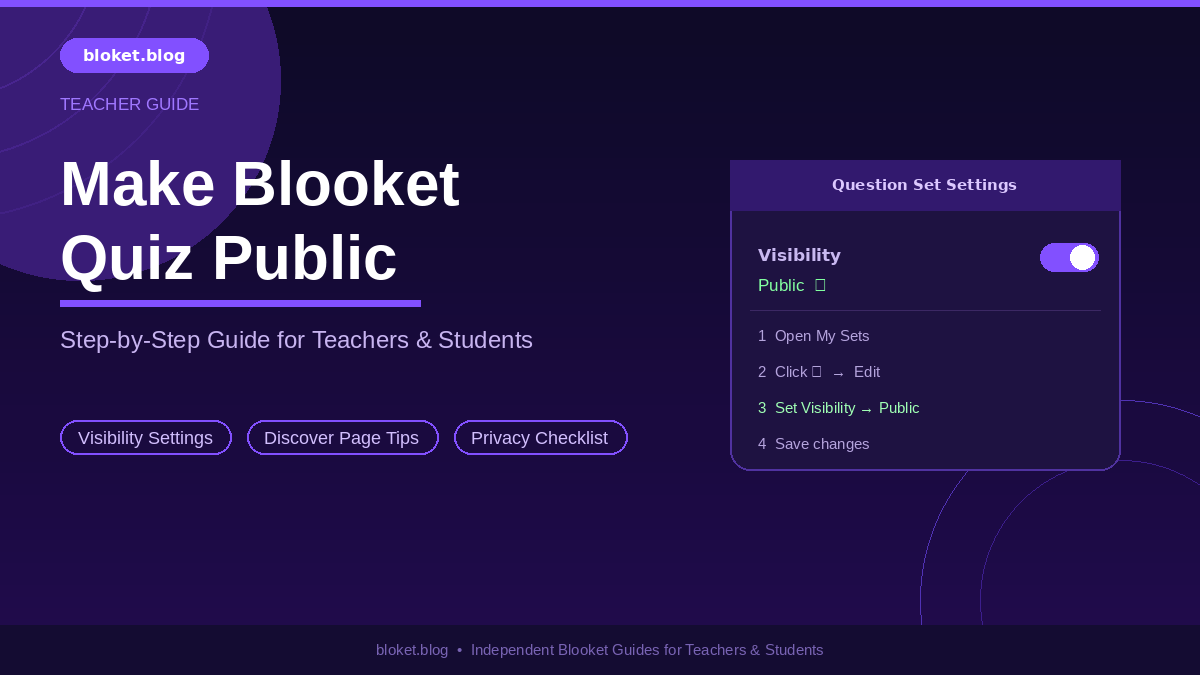
To make a Blooket question set public, open the set editor from your dashboard, locate the Visibility section, switch the toggle from Private to Public, and save. The set becomes discoverable on Blooket’s Discover page within minutes.
Step-by-step from the Blooket dashboard
- Log in to your Blooket account at blooket.com.
- Click My Sets in the top navigation bar.
- Find the question set you want to publish.
- Click the three-dot icon (⋯) next to the set name.
- Select Edit from the dropdown menu.
- Scroll down to the Visibility section inside the editor.
- Switch the toggle from Private to Public.
- Click Save (or the checkmark button) to confirm.
The change applies instantly. To verify it worked, open an incognito browser window, go to Blooket’s Discover page, and search for your set’s title.
Setting visibility when creating a new set
If you are building a set from scratch, you can choose Public visibility before you add a single question. On the set creation screen, look for the visibility field near the title and description inputs. Switching it to Public from the start saves you from hunting for the toggle after you finish building.
Switching back to private
Visibility is not permanent. You can toggle a set from Public to Private at any time using the exact same steps. Teachers often do this before exams so students cannot preview questions on Discover, then switch the set back to Public afterward.
What happens after you make your set public
Once a set goes public, Blooket indexes it in the Discover page search results. Other users searching for topics that match your title, description, or subject tags can find the set within a few minutes of the change.
How others find your set
Blooket’s Discover page works like a search engine for question sets. Users type in a subject, topic, or grade level, and Blooket returns matching public sets. Relevance and engagement both play a role in how prominently your set appears in those results.
When I tested this by making a set public and immediately searching for its exact title on Discover, it appeared in the results within about five minutes of saving the change.
What others can do with a public set
Other Blooket users can:
- Copy the set: They can duplicate the set to their own library and edit it freely. Your original is not affected.
- Host a game directly: A user can start a game using your public set without copying it first.
- Preview questions: Before copying, anyone can browse the questions and answers on the Discover listing.
What they cannot do is edit your original, delete it, or access anything tied to your account.
Sharing the direct link
Every Blooket question set has its own URL. Once your set is public, that link works for anyone — they can open the set directly without searching Discover. Copy the URL from your browser while viewing the set and paste it wherever your audience already gathers: email lists, teacher forums, or a class website.
Things to check before making a quiz public
Flipping the visibility switch is easy to undo, but a few quick checks will save you from sharing something you did not intend to.
Review questions and answer keys for accuracy
The most common complaint teachers share about sets they find on Discover is wrong answer keys. A multiple-choice question where the marked “correct” answer is actually wrong creates real problems in the classroom. Before publishing, go through each question once and confirm the answer key is right.
Remove class-specific or student-identifying content
Sets built for a specific class sometimes contain student names, school-specific references, or inside jokes that make no sense to an outside audience. Strip that content out or keep the set private. Beyond clarity, removing identifiable student information is basic privacy hygiene.
Think about copyright before distributing widely
Questions copied verbatim from a textbook, standardized test prep material, or a licensed curriculum may be under copyright. Making a set public distributes those questions to a large audience, which is a meaningful difference from using them quietly in your own classroom. Rewrite questions in your own words, or use only content you know is openly licensed.
Set accurate subject and grade level tags
Blooket lets you assign a subject category and grade range to each set. Accurate tags are not cosmetic — they determine which searches surface your set. A high school chemistry set tagged as elementary school science will land in front of the wrong audience and collect few copies.
How to get more teachers using your public set
Publishing a set places it in the pool. Getting it found and copied takes a bit more deliberate effort.
Write a descriptive, searchable title
A title like “Chapter 4 Test Review” is meaningless to a stranger. A title like “Photosynthesis and Cellular Respiration Review — Biology Grades 9-10” tells a searching teacher exactly what they will get. Include the topic, subtopics where space allows, and the grade level.
Use the description field
The description field is small, but it shows up in Discover listings and helps teachers decide whether to copy a set. Write two to three sentences: what the set covers, what grade it targets, and any practical detail a teacher would want to know. For example: “45 questions on the American Civil War covering causes, key battles, and Reconstruction. Designed for grades 7-8. Includes vocabulary and map-based questions.”
Share the direct URL in teacher communities
Passive discovery through Discover is slow when millions of sets compete for the same search terms. Active sharing works faster. Post the direct URL in subject-specific teacher groups on social platforms, in subreddits focused on your subject, or in professional learning networks you already use. Early copies signal engagement and may improve how the set ranks over time on Discover.
Use consistent naming for sets in a series
If you build multiple sets for a unit or course, use a clear naming pattern: “Unit 2 Review: [Topic]”, “Unit 3 Review: [Topic]”, and so on. Teachers who find and like one set will search for the others, and consistent naming makes that easy.
FAQs
Can I make a Blooket quiz public on a free account?
Yes, fully. The visibility toggle is available on free Blooket accounts. You do not need a paid Blooket Plus subscription to make a set public, access the Discover page, or share your set with others. All visibility features are part of the free tier.
Will making my set public let others change my questions?
No. Other users can copy your public set to their own library, where they can edit their personal copy however they like. Your original set remains exactly as you left it. Only you can make changes to your version.
How do I confirm my set is actually showing up on Discover?
Log out of your Blooket account, go to the Discover page, and search for keywords from your set’s title. Alternatively, open an incognito browser window and do the same search while logged in — incognito prevents your account session from affecting the results. If the set appears, it is live and discoverable.
Can students find my public set and preview the answers before a game?
Yes, and this is a genuine concern for teachers using Blooket for assessments. Any student who searches Discover can view the full question and answer list of your public set. To prevent this, keep the set private, host the game using a code, and only switch the set to public after the assessment is done.
What happens to copies others already made if I switch my set back to private?
Nothing happens to existing copies. Anyone who copied your set before you switched it to private retains their copy in their own library. Making your original private only stops new users from finding or copying it on Discover. It does not delete or affect copies already made.
Is there a way to share a set with specific people without making it fully public?
Blooket does not offer a “share with specific users” option. Visibility is binary: Private (only you) or Public (everyone). A common workaround is to share the direct link with a colleague, have them copy the set to their library immediately, and then switch your set back to Private. Their copy stays in their library regardless of what you do with yours.
Does Blooket tell me when someone copies my public set?
Blooket does not send real-time notifications for individual copies. You can usually see a copy count or engagement stats on the set itself, but there is no alert system that pings you each time someone copies your work.
Conclusion
The process itself is simple: open the set editor, switch the Visibility toggle from Private to Public, and save. That is the whole technical task.
What makes a public set genuinely useful to other teachers is what surrounds that toggle: a clear and searchable title, accurate grade-level tags, a short description that answers the obvious questions, and a direct link shared where the right audience already spends time.
If you have a set you have been using privately for a while, now is a reasonable time to review it for accuracy, remove any class-specific content, and flip it public. Other teachers are searching for exactly what you already built.
Learn new strategies and implement them immediately with our step-by-step posts.