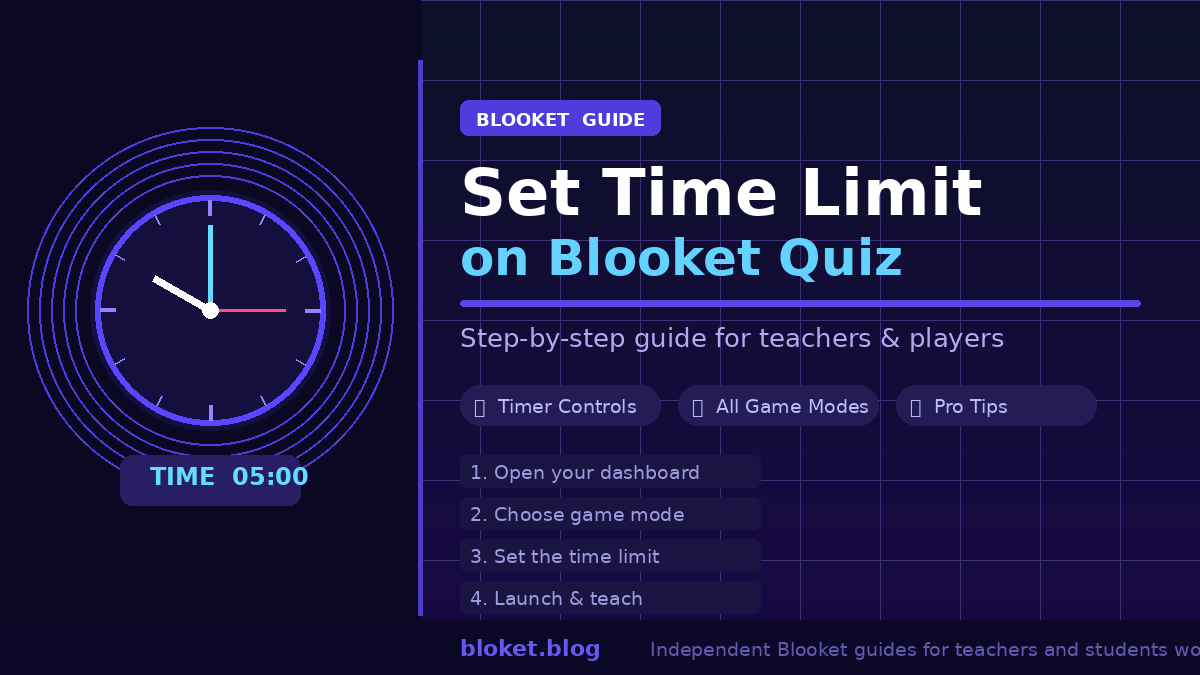
Set Time Limit on Blooket Quiz: Complete Guide
Running a Blooket quiz without a time limit is a recipe for chaos. Students rush through in three minutes or stretch it to twenty. The time limit setting is one of the most practical controls a host has, and a lot of teachers either skip it or set it wrong. This guide walks through exactly how to set a time limit on a Blooket quiz, what each setting does, and how to match your time limit to what is actually happening in the room.
What does the time limit setting do in Blooket?
The time limit in Blooket ends the game automatically once the set duration runs out. When you host a quiz-style session, Blooket gives you a host options panel before the game starts. One of those options is the game timer. Set it to five minutes and the game closes at the five-minute mark regardless of how many questions players have answered.
This is different from a per-question timer. The overall game time limit controls the entire session length, not how many seconds each player gets on a single question. Per-question timing is a separate setting available in specific modes, covered in detail below.
Why the time limit matters in a classroom
Without a time limit, Blooket games are technically infinite. Students who finish fast sit idle. Students who struggle fall way behind. The host has to end the game manually, which means watching the screen instead of circulating the room. A well-chosen time limit solves all three problems at once.
How to set a time limit on a Blooket quiz (step by step)
Setting a time limit takes about thirty seconds once you know where to look. The option appears in the hosting flow, not inside the question set editor.
Step 1: Open your Blooket dashboard
Log in to your Blooket account at blooket.com. From the dashboard, go to Sets and choose the question set you want to use for the quiz. Click the Host button on that set.
Step 2: Choose a game mode
Blooket will ask you to pick a game mode. Classic, Gold Quest, Tower Defense, and the rest all appear here. Select the mode that fits your lesson. The time limit option shows up regardless of which mode you pick, but where it appears in the options panel may vary slightly by mode.
Step 3: Open the host options panel
After selecting a mode, a settings panel loads before the game begins. This is where you control player limits, shuffle options, and the time limit. Look for the Time Limit field, which usually shows a default value or a toggle.
Step 4: Enter your desired time limit
Click the time limit field and type in the number of minutes you want the game to run. Blooket accepts whole-number minute values. Most teachers use somewhere between 5 and 20 minutes depending on the activity.
Step 5: Launch the game
Once you have set your time limit and any other options, click Host Now or the equivalent launch button. The game starts, and the timer begins counting down. A countdown is visible to the host and, in most modes, to players as well.
Step 6: Monitor and adjust if needed
As the host, you can end the game early at any point from the host panel. If you set a limit that turns out to be too short, you can end the current session and re-host with a longer timer. There is no in-game option to extend the timer once the session is live.
Time limit options across different Blooket game modes
Not every Blooket game mode uses the time limit the same way. Understanding the differences helps you pick the right setting for each activity.
Classic mode
Classic is the most quiz-like mode in Blooket. Players answer questions individually at their own pace, and the timer runs until the set duration ends. The player who answers the most questions correctly in that time wins. The time limit here directly controls how competitive the session feels. Short limits reward speed. Longer limits give thoughtful students more of a fair shot.
Gold Quest
Gold Quest adds a gambling mechanic where correct answers let players steal or protect gold. The time limit works the same as Classic. One detail worth noting: when time runs out mid-steal-event, the round ends immediately and the player with the most gold wins. Set the limit long enough that most students complete a reasonable number of questions before time is called.
Tower Defense and Tower Defense 2
These modes blend quiz answers with real-time strategy gameplay. Players spend resources on towers and upgrades while answering questions. A short time limit can feel unfair in Tower Defense because building a strong defense takes time. For these modes, 10 to 15 minutes tends to work better than a 5-minute cutoff.
Factory
Factory mode has players managing a production chain. Correct answers generate resources. The time limit functions as a production race. Since the early game involves a lot of setup, very short time limits tend to disadvantage slower starters disproportionately.
Café and other newer modes
Blooket continues to add game modes. In all modes tested, the time limit option appears in the host panel before the game starts. The mechanics of what happens at zero vary slightly, but in every mode the game ends and a winner or leaderboard is displayed.
Per-question timers
Some Blooket modes include a separate per-question timer that limits how long a player has to answer each individual question. This is not the same as the overall game time limit. Per-question timers appear as a separate toggle in the host options panel when available. You can use both settings together: a per-question timer of 10 or 15 seconds per question, inside an overall game limit of 10 minutes.
Choosing the right time limit for your session
There is no single correct time limit. The right number depends on the length of your question set, the age of your students, the game mode, and what role the Blooket session plays in the lesson.
Match the time limit to the question set size
A 10-question set played in Classic mode rarely needs more than 5 minutes. A 30-question review set before an exam might warrant 15 minutes. A rough estimate that works in most cases: multiply the number of questions by 20 to 30 seconds and round up to the nearest 5 minutes.
| Question count | Suggested time limit |
|---|---|
| 5–10 questions | 5 minutes |
| 11–20 questions | 8–10 minutes |
| 21–30 questions | 12–15 minutes |
| 30+ questions | 15–20 minutes |
These are starting points. Adjust based on how your specific class performs.
Consider the age and reading level of your students
Younger students or students reading in a second language need more time per question — especially when questions include audio clips that need to play out fully. A 10-question quiz that a high school class handles in 4 minutes might need 8 to 10 minutes for a middle school class encountering the same vocabulary for the first time.
Account for setup and transition time
The time limit only counts in-game time. Students still need time to join the lobby, which can take 1 to 3 minutes depending on device readiness. Factor that into your lesson plan, but do not factor it into the timer itself.
Use a shorter limit for review drills
Quick 5-minute bursts you can schedule at the start of class work well for recall practice. The urgency of a short timer increases engagement. Students who know they only have 5 minutes tend to stay focused the entire time.
Common mistakes when setting Blooket time limits
Setting no time limit at all
Skipping the time limit entirely means you have to end the game manually. This sounds fine in theory, but in practice it means stopping the game at an awkward moment or letting it run too long. Always set a limit, even if it is a generous one.
Using the same time limit for every mode
A 5-minute limit works well in Classic but feels punishing in Tower Defense or Factory. Match the timer to the mode. Strategy-based modes need longer windows.
Setting the limit shorter than the average student needs
If most students cannot get through the question set in the time given, the quiz stops before anyone has a meaningful experience. Run the quiz in your head: how long does one question take to read, consider, and answer? Multiply that out. Add a 20% buffer.
Forgetting to account for multiple-device issues
If students share devices or are joining from slow connections, they take longer to answer each question. A time limit that felt right in a well-equipped lab might feel too tight in a BYOD classroom.
Not testing the settings before class
The fastest way to avoid problems is to host a one-minute test game by yourself before the class session. Run through the host options panel, confirm the time limit is set correctly, and see how the countdown appears. It takes two minutes and prevents surprises in front of 30 students.
FAQs
Can I change the time limit after the game has started? No. Once a Blooket session is live, the time limit cannot be adjusted. If the timer is too short or too long, you can end the game early as the host, or let the game run to completion and re-host with a corrected timer.
Does the time limit apply to the host too? The host does not play as a student in most Blooket modes, so the time limit only affects the player-facing game. When time runs out, the session ends and the host sees the final leaderboard.
What happens when a Blooket quiz runs out of time? The game ends immediately. A results screen or leaderboard appears showing each player’s score or ranking at the moment the timer hit zero. Players in the middle of answering a question at that moment typically do not receive credit for it.
Is there a minimum or maximum time limit in Blooket? Blooket allows time limits as short as 1 minute and as long as several hours, though setting it to hours is unusual in a classroom context. For most quiz-style sessions, limits between 5 and 20 minutes are practical.
Can students see the time limit countdown? Yes. In most Blooket game modes, players can see a countdown timer on their screen. This creates a natural sense of urgency that tends to keep engagement high, especially in shorter sessions.
Can I set a time limit without a Blooket Plus subscription? The basic time limit setting is available to all Blooket accounts, including free ones. Some advanced hosting controls may require a paid Blooket Plus subscription, but the core timer functionality works on free accounts.
Does the time limit reset if I duplicate the game mode? No. The time limit is set during the hosting flow each time you host a session. It is not saved to the question set itself. You will need to re-enter your preferred time limit each time you host.
Conclusion
Setting a time limit on a Blooket quiz is one of the simplest things a teacher or host can do to run a tighter, more purposeful session. The option lives in the host panel before the game starts. Choose a limit that fits the question count, the game mode, and the pace of your specific class. Use the table above as a starting point, test it once before class, and adjust from there.
The next time you host, set the timer before you launch the game. Your sessions will run smoother, and students will stay focused from start to finish.
Don’t settle for surface-level information when depth matters—immerse yourself in our comprehensive coverage.