Join a Blooket Game with Code: Step-by-Step Guide
Joining a Blooket game takes under thirty seconds once you know where to go. The process is straightforward: a host starts a live session, a six-digit code appears on their screen, and every player enters that code at blooket.com/play. But a surprising number of students land on the wrong page, type the code into a search bar, or hit an error message and assume the game is broken.
This guide covers every step on every device, fixes for the most common errors, and practical tips for teachers who want their whole class in the lobby within two minutes.
What is a Blooket game code?
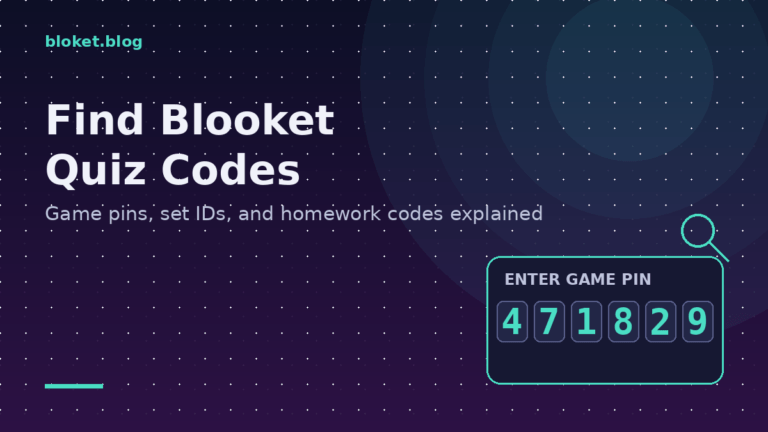
A Blooket game code is a unique six-digit number generated the moment a host starts a live game. It acts as the key to that specific session — without it, there is no way for players to join. Blooket does not have open public lobbies or a session browser, so the code is the only entry point.
Each code is tied to one game only. Once the host ends the session, the code expires and cannot be reused. The next time the same host runs a game, even with the same question set, Blooket generates a completely new code.
How hosts generate a code
A teacher or student host opens a question set on their Blooket account, clicks “Host Now,” selects a game mode, and configures any settings (time limits, player caps, team mode). The moment they click “Host” to go live, the six-digit game code appears on their host screen in large text. That screen also shows a QR code and a direct join link that contain the same code in different formats.
Where players find the code
The host shares the code — it does not appear on the player side automatically. In a physical classroom, the host typically displays the Blooket host screen on a projector. In a virtual class, they paste the code or the direct join link into the video chat or learning management system. Some teachers write the code on a whiteboard, paste it into Google Classroom, or post it in a Slack or Teams channel.
If your host shares a link instead of a number, that link already contains the code and will take you directly to the join screen with the field pre-filled.
How to join a Blooket game with code
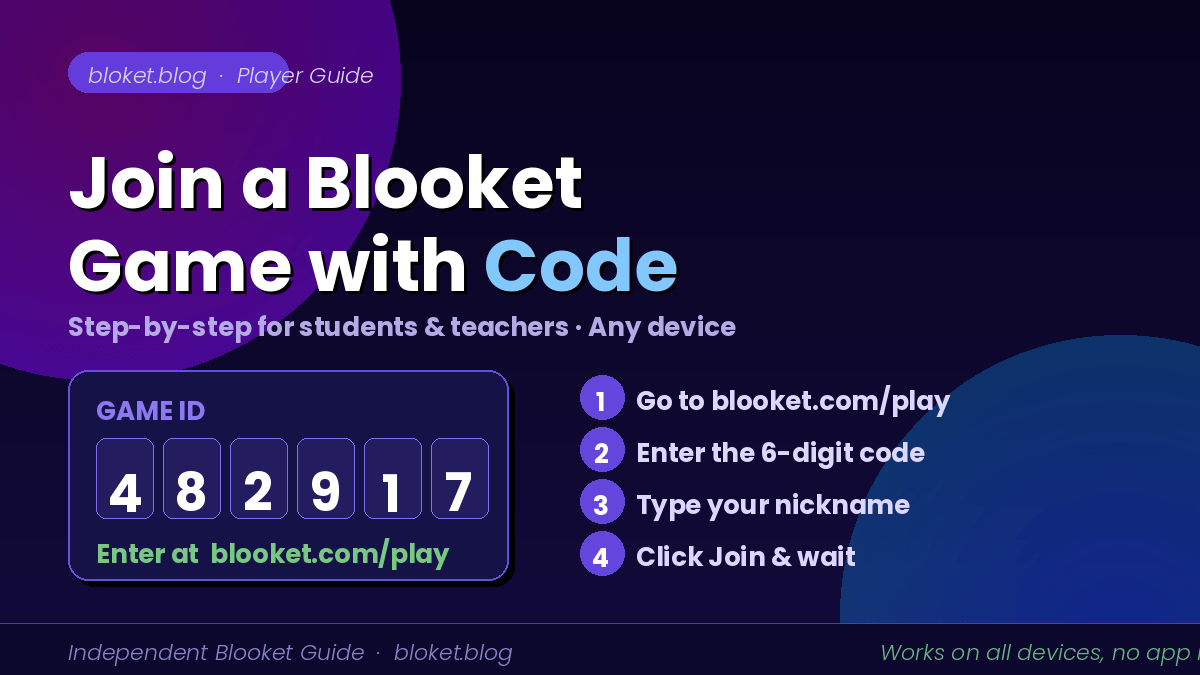
To join a Blooket game with a code, go to blooket.com/play, type the six-digit code into the Game ID field, enter your nickname, and click Join. No account is required for guest play, though logging in before joining lets you keep any coins or XP you earn during the session.
Joining on a computer
Follow these steps exactly to avoid the most common mistakes:
- Open your browser — Chrome, Firefox, Edge, or Safari all work — and type blooket.com/play directly into the address bar. Do not search for it; go there directly.
- On the page you land on, you will see two fields: one labeled “Game ID” and one labeled “Name.”
- Click the Game ID field and type the six-digit code your host shared. Enter the digits only — no spaces, dashes, or other characters.
- Click the Name field and type the nickname you want to appear in the game. Check with your teacher first if there is a naming rule in your class.
- Click the blue “Join” button.
- If the code is valid and the host has not locked the lobby, you will move to the waiting room. Stay on the page and wait — the host controls when the game starts.
Joining on a phone or tablet
Blooket runs entirely in the browser, so no app download is needed. Open any browser on your device and navigate to blooket.com/play. The page is fully responsive and adjusts to your screen size, so the Game ID and Name fields are easy to tap on a small display.
Enter the six-digit code, type your name, and tap Join. If your host shared a direct link rather than just the code, tapping that link opens the join page with the code already filled in — you only need to enter your name.
One note for mobile users: if your device auto-corrects or adds a space after numbers, clear the Game ID field and retype the code manually to make sure nothing extra was inserted.
Joining by scanning a QR code
When a host starts a game, Blooket displays a QR code alongside the six-digit number on their host screen. If the host projects this, students with phones can open the camera app, point it at the QR code, and tap the link that appears. This skips the need to type any code at all and takes you directly to the join page with everything pre-filled.
What happens after you enter the code
After clicking Join, you enter the pre-game lobby. A waiting screen shows your nickname alongside the names of other players who have already joined. Depending on the game mode, you may be prompted to select a blook (character) before the game starts — Gold Quest and some other modes include this step. Other modes like Tower Defense or Racing assign blooks or handle selection differently.
Keep the browser tab open and active. Switching to another app or closing the tab during the wait may cause the session to drop you, depending on your device and connection.
Troubleshooting when the code does not work
Most join errors fall into one of four categories: wrong code, session not started, expired session, or a network block. Here is how to handle each.
“Invalid game ID” error
This is the most common error message. It appears when Blooket cannot find an active session matching the code you typed. Work through these checks in order:
- Retype the code carefully. A 6 can look like an 8 on a projector, and a 0 can look like an O. Ask the host to read the digits out loud or zoom in on the display.
- Confirm the session is live. Codes only work while the game is actively running. If the host is still on the setup screen and has not clicked “Host” yet, the code is not active.
- Remove any invisible characters. If you copied and pasted the code from a chat message, an extra space may have come along with it. Clear the field completely and retype the number from scratch.
- Check you are on the right page. The join page is blooket.com/play — not blooket.com, not blooket.com/login, and not a search results page.
The session has already ended
If the host finished the game before you joined, the code is invalid. The host needs to start a new session to generate a fresh code. There is no way to extend or reopen a session once it has ended.
The lobby is full
Hosts can set a maximum player count before starting a game. If that cap has been reached, you will see a message saying no more players can join. The only solutions are to ask the host to increase the limit (which requires ending and restarting the session) or to wait and join the next game.
Blooket is not loading at all
If blooket.com/play does not load, the most likely cause on a school device is a network restriction. Many school Wi-Fi networks run content filters that block gaming-related domains. Ask your teacher or IT department to whitelist blooket.com. As a quick test, switching your phone to mobile data instead of the school Wi-Fi will confirm whether the issue is a network block or something else.
If the site loads for others but not for you, try a different browser or clear your current browser’s cache. Outdated cached data occasionally causes page load failures.
Kicked from the game mid-session
If you get removed after joining, either the host removed you manually, or your connection dropped long enough for the game to time you out. To rejoin, go back to blooket.com/play, enter the same code and the same nickname, and click Join. If the game is still active, you will re-enter the session. Any question you missed while disconnected will count as incorrect, but you will continue from the next question onward.
Joining with and without a Blooket account
Guest players and logged-in players experience the game identically during a session. The difference only appears after the game ends.
Playing as a guest
Any player can join any live game as a guest — no account, no email, no password. Just go to blooket.com/play, enter the code and a nickname, and you are in. Coins and XP earned during the session are shown at the end screen but are not saved anywhere because there is no profile to attach them to.
Guest play is the fastest way to get into a game. It is the default for most students who are joining for a one-off session.
Playing while logged in
If you have a free Blooket account, log in at blooket.com before navigating to blooket.com/play. When you join a game while logged in, Blooket recognizes your account and credits any coins earned to your profile automatically after the session ends. Coins let you unlock new blooks from the Blooket shop.
To log in before joining:
- Go to blooket.com and click “Log In” in the top-right corner.
- Sign in with your email and password, or through Google if that is how you set up your account.
- Once logged in, go to blooket.com/play and enter the game code as normal.
Blooket will link the session to your account. You do not need to do anything extra.
Can a teacher tell if students are logged in?
Not directly from the host view during a game. The host screen shows player nicknames only. After the session, logged-in players may appear differently in reports depending on whether they used their registered name. For classroom accountability, it is simpler to require students to use a consistent nickname (such as their first name) regardless of whether they are logged in or not.
For teachers: getting every student into the game fast
The fastest Blooket sessions start before a single student types anything incorrectly. A few setup habits cut join time dramatically.
Share the direct join link, not just the code
When your game goes live, the host screen shows both the six-digit code and a “Copy Link” button. That link takes students directly to the join page with the code pre-filled — they only need to type their name. Paste the link into your class chat, your LMS, or a pinned message before you tell students to join. This removes the step where students mistype the code.
Project the host screen clearly
If you are in a physical room, display the Blooket host screen on your projector rather than writing the code by hand. The host screen shows the code in a large, clean font, and it also shows the QR code that mobile users can scan. Keep it visible until you see all expected names in the lobby.
Set naming rules before students join
Once a player enters the lobby with a nickname, that name cannot be changed for the rest of the session. Decide in advance whether you want students to use their full name, first name only, or a class ID number. Announce the rule before students touch their devices so the lobby does not fill up with usernames like “xX_gamer_Xx” that make it impossible to track responses.
Check the lobby before launching
The host screen shows every name as players join in real time. Scan the list before clicking “Start.” If an unfamiliar name appears — someone who joined because a code was shared publicly or left visible — you can click their name and remove them from the lobby with one tap. Do this before the game begins; you cannot remove players mid-game in most modes.
Use Team Mode for large classes
For classes with more than twenty players, Team Mode reduces the noise and makes it easier to manage the join phase. Players still join with the same code and process, but they are assigned to teams, which simplifies scoring and reduces the chance that a single connection drop affects the whole experience.
FAQs
Do I need a Blooket account to join a game with a code? No. Any player can join a live Blooket game as a guest by going to blooket.com/play and entering the six-digit game code. No account, email address, or password is required. The only limitation is that coins and XP earned during a guest session are not saved to a profile.
Where exactly do I go to enter a Blooket game code? Go to blooket.com/play in any browser. This is the only page where players enter a game code to join a live session. Searching “Blooket join” in a search engine often returns pages that do not lead directly to the join screen, which causes confusion.
How many digits is a Blooket game code? Blooket game codes are six digits long. They are generated automatically when a host starts a live session and are valid only for the duration of that specific game. Once the game ends, the code expires and cannot be reused.
What does “invalid game ID” mean on Blooket? It means Blooket cannot find an active game matching the code you entered. The most common causes are a typo in the code, entering the code before the host has started the session, or trying to join after the game has already ended. Recheck the digits and confirm with your host that the session is live.
Can two players use the same nickname in one game? Blooket allows duplicate nicknames in the same session. This causes confusion for both the host and other players during scoring. To avoid mix-ups in a classroom, set a naming rule before everyone joins — first name and last initial is a common standard.
Can I rejoin a Blooket game if I close the tab by accident? Yes, as long as the game is still running. Go back to blooket.com/play, enter the same six-digit code and the same nickname you used before, and you will re-enter the session. Any question you missed while disconnected counts as incorrect, but you will continue from the next question.
Does the join code work on phones and tablets? Yes. blooket.com/play works in any modern mobile browser without needing a native app. The page adapts to smaller screens, so the Game ID and Name fields are easy to use on a touchscreen. If your device autocorrects or adds spaces after numbers, clear the field and retype the code manually.
How long is a Blooket game code valid? A code is valid only while the host’s live session is active. The moment the host ends the game, the code expires and cannot be used again. Every new session generates a fresh six-digit code, even if the same question set is used.
Conclusion
Joining a Blooket game with a code comes down to one URL and six digits. Go to blooket.com/play, enter the code your host shared, pick your nickname, and click Join. If an error appears, the fix is almost always a mistyped digit or a session that has not started yet.
For teachers, sharing the direct join link instead of the raw code removes the single biggest point of failure in the whole process. For students who play regularly, logging into your free Blooket account before joining means every coin you earn goes straight to your profile.
Open blooket.com/play the next time your teacher shares a code — and you will be in the lobby before most of your classmates have found the right page.
Your next big idea is just a click away. Start reading now.