Edit Blooket Quiz Sets: Complete Step-by-Step Guide
Blooket quiz sets are the backbone of every game. A set with sloppy questions, wrong answers, or missing content kills the learning value before a single student joins. Editing your quiz set properly — fixing errors, adding visuals, adjusting time limits — takes less than five minutes once you know where everything lives.
This guide covers every part of the Blooket set editor: how to access it, what you can change, the settings most teachers overlook, and the mistakes that cause real problems during live games.
What editing a Blooket quiz set actually changes
Editing a quiz set updates the questions, answers, images, and settings stored in that set permanently. Any game you host using that set after saving will reflect the new version automatically.
The editor versus duplicating
Two options appear when you open a set you own: Edit and Duplicate. Edit changes the original. Duplicate creates a separate copy you can modify without touching the source. Use Edit when you want all future games to use the updated version. Use Duplicate when you want to test changes or create a variation while keeping the original intact.
What you can and cannot change
Inside the editor, you can:
- Change any question text
- Add, edit, or delete answer choices
- Mark a different answer as correct
- Add or replace images on questions or individual answer options
- Adjust the time limit per question
- Reorder questions by dragging them
- Change the set title, description, and cover image
What you cannot do:
- Edit a set created by another user (you must duplicate it first, then edit your copy)
- Change visibility settings for games already played
- Undo deleted questions after saving (there is no trash or version history)
How to edit a Blooket quiz set step by step
Opening the editor takes two clicks. Everything else happens inside a single screen.
Opening your set for editing
- Log in to your Blooket account at blooket.com.
- Click your avatar or profile icon in the top right, then select My Sets.
- Find the quiz set you want to edit. Use the search bar if your library has grown.
- Click the three-dot menu icon on the set card and select Edit. You can also click the set title to open its detail page, then click the Edit button there.
The editor loads with all your existing questions displayed as cards on one screen.
Editing an existing question
Click anywhere on a question card to open it. The question editor panel appears on the right side of the screen on desktop, or as a modal on mobile.
- Click the question text field and type your changes directly.
- Click any answer field to update the wording.
- Click the circle or checkbox next to an answer to mark it as correct. Only one answer can be correct in standard question mode.
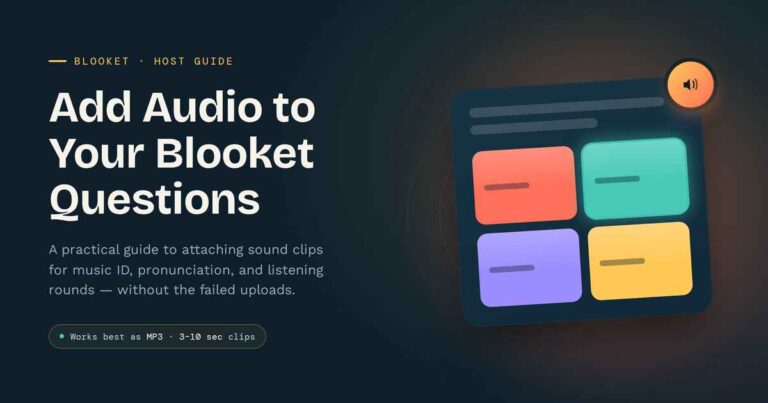
- To add an image or audio clip to the question, click the media icon above the question text field and upload a file or paste a URL.
- Adjust the time limit using the timer dropdown — options typically range from 5 seconds to 3 minutes per question.
- Click Save Question (or the checkmark) to confirm your changes.
Adding a new question
Click the + Add Question button, usually at the top or bottom of the question list. A blank question card opens. Fill in the question text, add at least two answer choices, mark one correct, and save.
There is no published limit on how many questions a single set can hold, though sets above 60–70 questions become slow to scroll through in the editor. Keeping sets between 10 and 40 questions gives the best gameplay pacing across most Blooket modes.
Deleting a question
Open the question card, then click the trash icon in the corner of the question editor panel. Confirm the deletion. The question is removed immediately. There is no undo button once you save the set, so double-check before confirming a delete.
Reordering questions
Drag and drop question cards to rearrange them. On desktop, click and hold the drag handle (the six-dot grid icon on the left side of each card) and drag to a new position. On mobile, tap and hold the card to activate drag mode. Most Blooket game modes randomize question delivery regardless of the order you set, but a logical sequence helps when you review the set yourself before class.
Saving the entire set
Click the Save button at the top of the editor page. A confirmation message appears when the save completes. If you close the tab without saving, all changes are lost — the editor does not auto-save during a session.
Editing set-level details
Beyond individual questions, the set itself has settings that affect how it appears in your library and in the game lobby.
Title and description
Click the set title at the top of the editor to rename it. The description field below accepts a longer note — useful for tagging grade level, subject, or unit so you can find the set quickly later, and especially important when you plan to make the quiz public. A naming convention like “Grade 8 / History / World War II” beats generic names like “Quiz 3” when your library reaches 30 or 40 sets.
Cover image
The cover image appears on the set card in your library and in the game lobby when students join. Click the image thumbnail at the top of the editor to upload a custom image or choose from Blooket’s built-in options. A clear, relevant cover image helps students identify the right game faster, especially when you run multiple sets in one session.
Editing a set you did not create
If you find a public set from another user that fits your class but needs changes, you cannot edit it directly. Open the set, click Duplicate, and a copy saves to your account. Go to My Sets, find your copy, and edit it freely. Your edits stay on your copy only — the original is untouched.
Advanced tips for better Blooket quiz sets
Most teachers stop at fixing typos. These techniques take a set from functional to genuinely effective.
Using images to boost comprehension
Images can appear on the question itself, on individual answer choices, or on both. Adding a labeled diagram, a historical photograph, or a math graph directly in the answer options reduces reading load and tests visual recognition alongside factual recall.
When uploading images, use files under 2 MB for the fastest load times in live games. Blooket accepts common formats including JPG, PNG, and GIF. Avoid images with heavy text overlays — small game screens make fine print unreadable for students on phones.
Setting per-question time limits
The default time limit applies to all questions unless you override it per question. Harder questions — multi-step math, long reading passages — deserve 60–90 seconds. Quick recall questions (capitals, vocabulary definitions) work better at 15–20 seconds to keep the game moving.
Varying time limits also makes scoring fairer. A student who works through a complex problem in 40 seconds is demonstrating something different from one who guesses a simple fact in 3 seconds.
Mixing question challenge levels
Blooket sets use standard multiple-choice format. Within that constraint, you can vary the cognitive demand significantly across a single set:
| Question type | Best use | Suggested time |
|---|---|---|
| Factual recall | Vocabulary, dates, definitions | 10–20 seconds |
| Application | Math problems, grammar correction | 45–90 seconds |
| Image-based | Science diagrams, map reading | 30–60 seconds |
| Distractor/trick | Test prep, misconception checks | 20–30 seconds |
Mixing these types in one set keeps students alert and tests different skill levels without changing modes.
Keeping sets focused and lean
A focused set of 15–20 questions on one topic outperforms a 50-question mixed set in most classroom contexts. Students retain more when questions build on each other. Use separate sets for separate units and combine them into a Blooket playlist if you need a longer review session.
Common mistakes when editing Blooket quiz sets
Small editing errors cause problems during live games, usually at the worst possible moment.
Marking the wrong answer as correct
This is the single most damaging mistake. If the correct answer is labeled wrong, every student who answers correctly loses points during the game. Before using any edited set, run through it in preview mode or host a quick solo test game. Catching one flipped answer before class is worth five minutes of checking.
Editing a set while a game is running
If you save changes to a set while a live game is already running with that set, the behavior can be unpredictable. Some modes load questions at the start and are unaffected; others may pull questions live. Either way, avoid editing an active set. Finalize all changes before launching the game.
Skipping the review after duplicating someone else’s set
Teachers sometimes duplicate a public set, trust that it is accurate, and use it in class without checking. Public sets on Blooket range from well-crafted to full of errors. After duplicating any external set, read every question and answer before hosting. Your students should not encounter someone else’s mistakes.
Letting sets grow too long
Adding every possible question to one set feels thorough but creates gameplay problems. In fast-paced modes like Gold Quest or Tower of Doom, students rarely encounter the same question twice across sessions when a set is very long. This makes it difficult to confirm that the class actually practiced the core content. Lean, focused sets used repeatedly build stronger fluency than bloated sets used once.
Leaving the description field blank
The description field gets ignored by most users and quietly becomes very useful once your library grows. A short note — “15 questions, Grade 6, Unit 3: Fractions” — makes set management straightforward and helps colleagues who use your shared sets understand what they are getting.
FAQs
Can I edit a Blooket set that someone else made? No. You can only edit sets saved to your own account. To modify another user’s set, open it and click Duplicate. A copy saves to your account, and you can edit that copy freely without affecting the original.
Do edits affect games that already happened? No. Past game reports and student results are locked at the time each game was played. Editing a set only changes how future games run — historical data stays as recorded.
Is there a question limit on Blooket sets? Blooket does not publish a hard limit. Sets work smoothly up to around 60–70 questions in practice. Beyond that, the editor can slow down and certain game modes may feel repetitive if one player encounters the same question multiple times in a session.
Can I add images to answer choices, not just questions? Yes. Each answer choice in the editor has its own image upload option alongside the text field. You can add images to answers, the question itself, or both within the same question card.
What happens if I accidentally delete a question? If you have not saved the set yet, closing the tab without saving preserves the original version. Once you click Save, the deletion is permanent — there is no version history or recycle bin in the Blooket set editor.
Can students edit a quiz set during a game? No. Students join and interact with games, but they have no access to the set editor. Only the account holder who created the set can open it for editing.
How do I change the order of questions in my set? Use the drag-and-drop handle on each question card in the editor. Click and hold the grid icon on the left side of any card, then drag it to the new position. Note that most game modes randomize question delivery regardless of editor order.
Can I edit Blooket sets on a phone or tablet? Basic editing works through a mobile browser. The experience is noticeably smoother on a desktop or laptop where the full editor loads cleanly. For major edits — adding images, reordering many questions, adjusting time limits across a long set — desktop is the better choice.
Conclusion
Editing a Blooket quiz set is straightforward once you know where each control lives. The real skill lies in knowing what to fix: incorrect answers, mismatched time limits, questions that are too vague or too easy for your actual students.
Open your most-used set today, read through each question with fresh eyes, and make one targeted improvement per review session. That habit — small, consistent edits — builds sets that actually sharpen student recall rather than just filling time with a game.
For more on building strong Blooket content, explore the set-creation and classroom-strategy guides on this site.
From beginner to pro—unlock the skills that matter most.