Connect Blooket to Google Classroom: A Teacher’s Guide
Getting a game link from Blooket to your students used to mean reading a six-digit code aloud while half the class mistyped it into the wrong site. Posting it in Google Classroom takes about 30 seconds and eliminates that problem entirely.
To connect Blooket to Google Classroom, host or assign a game in Blooket, copy the join link, and paste it into a Classroom post. Students click it and join the game directly. No special integration, IT request, or admin approval is required.
This guide covers every method: live class sessions, solo homework assignments, the best post type for each use case, and what to check before class starts.
What “connecting” Blooket to Google Classroom actually means
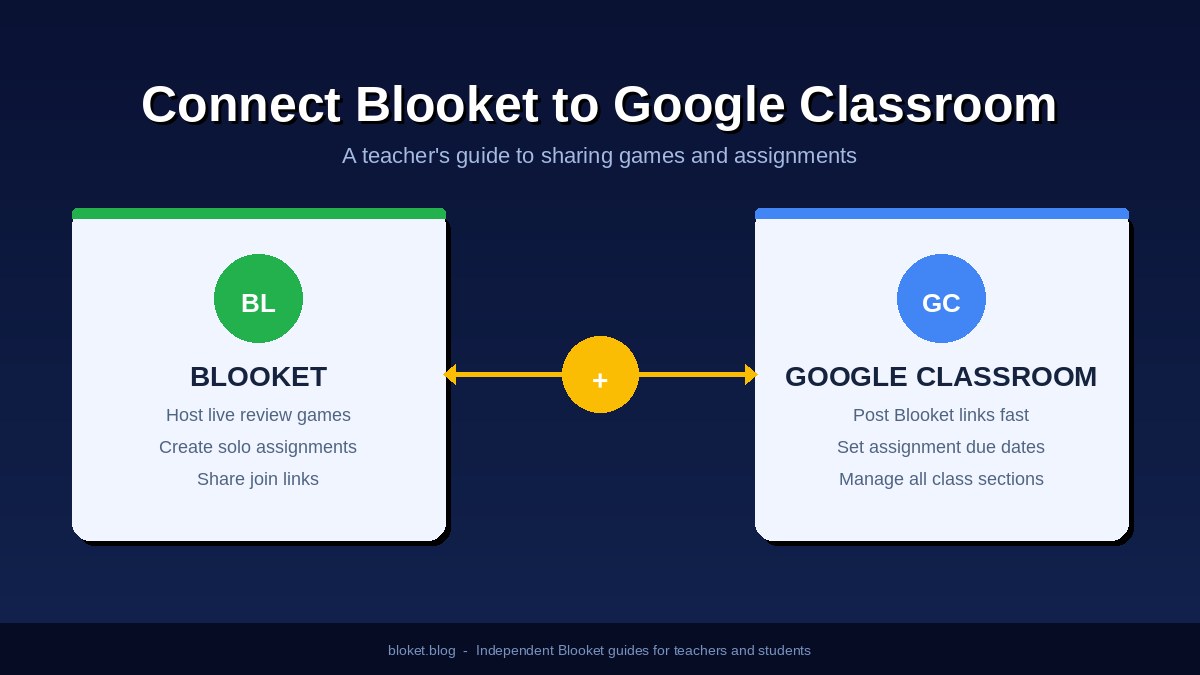
Blooket and Google Classroom do not have a built-in sync. There is no LTI integration that automatically pushes scores to the Classroom gradebook or pulls your class roster into Blooket. What teachers do instead is copy a link from Blooket and paste it into a Classroom post. Students click the link and land directly in the game.
This link-based method has a genuine advantage over deeper integrations: it requires no admin configuration, works across school districts, and can be set up in under a minute. The trade-off is that grade transfer is manual — you view scores in Blooket’s dashboard and enter them into Classroom yourself if needed.
Why Blooket uses links instead of a native integration
Blooket is built for speed and accessibility. Students can join a live game with just a link or a six-digit code, without district credentials or IT-managed accounts. A native LTI connection would require school-level admin approval and configuration, slowing down deployment considerably. The link method keeps Blooket accessible to any teacher regardless of whether their district has set up institutional integrations.
What the link-based approach gives teachers
With Blooket links posted in Google Classroom, teachers can deliver live review games during class, assign solo homework with deadlines students see in Classroom, share links across multiple class sections, and schedule posts so the link appears without any action at the start of a lesson. None of these steps require anything from your school’s IT department.
How to share a Blooket live game in Google Classroom
To share a live Blooket game in Google Classroom, host the game in Blooket first, copy the join link from the lobby screen, then post it in Classroom as an Announcement or Material. Students click the link and enter the lobby without needing to type a game code.
Step 1: Set up your question set
Log in to Blooket and go to My Sets. Create a new set or open one you have already built. Check every question and answer in the editor before hosting — editing a set while a game is running is not possible.
Step 2: Host the game and configure the settings
On the set page, click Host. A menu of game modes appears: Gold Quest, Battle Royale, Cafe, Tower Defense, and others. Select the mode that fits your lesson goal, adjust the time or round settings on the next screen, and click Host Now. The lobby screen opens with a six-digit code and a shareable URL.
Step 3: Copy the join link from the lobby
The lobby screen shows a Copy Link button directly alongside the game code. Click it. This link sends students straight into the lobby without any code entry. That is the URL to post in Classroom.
The lobby link is more reliable than sharing the code — students click the URL and land in the lobby without manual entry or the typos that come with six-digit codes.
Step 4: Post the link in Google Classroom
Open your class in Google Classroom and click +. Choose Announcement for a live in-class session — it posts immediately to the Stream and appears on student devices right away. Paste the Blooket link, add a single clear line of context (“Click to join today’s review game”), and post.
Step 5: Launch when your class is ready
Return to the Blooket lobby and watch student names appear as they join. When enough of the class is in, click Start. The game launches for all connected players at once. Students who join a moment after start can still enter mid-game in most modes.
How to assign a Blooket solo game for homework
Solo assignments in Blooket let students complete a game on their own schedule before a set deadline. Teachers configure the assignment in Blooket, generate a unique link, and post it in Google Classroom as an Assignment. Results appear in Blooket’s dashboard after the deadline.
Creating the solo assignment in Blooket
From any question set, click Assign (displayed alongside the Host button on the set page). The settings panel includes:
- End date and time: Students cannot access the game after this point
- Time per question: How many seconds each question is displayed
- Shuffle questions: Randomizes order to reduce copying between students
Click Create Assignment after configuring. Blooket generates a unique link tied to those settings.
Choosing the right solo game mode
Not all Blooket game modes are available in solo/homework mode — the selection is narrower than what appears in a hosted live session. Before sending the assignment link to students, open it yourself in an incognito window and confirm the mode loads as expected. Students who get an error on the first click will often not attempt it again, so testing before posting is worth the 30 seconds.
The shuffle setting deserves special attention in class groups where students sit near each other or share devices at home. Enabling shuffle changes question order between players, which removes the main advantage of sharing answers. For any assignment that counts toward a grade, turn shuffle on.
Posting the solo assignment in Google Classroom
In Google Classroom, create a new Assignment — not an Announcement. Assignment mode adds a due date, lets students mark the task as turned in, and creates a row in the gradebook. Paste the Blooket link into the instructions field, set the due date to match the Blooket deadline exactly, and assign to your class.
Matching the deadlines matters. If Classroom shows the assignment due Friday at 11:59 PM but the Blooket link expired Thursday at noon, any student who waits until Friday finds the game already closed.
Checking student results
In Blooket, go to My Assignments in your dashboard. Click the assignment to open a results table you can also download showing student names, scores, questions answered, and time spent. Students who played while logged in to Blooket appear by name. Students who joined as guests show random system-generated names, making individual tracking unreliable.
For accurate tracking, ask students to create a free Blooket account and log in before clicking any assignment link. The account setup takes under two minutes.
Choosing the right Google Classroom post type
The right post type changes how students interact with a Blooket link and what you can track afterward.
| Post type | Best Blooket use | Students can mark done? | Shows in gradebook? |
|---|---|---|---|
| Announcement | Live in-class sessions | No | No |
| Material | Practice resources, recurring links | No | No |
| Assignment | Homework, graded activities | Yes | Yes (manual entry) |
| Question | Not used for Blooket links | — | — |
Announcement is the fastest option for live games — one click, posted, done. Use Assignment for anything you want to track or grade. Material works well for recurring practice links, such as a review set available throughout the week before a test.
Practical tips for teachers using Blooket with Google Classroom
Post the link before students arrive
Posting the Classroom Announcement before students walk in means the link is visible the moment they open their devices. When class starts, students click and are in the Blooket lobby within seconds. This cuts the “where’s the link?” question from the opening minutes entirely.
Use Classroom’s scheduled post feature
Google Classroom lets you draft a post and schedule it to publish at a specific time — pair this with scheduling the Blooket game itself. Write the Blooket link post the evening before and schedule it for a few minutes before class. The link appears automatically. You still need to launch the game manually in Blooket, but distribution is handled without any action at the start of the lesson.
Ask students to log in before clicking links
Guest players show up with randomly generated names in your results dashboard — names like “SpeedyOtter47” rather than a student’s actual name. Before any tracked assignment, ask students to log in to their Blooket account first. A 30-second check where each student shows the account icon in the corner of their screen saves hours of confusion later.
Create a fresh lobby link for each class period
Blooket lobby links are tied to a single hosted game session. Once a session ends, that link no longer works. For teachers running back-to-back classes, host a new game at the start of each period and post a fresh link in each class’s Classroom stream. Do not reuse a link from an earlier period.
Add recurring practice sets as Materials
For question sets students should return to throughout a unit, add a solo practice link as a Material in the Classwork tab. Students can launch it on their own, build familiarity before a test, and access it without any teacher action required.
Prepare a substitute-ready Classroom post
If your class uses Blooket regularly, drafting a saved post template makes it easy to hand off to a substitute teacher. Include the game link, a one-paragraph explanation of what Blooket is, and a note that students should log in with their accounts. A substitute who has never used Blooket can run a session confidently with a clear post already in the Classroom stream.
Common mistakes teachers make when connecting Blooket to Google Classroom
Posting the question set URL instead of the game link
Every Blooket set has its own URL — the page where you edit or view questions. That page is for the teacher, not students. Students need either the lobby link from a hosted live game or the assignment link from a created solo game. Check the URL before posting: it should point to a joinable game, not a set editor page.
Skipping the incognito window test
Before class, open the link yourself in a private browser window. You see exactly what students see. A broken link, expired session, or wrong destination is easy to fix before class starts and nearly impossible to fix gracefully during it. This check takes 20 seconds.
Pay particular attention if you are reusing a set you previously hosted. Lobby links from prior sessions expire permanently — the URL in your clipboard from last Tuesday’s class will not work today. Always generate and copy a fresh link each time you host.
Letting the Blooket deadline and Classroom due date fall out of sync
When a Classroom assignment shows as open but the Blooket link has expired, students report it as a broken assignment. Set both deadlines identically. When extending a due date, update it in both places — the Blooket dashboard under My Assignments and the Classroom assignment settings.
Expecting automatic grade sync
Blooket does not send scores to the Google Classroom gradebook. After solo assignments close, log in to Blooket, open My Assignments, and review the results table. If those scores need to appear in Classroom, enter them manually — or export your full Blooket data for record-keeping. Many teachers screenshot the results table as a quick record before doing so.
If you need to grade a larger class, Blooket’s dashboard sorts and filters results by player. Focus on completion rate first — students who opened and played the assignment — then look at scores for the grading portion. Reviewing results takes two to three minutes per class and is easiest to do while the assignment is fresh, rather than days later.
FAQs
Does Blooket have a direct integration with Google Classroom? Blooket does not have a native LTI connection or automatic sync with Google Classroom. Teachers copy game or assignment links from Blooket and paste them into Classroom posts manually. Students click the link to join. Scores are tracked inside Blooket’s dashboard and must be entered into Classroom by the teacher if grading is needed.
Can students join a Blooket game through Google Classroom without an account? Students can join a live hosted game as guests by clicking the link — no Blooket account required. For solo homework assignments, a Blooket account is strongly recommended because it saves progress and displays the student’s actual name in your results. Guest players appear with random generated names, making individual tracking unreliable.
Can I share the same Blooket link to multiple Google Classroom sections? For solo assignments, yes — the link works for any student who clicks it before the deadline, across multiple Classroom sections. For live hosted games, each class session needs a separate lobby link, since the session closes when the host ends the game.
Why is the Blooket link not working for my students in Classroom? Check four things: the post reached the correct class, the URL is the game or assignment link and not the set editor page, the assignment deadline has not expired in Blooket, and the post is published rather than saved as a draft. Opening the link in an incognito window yourself will confirm whether it loads correctly for students.
How do I see which students completed the Blooket assignment? In Blooket, go to your dashboard and open My Assignments, then click the specific assignment to see a player table with names, scores, and question counts. Students must have been logged in to Blooket to appear by name. In Google Classroom, you can see who marked the assignment as turned in — but this does not confirm whether the student actually played.
What is the difference between posting a Blooket link as an Announcement vs. an Assignment in Classroom? An Announcement appears in the Stream with no due date and no way for students to mark it complete. An Assignment appears in the Classwork tab, includes a due date, creates a gradebook entry, and lets students mark it as turned in. Use Announcement for live class sessions. Use Assignment for homework or any activity where completion matters.
Does Blooket work on Chromebooks when accessed through Google Classroom? Yes. Blooket runs in any modern browser with no downloads required. Students on Chromebooks can click the Blooket link in Google Classroom and play directly in the Chrome browser without any additional setup or extensions.
Conclusion
Connecting Blooket to Google Classroom is a 30-second habit once you have run it once. Host or assign a game in Blooket, copy the link, and drop it into the right type of Classroom post. The only real decision is Announcement versus Assignment — and now you know exactly when each applies.
Start this week: pick a set you already have, host a live game, paste the link into your next class’s Classroom stream, and run it. That one session makes the workflow feel automatic. Solo assignments and scheduled posts are natural additions from there.
Why struggle alone when expertise is just a click away? Connect with our insights right now.