How to Use Blooket in the Classroom: A Teacher’s Guide
Every teacher recognizes the moment — you ask a question, and the room goes quiet, eyes down, hoping not to be called on. Blooket flips that dynamic. Students compete to answer questions correctly, earn in-game currency, and lose themselves in gameplay while the lesson content does its job beneath the surface.
This guide covers everything you need to get started: account setup, finding or building question sets, choosing the right game mode for your goal, and reading the results Blooket gives you after every session. Whether you’re running a quick review before a test or building Blooket into your weekly routine, this is a practical walkthrough built from real classroom use.
What Blooket is and why it works in classrooms
Blooket is a browser-based quiz game platform where students answer multiple-choice or true/false questions to earn in-game rewards. Teachers host games from a question set, and students join via a unique game code on any device. The questions carry the content; the game mechanics carry the motivation.
What sets it apart from other quiz platforms
Most quiz tools reward raw speed — first to answer wins. Blooket adds a layer of strategy on top of that. In several game modes, answering correctly earns gold or tokens, which students then spend, invest, or gamble inside the game. A student who answers steadily but not quickly can still beat a fast guesser, which keeps more of the room genuinely engaged for longer.
The collectible characters — called Blooks — give students a reason to return. Players unlock Blooks through mystery boxes bought with earned tokens. That ongoing reward loop works in your favor: students want to play again because there is always something new to discover.
Why retrieval practice through games actually works
When students are competing and enjoying themselves, the mental resistance to “this is studying” drops significantly. Retrieval practice — actively pulling information from memory rather than re-reading it — is one of the most well-supported techniques in learning science. Blooket forces retrieval on every single question. The game format also increases the number of attempts students make, simply because they are willing to keep playing.
How to set up Blooket for your classroom
Setup takes under ten minutes the first time. You need a teacher account, a question set, and a way to display the host screen. Students do not need accounts to join — they enter a code and play.
Creating your teacher account
Go to blooket.com and sign up. Select “I’m a teacher” during registration. A teacher account gives you access to host games, view student results after each session, and create or duplicate question sets. Students can play as guests without any account, though a student account lets them keep their Blooks and token history between sessions.
Finding a ready-made question set
Blooket has a large public library called Discover. Search by subject, grade level, or topic keyword. Before using any public set in class, preview it — work through the questions yourself to check for accuracy and appropriate language. Community-made sets vary widely in quality. Filtering by top-rated sets and checking the number of times a set has been played helps identify the reliable ones quickly.
Building your own question set
Click “Create Set” from your dashboard. Add a title, then build questions one by one — our step-by-step guide to creating a Blooket quiz walks through every question type and setting in detail. Each question supports an image upload, which is useful for science diagrams, map identification, or math problems. You can also import questions from a spreadsheet or copy an existing public set and edit it to match your curriculum exactly. For most subjects, a set of 20 to 30 questions gives enough variety to keep a game moving without excessive repetition.
How to run your first live Blooket game
Running a live game takes three steps: pick a mode, share the code, and let students join. The entire flow happens in a browser — no app downloads and no device-specific troubleshooting.
Choosing a game mode before you start
From your question set page, click “Host.” A menu of game modes appears. Choose one based on your session goal. For a fast end-of-lesson review, Gold Quest or Racing works well. For a longer session where you want students to stay focused for 25 minutes or more, Tower Defense or Factory keeps their attention. The next section covers mode selection in detail.
Starting the game and getting students in
Once you select a mode, Blooket generates a six-digit game code. Display this code on your board or projector screen. Students go to blooket.com/play on any device — phone, Chromebook, tablet, or laptop — and enter the code. They pick a Blook and wait in the lobby. When everyone is in, you click “Start.” The host screen shows real-time progress, and students play on their own devices independently.
Assigning Blooket as homework
For asynchronous use, select “Assign HW” instead of “Host.” Set a deadline, and Blooket generates a shareable link — see our full guide on how to assign Blooket homework for the settings that matter most. Students complete the game at their own pace, and their results are recorded in your dashboard. This works well for pre-class preparation — students review content before a lesson so that class time can go deeper and discussion starts from a stronger baseline. If you want the mechanics behind self-paced play, our Blooket Homework Mode guide breaks down how the solo modes and completion goals work.
Matching game modes to your learning goals
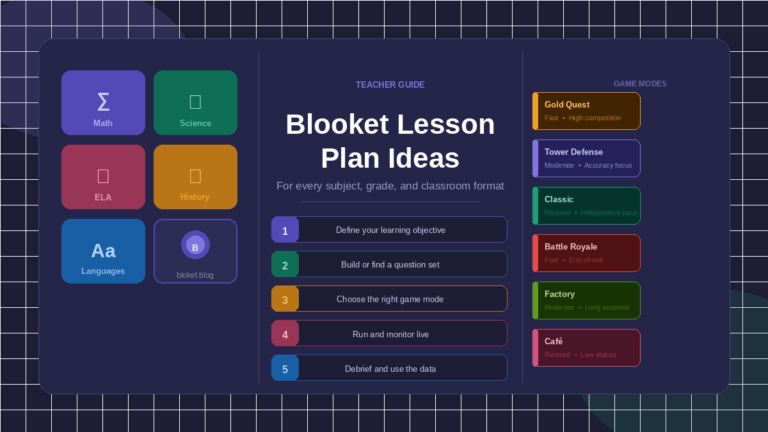
Blooket offers a range of game modes, and each creates a distinctly different classroom experience. Choosing the wrong mode for your available time or learning goal wastes the session. Here is a breakdown of the core modes and when to use them.
| Game mode | Best for | Typical session length | Core mechanic |
|---|---|---|---|
| Gold Quest | Fast review, end of class | 10–15 minutes | Steal or protect gold from other players |
| Racing | Individual speed practice | 10–15 minutes | Answer correctly to advance your character |
| Tower Defense | Longer sessions, sustained focus | 25–40 minutes | Earn tokens to build and upgrade defenses |
| Factory | Open-ended individual play | 20–30 minutes | Produce Blooks by answering questions |
| Café | Relaxed, steady-paced review | 20–30 minutes | Serve customer orders by answering correctly |
| Crypto Hack | Competitive whole-class review | 15–25 minutes | Steal and protect tokens from other players |
| Fishing Frenzy | Casual warm-up or low-stakes review | 10–15 minutes | Catch fish by answering questions |
| Tower of Doom | Turn-based battle review | 15–25 minutes | Battle opponents using correct answers |
Modes for quick, high-energy review
Gold Quest and Racing are ideal for the last 10 to 15 minutes of a lesson or a fast warm-up. Both are easy to explain to students who have never played before — Gold Quest takes about 60 seconds to understand. Racing is particularly useful when you want clean individual performance data, because there is no stealing mechanic and scores reflect pure accuracy and consistency.
Modes for longer, sustained sessions
Tower Defense gives students a goal that stretches beyond answering individual questions — they are building something, and each correct answer contributes to a larger outcome. This mode works well for a full class-period review before an exam. Factory and Café are similarly open-ended and suit classrooms where students naturally finish at different paces, since the game continues rewarding effort as long as students keep answering.
Modes with a competitive edge
Crypto Hack and Gold Quest allow players to take gold or tokens from each other. This mechanic creates real energy in the room but can also frustrate students who feel singled out. Use these modes with classes where the competitive dynamic is already healthy and fun. With groups that respond badly to losing progress, Racing or Factory — where outcomes are entirely self-determined — is a much better fit.
Classroom management strategies that make Blooket sessions run smoothly
A Blooket session can fall apart quickly without a few ground rules set before the game starts — our Blooket classroom rules guide lays out a simple set of expectations that keep every session on track. A couple of minutes of setup at the start protects the whole session.
Setting time limits before you hit Start
The host screen lets you set a timer before the game begins. For a 50-minute class with 10 minutes of debrief planned, set the game to run 30 to 35 minutes. Students almost always want more time than you can give. Tell them the end time before you start — it removes the negotiation mid-game and gives students a clear expectation.
Managing the competitive atmosphere
Some modes let students steal from or sabotage each other. Before playing Gold Quest or Crypto Hack, establish one clear expectation: the stealing mechanic is part of the game design, not a personal attack. Framing it as “that’s just how this mode works” removes most of the friction. Celebrating the student who came from behind — not just the final leader — keeps the whole class invested rather than just the top few players.
Keeping quieter students involved
Students who are unsure of answers often guess randomly just to stay in the game. That behavior is not wasted — random answers still provide spaced exposure to content they haven’t fully learned yet. Monitor the host leaderboard for students who are not making any progress at all. A quiet check-in during the game catches students who have disconnected or are stuck on a topic, which is useful formative information on its own.
Using Blooket on shared classroom devices
If your classroom has a shared set of tablets or Chromebooks rather than personal devices, students can play as guests without logging in. The only downside is that they will not keep their Blooks or token history between games. For classroom review, that almost never matters — the learning outcome is identical.
Reading Blooket results to improve your teaching
After every hosted game, Blooket saves the results to your teacher dashboard. This data is more actionable than it first appears.
What the results screen shows you
The post-game summary shows each student’s score, the number of questions answered correctly, and — in several modes — the time taken. More usefully, the question-level breakdown reveals which questions the class missed most often. That information tells you exactly where your next lesson should begin.
Using question data for targeted reteaching
If 65 to 70 percent of the class missed the same question, there are three likely explanations: the concept was not taught clearly enough, the question was worded poorly in the set, or students guessed through that topic during the original lesson. Pull that question up on the board immediately after the game and work through the correct answer together. Two or three minutes of focused reteaching right after a game — while the question is still fresh in students’ minds — is more effective than revisiting it a week later on a worksheet.
Tracking growth across multiple sessions
If you use Blooket regularly on the same content, you can compare results across sessions to see whether class-wide accuracy on specific questions improves. Assigning the same question set as homework two weeks after a unit ends and comparing those scores to the original in-class game is a low-stakes way to measure long-term retention without scheduling a formal test.
Common mistakes teachers make with Blooket
Getting started with Blooket is straightforward, but using it well takes a little trial and error. These are the patterns most worth avoiding.
Treating it as a reward rather than a learning tool
Some teachers introduce Blooket as a Friday reward — something students play when the real work is done. That framing works against you. Students associate the platform with downtime, and when you try to use it for serious pre-exam review, the energy in the room is wrong. Introduce Blooket as a review tool from your very first session, even if that first game is low-stakes and short.
Using a public question set without checking it first
Community-made question sets vary significantly in accuracy and quality. Some contain spelling errors, incorrect answers, or questions that don’t match your curriculum’s terminology. Five minutes previewing a set before running it live protects your credibility in the room. One wrong answer displayed on a student’s screen during a game undermines their trust in the content.
Running games that go on too long
Twenty minutes is the sweet spot for most modes and most classes. Past 30 minutes, even genuinely engaged students start coasting. Shorter, more frequent sessions produce better retention than one long one. A 15-minute game three times a week is more effective for memory consolidation than a 45-minute game once every two weeks.
Skipping the debrief at the end
The game is a delivery mechanism for the content — the debrief is where the learning consolidates. After every session, spend at least three to five minutes reviewing the questions students missed most frequently. Ask students to explain the correct answer aloud rather than just showing them the answer. That brief discussion transforms a quiz game into a real learning activity.
FAQs
Do students need a Blooket account to play? Students don’t need an account to join a live game. They go to blooket.com/play, enter the game code, choose a guest name, and they’re in. A student account is only needed if they want to keep their Blooks and token history between separate sessions.
How many students can join a single Blooket game? Blooket supports up to 300 players in one live game on a free teacher account. For standard classroom sizes, the free tier is more than enough. Larger school-wide review events can use the same game code structure without capacity problems.
Can I run Blooket without a projector or smartboard? Yes. Students play entirely on their own devices and don’t need to see a shared screen. The host screen is for the teacher to monitor progress and display the join code. You can share the code verbally, write it on the board, or post it through a tool like Google Classroom.
Is Blooket free for teachers? Blooket offers a free plan that includes most game modes, access to the Discover library, and post-game results. Blooket Plus is a paid subscription that adds features like additional game modes, more detailed reporting, and set-duplication tools. The free plan is fully functional for everyday classroom use.
How do I encourage students to answer thoughtfully rather than guess randomly? Choose modes where individual performance is clearly visible, like Racing, or run a debrief using the question-level breakdown after the game. For higher-stakes review, assigning Blooket as homework works well — students play without peer pressure and at their own pace, which tends to produce more deliberate answers.
Does Blooket work for subjects other than English and math? Blooket works for any subject where content can be framed as multiple-choice or true/false questions — science, history, geography, foreign languages, health education, music theory, and more. The game mechanics are entirely subject-neutral. The quality of the experience depends on the question set, not the subject.
What devices does Blooket run on? Blooket runs in any modern web browser. It works on Chromebooks, iPads, Android tablets, iPhones, Windows laptops, and Mac computers. Neither the teacher nor students need to download anything to play.
Conclusion
Blooket works in classrooms because it turns review into something students actively want to do. The setup is quick, the game modes are flexible enough for different goals and time slots, and the data it produces afterward gives you a clear picture of where the class stands.
Start with one session — one question set, one game mode, five minutes of debrief at the end. Once you see how your students respond, you can build from there: rotating modes to match different lesson types, assigning games as homework, comparing scores across sessions to track retention.
Pick a topic your class is working through right now, find or build a question set, and run your first game. That first session is the only thing standing between you and a classroom full of students who are competing to get the right answer.
Fuel your growth with key lessons—extracted from top books and real success stories.