Share Blooket Sets with Other Teachers: Complete Guide
Most teachers who build Blooket sets hit the same wall: a colleague needs the set by tomorrow, and there’s no obvious “send to teacher” button anywhere on the dashboard. Blooket has more than one way to share a set — but the options are spread across different parts of the platform, and each works differently. This guide covers every method to share Blooket sets with other teachers, including how to find sets others have already published, how to build a team resource library, and what to check before you send the link.
What sharing a Blooket set actually means
When you share a Blooket set, you’re giving another teacher a way to copy your questions into their own account. The recipient doesn’t edit your original — they get an independent duplicate. Your set stays exactly as you built it, and your colleague gets a fully editable version they can customize for their class.
This is a copy-first model, which works differently from tools like Google Drive. There’s no shared editing, no live sync between versions, and no way for a colleague to accidentally overwrite your original. Once someone copies your set, the two versions are completely separate.
The difference between sharing and publishing
Blooket has two distinct paths, and mixing them up leads to privacy mistakes. Sharing via a direct link is private — only the person you send the link to can access it. Publishing to Discovery is public — it makes your set searchable by every Blooket user in the world.
Both are useful. A set built around your school’s specific curriculum may not be appropriate as a public resource. A set covering a universally taught topic — the water cycle, parts of speech, multiplication tables — is exactly the kind of content that benefits from public access.
Who can receive and copy a shared set
Any teacher account on Blooket can copy a shared set. Students cannot — that function is restricted to teacher accounts. If a student clicks a shared set link, they can view the questions but won’t see a “Copy Set” option. This keeps classroom content under teacher control and prevents students from modifying sets mid-game.
How to share Blooket sets with other teachers
The fastest method is to copy your set’s URL from the browser and send it directly to a colleague. They open the link, click “Copy Set,” and it lands in their My Sets. There are four distinct methods in total, each suited to different sharing situations.
Method 1: Share via direct link
Direct link sharing handles any one-to-one or small-group handoff. No publishing required, no privacy trade-offs — just a URL that lets the recipient copy your set into their account.
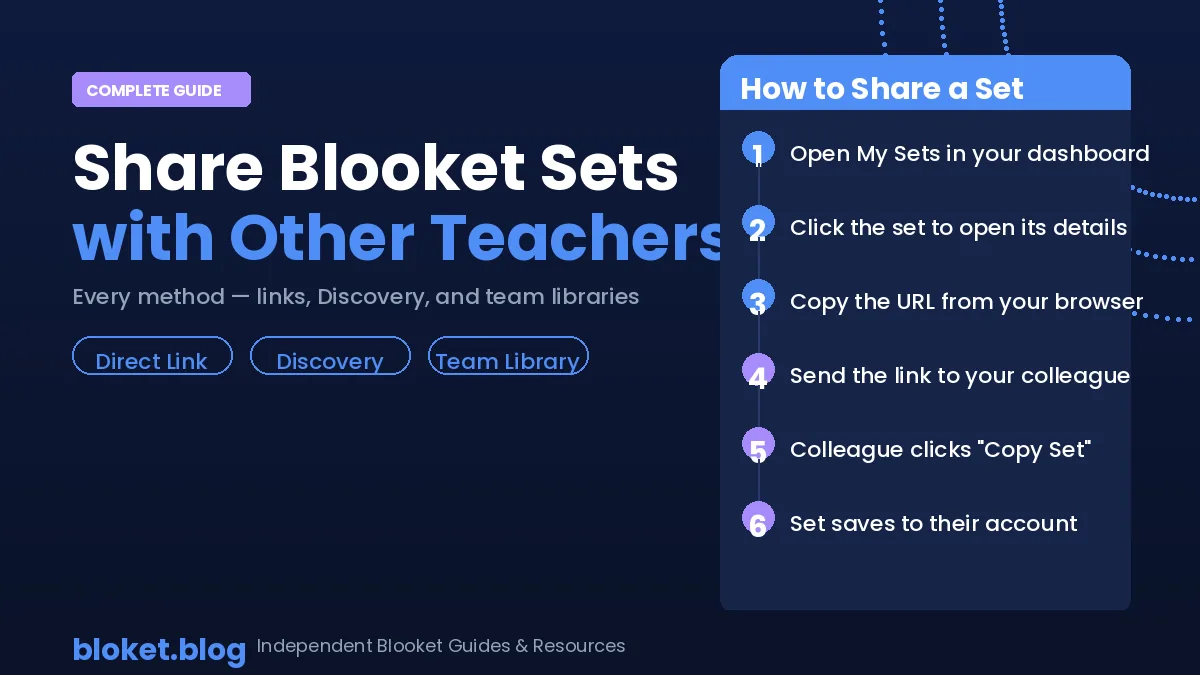
- Log into your Blooket account and open My Sets.
- Click on the set you want to share to open its detail page.
- Copy the full URL from your browser’s address bar. Every set has a unique URL.
- Paste the URL into an email, team chat, or message to your colleague.
- Your colleague clicks the link, logs into Blooket if they aren’t already, and clicks “Copy Set.”
- The set appears in their My Sets as an independent copy.
Your original stays untouched. Your colleague’s copy is theirs to rename, edit, or delete without any effect on yours. This method also works for draft sets, since nothing is published publicly.
Method 2: Publish to Blooket Discovery
Discovery is Blooket’s public library of teacher-created content. Publishing there makes your set available to the entire Blooket community — any teacher can find it through search and copy it into their account.
- Open the set from My Sets.
- Find the visibility or privacy setting for the set. This controls whether it appears in Discovery searches.
- Switch the visibility to Public.
- Check that the title is clear and descriptive. Include the subject and a specific topic name.
- Set the correct grade level and subject category so other teachers can find it using filters.
- Save the changes.
Once published, any Blooket teacher can find and copy your set. You keep your original, and each person who copies it gets an independent version in their own account.
Publishing to Discovery suits polished, accurate sets on topics that other teachers commonly cover. Check every question and answer before going public — errors in a widely shared set spread across many classrooms fast.
Method 3: Duplicate first, then share
Sometimes you want to share a version of a set without touching your working copy. Maybe your master set has draft questions you’re still refining, or you want to adjust a few things before passing it along — our step-by-step guide to creating a Blooket quiz covers editing questions, answer choices, and settings.
- Open the set you want to share from My Sets.
- Select the Duplicate option to create a copy within your own account.
- Rename the duplicate clearly so you know which version is which.
- Edit the duplicate — clean up placeholder questions, finalize the title, update any content.
- Share the link to the duplicate using Method 1 above.
Your original stays private. The shared version is a clean copy that’s ready for classroom use.
Method 4: School and team plans
Blooket’s paid subscription options include features designed for team-wide use. Depending on the plan your school has and how the administrator has configured it, you may have access to shared dashboards or collaborative set libraries where sets are visible across teacher accounts without needing to copy via link.
These features matter most for departments or schools coordinating sets at scale. Check your school’s Blooket admin settings to see what’s available. For individual teachers sharing informally, Methods 1 through 3 cover every scenario without a paid plan.
How to find sets shared by other teachers
Discovery is where published sets live, and searching it well saves significant prep time — especially for common subjects and grade levels.
Searching Blooket Discovery effectively
From your Blooket dashboard, navigate to Discover. The search field accepts keywords, so the more specific you are, the better. “Photosynthesis” returns more targeted results than “biology.” “Fractions on a number line” gets you further than “math.”
Teachers who publish to Discovery often include subject, grade, and topic in their set titles, so searching those terms together can cut through a lot of results quickly. Try a few variations if your first search doesn’t surface what you need — “US states capitals” and “states and capitals” can return different sets depending on how teachers have titled their work.
Filtering by subject and grade level
Discovery includes subject and grade-level filters. Using them together gives the most focused results. In practice, filtering by subject first, then scanning the resulting titles for grade references, works better than relying on the grade filter alone. Not every teacher fills in the grade field when publishing, but most include it in the title itself.
Pay attention to question count too. A five-question set might work as a warm-up activity. A thirty-question set gives you range for a full class game. Discovery displays the question count before you copy, so you can judge fit before committing.
How to copy a set you find in Discovery
- Navigate to Discover from your dashboard.
- Search for your topic using specific keywords.
- Click on a set to open its preview.
- Scroll through the questions to check accuracy, difficulty level, and whether the content fits your curriculum.
- Click “Copy Set.”
- Open My Sets and find the newly saved set.
- Rename it to match your team’s naming system and edit any questions that don’t fit — if the set started life on Quizlet, our guide on importing to Blooket from Quizlet explains how that content transfers.
Always review a copied set before using it in class. Discovery sets are teacher-created and haven’t been reviewed by Blooket. Some contain outdated information, regional terminology differences, or questions pitched at a slightly different level than you need. A five-minute check before the lesson is always worth it.
Building a shared set library with your team
Sharing sets one by one works for occasional handoffs. A more deliberate approach builds something more durable: a library of vetted, curriculum-aligned sets that everyone on a team can pull from without rebuilding anything.
Naming conventions that make sharing easy
Without a consistent naming system, My Sets becomes a pile of “Chapter 3 Review” and “Test Set Final v2.” A shared convention solves this before it becomes a problem.
One format that works well across teams: [Subject] [Grade] [Topic] [Creator initials]. For example, “Sci G6 Ecosystems JR” tells every teacher what the set covers, who built it, and what grade it’s pitched at — without opening it. Agree on the format at the start of a term and apply it consistently. The payoff compounds once there are dozens of sets to navigate.
Building a department resource pool
A practical team approach divides set-building by unit or topic rather than having every teacher build everything from scratch. Each teacher takes one subject area or curriculum unit and builds a thorough, accurate set. The rest of the team copies and uses it. Then the team divides up the next unit the same way.
This works best when the set links live somewhere everyone can find them. A shared Google Doc or a simple spreadsheet listing each set by title, topic, grade, and URL works well. When Discovery search doesn’t immediately surface the right set, the team reference document is the backup. Anyone can add a row as they publish something new.
For smaller teams, a pinned note in a staff group chat does the same job. The format matters less than the habit of recording links when sets are shared.
Keeping shared sets accurate over time
Once a set is copied across multiple accounts, fixing an error in the original doesn’t fix it in anyone else’s copy. That’s the trade-off of Blooket’s copy model, and it means accuracy is a pre-sharing responsibility, not a post-sharing fix.
Before sharing a set, ask one colleague to spot-check a sample of questions. For sets on topics that change — software tutorials, content tied to curriculum updates, or anything with numerical data that shifts over time — include a version note in the title. Something like “updated spring term version” tells colleagues to replace older copies when a revised link comes through.
Common mistakes when sharing Blooket sets
Most sharing problems aren’t technical. The mistakes that actually cause issues are almost always about process.
Sharing before the set is finished
This comes up most often: a teacher sends a link before reviewing the set, a colleague uses it in class, and students reach questions with incomplete answers or missing content. Run through the set yourself in preview or practice mode before sharing. Read each question as a student would. If anything looks unfinished, fix it first — sending the link takes two seconds and reviewing takes five minutes, so the review should always come first.
Assuming accuracy without checking
A set that works for one class in one country may have errors when used in a different context. Measurement units, spelling conventions, historical framing, and scientific terminology vary between curricula and regions. If you’re sharing across a large team or publishing to Discovery for a global audience, check that the content is accurate for the broadest intended use.
This applies within a school too. A set built for an advanced group may be too demanding for a standard-level class. Mentioning the intended level in the title or description helps colleagues calibrate before copying.
Publishing private or school-specific content to Discovery
Discovery makes a set visible to every Blooket user globally. Sets that work fine as private handoffs between trusted colleagues aren’t always appropriate for public publication. Avoid publishing sets with school-specific references, internal jokes only your students would recognize, or questions built around context that won’t make sense without additional explanation.
When in doubt, keep the set private and use a direct link to share it with specific people.
Not labeling sets clearly before sharing
A set shared under a name like “Review Game 4” helps no one three weeks after it lands in a colleague’s account. Before sharing, include the subject, topic, and a grade level or difficulty indicator in the title. A clear label is what makes a copied set actually get used rather than sit unrecognized in someone’s My Sets forever.
FAQs
Can I share a Blooket set with someone who doesn’t have a Blooket account? No. A Blooket teacher account is required to copy a shared set. The recipient can create a free account in a few minutes, then follow the shared link to copy the set. Anyone with a free teacher account can copy a shared or publicly published set without needing a paid subscription.
Does sharing a set give the other teacher editing access to my original? No. When another teacher copies your set, they receive a fully independent duplicate. Any edits they make to their version have no effect on yours. After the copy is made, the two sets are completely separate and don’t sync in any way.
Can students share or copy Blooket sets? Students cannot copy or share sets. That function is restricted to teacher accounts. Students can join and play in a hosted game, and they can access a set in practice mode through a direct link, but they have no option to copy or share a set from their account.
Is there a limit to how many teachers can copy the same set? No. Whether you share a link privately or publish to Discovery, any number of teachers can copy the set. Each person gets a fully independent version in their account. Your original isn’t affected regardless of how many copies are made.
What happens to someone’s copy if I delete my original? Copies already made remain intact. Deleting your original only removes it from your account — it has no effect on sets already copied by others. The original link will stop working for anyone who hasn’t copied it yet, but existing copies are safe in their accounts.
Can I see who has copied my set? Not in detail. If your set is published to Discovery, you may see a total copy count displayed on the set page. Blooket doesn’t provide a list of which individual accounts have copied your set.
How do I share a set privately without making it public on Discovery? Keep the set’s visibility set to Private (not published to Discovery). Copy the URL from the set’s page and share that link directly with the teacher you want to reach. Only someone with the link and a Blooket teacher account can copy a private set, and it won’t appear in any Discovery search.
What’s the difference between copying and duplicating a set? Duplicating is something you do within your own account — creating a second copy of your own set for your own use. Copying is what another teacher does when they take your set into their account from a shared link or Discovery. Both produce an independent version of the original, but duplication stays within one account while copying moves a version across accounts.
Conclusion
Sharing Blooket sets with other teachers comes down to three core methods: a direct link for private handoffs, Discovery publishing for open access, and a naming system that turns a pile of shared sets into a team library worth returning to. Each approach is straightforward once you know the steps — the real value comes from making sharing a regular habit rather than a one-off request.
Start with one set your team could use right now — and if you’re still building your Blooket routine, our complete guide to using Blooket in the classroom ties set creation, sharing, and hosting together. Share the link, ask for a quick review, and build from there. A collaborative set library doesn’t require a lot of extra work — it mostly requires starting.
Solve it quicker using quick fixes—practical solutions ready when you are.