Blooket Homework Mode: Setup, Steps, and Expert Tips
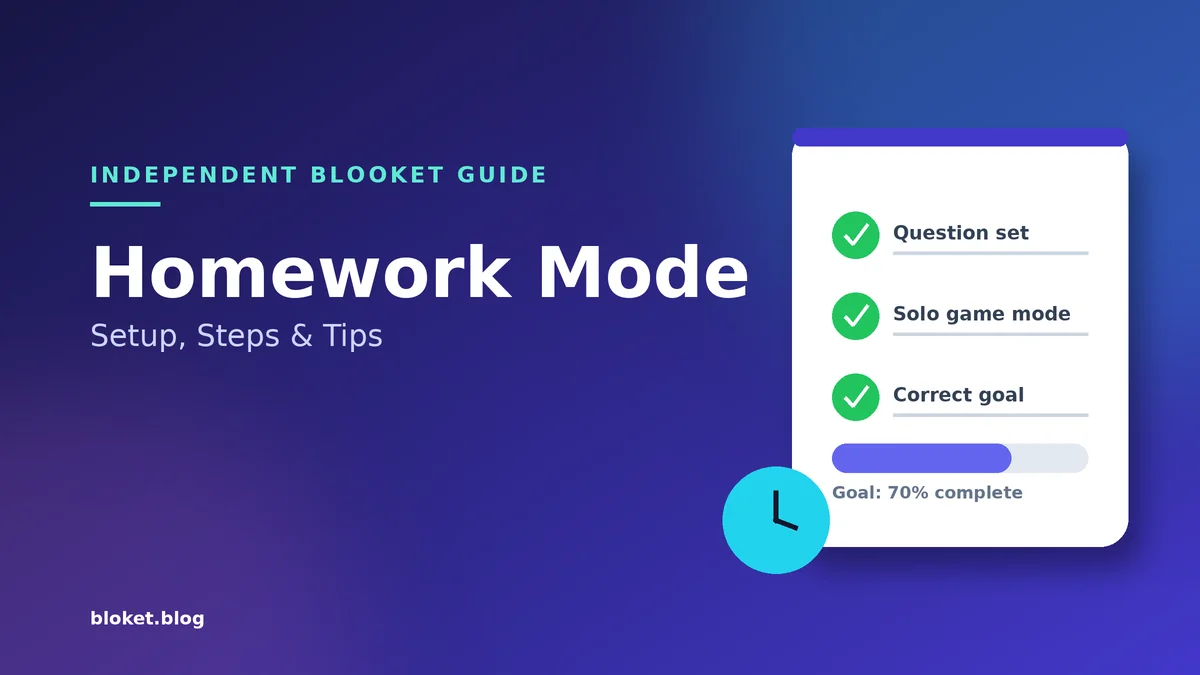
Blooket Homework Mode lets a teacher turn any question set into a self-paced assignment that students finish on their own time, with no live game to host. A student opens a link or scans a QR code, picks a supported solo game mode, and keeps answering questions until reaching a correct-answer goal the teacher set in advance. No Blooket account is required to join, though logging in lets a student keep any coins or blooks earned along the way.
I have used this feature for absent students, extra review before a test, and full distance-learning weeks, and setting it up usually takes less time than printing a worksheet. This guide covers exactly how to assign homework mode as a teacher, how students join and complete it, what the results look like on both sides, and the mistakes that catch new users off guard.
What is Blooket Homework Mode?
Homework mode is a hosting option that turns any question set into an independent assignment instead of a live class game. A teacher picks a solo mode and a completion goal, then shares a link or QR code so each student can play on their own device and timeline, with progress tracked and reported back automatically.
Teachers reach for this mode when a live session is not practical: a sick student needs to catch up, a substitute is covering class, or a topic needs more repetition than one live game allows. Because the format is asynchronous, nobody has to be online at the same moment for it to work. The set, the questions, and the scoring stay identical to a live game, only the hosting format changes.
Why teachers use homework mode in the first place
A handful of classroom situations come up again and again where homework mode solves a real scheduling problem. A student who missed a live review game can complete the same set independently and still get credit. A flipped-classroom teacher can assign the practice portion for home and save class time for discussion — our complete guide to using Blooket in the classroom covers how live hosting and homework fit together in a weekly routine.
Distance-learning days, asynchronous courses, and differentiated practice all fit naturally here too, since each student can take exactly as long as they need. None of this requires extra prep beyond a set that already exists, since the same set works for both live games and homework assignments.
How homework mode differs from a live hosted game
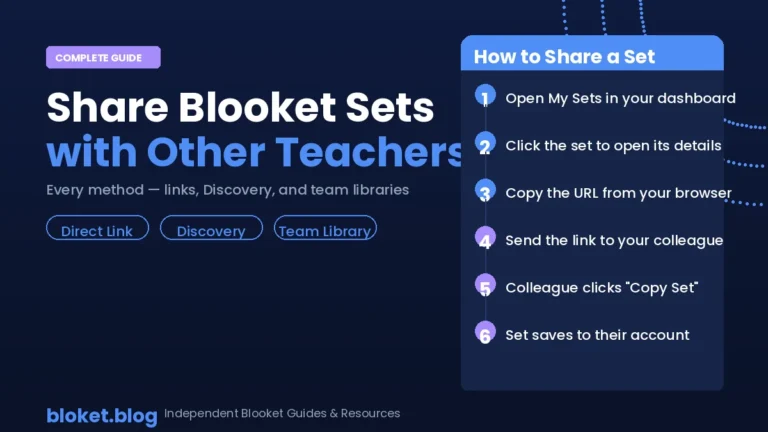
A live hosted game is synchronous: the teacher launches a session, gets a short game code, and every student joins that same code within a few minutes to compete in real time. The teacher controls when the game starts, watches a live leaderboard, and ends the session manually or when time runs out. Homework mode skips the waiting room entirely, since each student gets an individual link that stays active until the due date the teacher chose. Our companion guide on how to assign Blooket homework walks through deadlines, attempt limits, and reading the results report.
How homework mode differs from Solo practice
Solo mode is a free-form way to practice any set without a teacher’s involvement. A student finds a set on the Discover page, clicks Solo, and plays for as long as they like with no goal, no due date, and no report sent anywhere. Homework mode looks similar on screen, but only exists because a teacher actively assigned it from My Sets or from a set’s preview page, and that assignment is what creates the goal, the due date, and the results page a teacher can check afterward.
Is homework mode free to use?
Assigning and completing homework mode does not require a paid subscription. A Starter account, Blooket’s free tier, can assign homework, set a goal, and view a results leaderboard without spending anything. Blooket Plus is a paid upgrade that extends how far ahead a due date can be scheduled and adds deeper, downloadable reports, but the core homework feature itself works on a free account.
How to set up Blooket Homework Mode as a teacher
Setting up homework mode takes four steps: open the set to assign, choose a solo game mode that supports homework, set a correct-answer goal and a due date, then share the link or QR code Blooket generates. Once a set is ready, the whole process usually takes well under a minute.
Step-by-step: assign homework from one of your own sets
- Open My Sets from your dashboard and find the set you want students to complete.
- Click the Assign option on that set’s card.
- Choose one of the solo game modes that supports homework.
- Click Assign HW to move to the goal and due-date screen.
Step-by-step: assign homework from a Discover set
- Search Discover for a set created by someone else.
- Open that set’s preview page.
- Click Assign HW, which sits next to the Solo and Host buttons.
- Pick a supported solo mode and continue to the goal and due-date screen.
Choosing the goal and due date
The setting that matters most here is the Correct Goal: the number of questions a student must answer correctly before the assignment counts as complete. A 20-question set with a goal of 15 correct answers gives students room for a few mistakes while still requiring real engagement with the material. Set the goal too low and students can finish without learning much; set it too high and a weak set turns into a frustrating grind.
After the goal, choose how long the assignment stays open. A Starter account can keep homework open for roughly two weeks at a time, while a Plus account can schedule a due date much further out. Click Assign Now once both are set, and Blooket generates a homework link along with a matching QR code to share with the class.
Reopening an assignment: If a due date passes before everyone finishes, the homework results page includes an option to extend or reopen that same assignment rather than building a new one from scratch. This is useful for students who were absent or who need a second attempt after a teacher reviews a tricky topic with them.
Which game modes support homework mode
Only a handful of solo game modes can be assigned as homework, and they tend to be the slower, strategy-style games built for one player rather than a team. Tower Defense, Tower Defense 2, Café, Factory, Crazy Kingdom, Monster Brawl, and Tower of Doom all support homework assignments, and Blooket adds new modes to that list every so often. Team-based and live-only modes like Battle Royale or Gold Quest are not selectable on the homework setup screen, since they depend on several students playing against each other at once.
How students join and complete a Blooket homework assignment
A student joins Blooket homework using the link or QR code their teacher shares, with no account needed to get started. After choosing a nickname and a solo game mode, they answer questions until reaching the correct-answer goal, then see a summary of their accuracy, time played, and overall completion.
Step-by-step: joining with a link or QR code
- Open the homework link, or scan the QR code with a device that has a camera and an internet connection.
- Click Get Started on the homework landing page.
- Click through the available solo game modes to preview each one’s difficulty and pacing, then pick one.
- Enter a nickname the teacher will recognize, then click Play to begin.
Finish in one sitting: Closing the tab or leaving the page inactive for too long can reset progress toward the goal, which means rejoining through the original link or QR code and starting over. Treating homework mode like a short, focused session rather than something to pause and resume avoids this problem entirely.
Switching game modes mid-assignment
Students are not locked into the first mode they choose. Clicking the checkered flag icon in the top corner brings up a confirmation prompt, and confirming returns them to the mode-selection screen without losing credit already earned toward the goal. From there, picking a different supported mode lets them keep working toward the same correct-answer target in a format that feels fresh.
Keep Going vs End Now
Reaching the goal triggers a “Homework Complete!” prompt with two options. Keep Going lets a student continue playing the same set for extra practice or a better accuracy score, while End Now closes the session and opens the results screen right away. Either choice still tells the teacher that the goal was met, so neither one risks the student’s grade.
What the results look like for teachers and students
A student sees their own accuracy and time played right after finishing, with no extra steps needed. A teacher’s homework report adds a leaderboard listing every student’s name, accuracy, question-by-question breakdown, time played, and completion status, with the full question list sortable by question number or by how often each one was missed.
When I ran homework mode with a class of roughly 25 students on a 15-question science set, accuracy clustered between 70 and 95 percent once students who chose Keep Going had a chance to fix earlier mistakes. The question list view made it obvious that one question about energy transfer had a far higher miss rate than the rest, which is exactly the kind of pattern a live game’s faster pace tends to hide.
Plus accounts add more depth on top of this. They can open any single question to see the exact answer each student selected, plus download spreadsheets and individual student reports for record-keeping.
The table below lines up homework mode against the other two ways to play a Blooket set, since the differences are easy to blur in practice.
| Homework mode | Live hosted game | Solo practice | |
|---|---|---|---|
| Who starts it | A teacher, in advance | A teacher, in the moment | A student, anytime |
| Timing | Asynchronous, open until the due date | Synchronous, everyone at once | Asynchronous, no deadline |
| Account needed to join | No | No | No |
| Tracked and reported to a teacher | Yes | Yes, for that session | No |
| Best for | Independent practice, absent students, review | Whole-class energy and competition | Casual self-study |
Common mistakes and myths about Blooket Homework Mode
Most homework mode problems trace back to a small set of habits: leaving a session open too long, mixing it up with Solo mode, or misreading what the goal actually measures. None of these point to a bug. They are just easy assumptions to make the first time around.
Closing the tab restarts your progress
The most common complaint about homework mode has nothing to do with the questions themselves. A student closes the browser tab, switches devices, or leaves the page open without interacting for a while, and progress toward the goal disappears. Rejoining requires the same link or QR code the teacher originally shared, which is easy to lose track of days later, so bookmarking it the first time it opens saves trouble for the rest of the assignment window.
Treating Solo mode and homework mode as the same thing
Solo mode and homework mode can look almost identical mid-game, which is exactly why students sometimes practice in Solo mode by mistake and wonder why their teacher never sees any results. Solo mode has no goal, no due date, and produces no report tied to a class. Only progress made through the actual homework link counts toward an assigned task.
Assuming every set or mode works with homework
Not every Blooket set or game mode is eligible for homework mode. Team-based and fully live modes such as Battle Royale or Gold Quest depend on multiple students competing against each other at the same moment, so they never appear on the homework setup screen. Sticking to the supported solo modes avoids the confusion of a teacher trying to assign a favorite live mode and not finding it listed.
Misreading the goal as coins instead of correct answers
In-game currency and blooks are a side effect of playing, not the actual measure of completion. A student can rack up coins from speed or luck without meeting the correct-answer goal that decides whether homework is marked done. Paying attention to accuracy, not collectibles, is what actually moves the goal counter forward.
FAQs
Does Blooket Homework Mode cost anything to use? No. Assigning and completing homework mode is part of a standard Blooket account, and a free Starter account covers the full setup, goal, and results process. A paid Plus subscription extends how far in advance a due date can be scheduled and adds deeper result reports, but it is not required to use the feature itself.
Do students need a Blooket account to do their homework? No. Anyone with the homework link or QR code can join and play without signing up first. Logging into an existing account before starting lets a student keep the experience points and blooks they earn along the way, but it is not required to complete the assignment.
Which Blooket game modes can be assigned as homework? Only specific solo modes support homework, including Tower Defense, Tower Defense 2, Café, Factory, Crazy Kingdom, Monster Brawl, and Tower of Doom. Team-based or live-only modes are left off the homework setup screen because they depend on multiple students playing against each other at the same moment.
Can a student redo Blooket homework after finishing it? Once a student reaches the required goal, Keep Going lets them keep playing the same set for more practice, while End Now locks in their results right away. Restarting the assignment entirely after ending it depends on whether the teacher reopens or extends it from the results page.
What happens if a student closes the tab before finishing? Progress toward the goal can be lost if the tab closes or sits inactive for too long, and the student typically has to rejoin using the original link or QR code. Finishing the assignment in one sitting avoids this problem entirely.
How long can a Blooket homework assignment stay open? A teacher sets a due date when assigning homework, and a free Starter account can schedule that window for roughly two weeks at a time. A Plus account can schedule far further in advance, and either way the assignment simply closes to students once the due date passes.
Can teachers see which questions students struggled with most? Yes. The homework results page lists every question and can be sorted by how often it was answered incorrectly, which makes it easy to spot a concept the whole class missed. Plus accounts can drill into the exact answer each student chose for added detail.
Is Blooket Homework Mode the same as Solo mode? No. Solo mode is casual, unassigned practice with no due date or report, while homework mode is created by a teacher with a goal, a due date, and a results page tied to that specific assignment. A student can use Solo mode anytime, but only homework mode counts toward an assigned task.
Should you use Blooket Homework Mode?
Homework mode earns its place whenever a live session is not realistic: an absent student needs to catch up, a substitute is covering class, or a topic needs more repetition than one game allows — our Blooket substitute teacher guide shows how to leave a self-running game for a sub day. Live hosting still wins for real-time competition and the immediate feedback a teacher gets watching a class play together, so most teachers end up using both.
If homework mode is new to you, assign one existing set to a single student or a small group before rolling it out to a full class. That trial run shows exactly what the goal screen, the due-date options, and the results report look like, with no risk to a real grade. Once that test assignment closes, the report gives everything needed to assign the next one with confidence.
For breakdowns of every other Blooket game mode and more classroom-tested guides, browse the rest of bloket.blog
Work smarter with power tools—guides and frameworks built for real life.