Replay Old Blooket Games: Your Complete Guide
You ran a great Blooket session, students loved it, and now the same group wants to play it again — except the game code is long gone. Or you’re a student trying to practice last week’s trivia set but the session ended hours ago. Either way, you’re stuck at the same wall: Blooket doesn’t work like a video recorder.
The good news is that replaying a Blooket game is genuinely possible. It just works differently than most people expect. This guide breaks down exactly what carries over after a session ends, what doesn’t, and the fastest way to get back into the same game — whether you’re a teacher running a review or a student studying solo.
Can you actually replay old Blooket games?
Yes — but not by reusing an old game code. Blooket builds every live session around two separate things: a temporary game code and a permanent question set. Once you understand which one survives after a game ends, replaying becomes simple.
What stays and what disappears
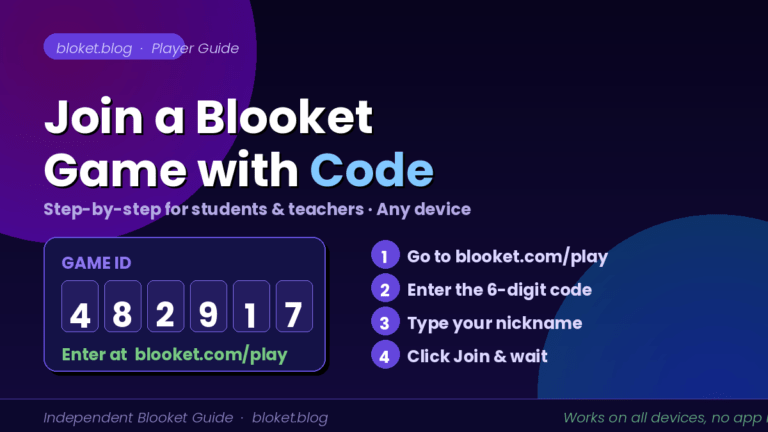
A game code is a six-digit number generated the moment a host clicks “Host.” It’s a one-time access key tied to that specific live session. When the game ends — or when the host manually closes the lobby — the code expires instantly. Typing it into the join screen the next day will always return an error.
The question set is a different story. Every set you create or copy lives in your Blooket library permanently. It doesn’t expire, it doesn’t time out, and it stays exactly as you left it until you delete it. That set is what makes a replay possible.
What “replaying” really means in Blooket
When players ask to replay a game, they’re almost always asking to answer the same questions again — not to literally rewind a session. A replay in Blooket means hosting a new session with the same question set. New code, same content, same learning outcome.
Think of the question set as a deck of cards and the game code as the table you play it on. The table disappears when you leave, but the cards stay in your bag.
How to find your old Blooket question sets
Before launching a replay, you need to locate the original set. Where you look depends on your role.
Finding sets as a teacher or host
Log in to your Blooket account and open your Dashboard. The “My Sets” section holds every question set you’ve ever created, imported, or copied to your library. If you used a set for a class game, it will still be there, untouched.
If your library has grown large and you can’t spot the set by name, use the search bar at the top of the My Sets page. Type a subject keyword, a unit topic, or even a partial question you remember. Blooket filters results as you type.
Sets you originally discovered through Blooket’s Set Discovery feature will only appear in your library if you explicitly saved a copy. If you just browsed someone else’s set and hosted it without copying, it won’t be in your personal library. In that case, return to Set Discovery, search by topic or the creator’s name, and look for it there.
Finding content as a student
Student accounts don’t have a personal game history. Once a live session ends, there’s no record of it on the student side. However, there are three practical paths forward:
Ask your teacher for the set name or link. Most teachers can pull up the set in under a minute from their dashboard and share a direct link. That link lets you open the set and practice solo without a live session.
Search Set Discovery yourself. If you know the subject or topic, open Blooket’s Discover page and search there. Many classroom sets are public, and the one your teacher used may be available to anyone.
Check old assignment emails or LMS links. If your teacher assigned the game as homework, they likely sent a link. That link may still open the set in practice mode even after the live session ended.
How to replay a Blooket game step by step
Relaunching a game is the same as hosting any new session — except you already have the content ready. Here’s the full process.
Step-by-step guide for teachers
Step 1: Log in and open My Sets. Go to your Blooket dashboard and click the “My Sets” tab. This is your library.
Step 2: Locate the set you want to replay. Search by topic or scroll through your sets. Click on the one you want to confirm the questions are correct before hosting.
Step 3: Review the question list. Scroll through the set to verify it’s the right one — and edit any questions that need updating. Spot two or three questions you remember from the original session. If it looks right, you’re ready.
Step 4: Click “Host” on the set. This opens the game mode selection screen. You’ll see all the available modes — Tower Defense, Gold Quest, Café, Fishing Frenzy, and others.
Step 5: Choose a mode. You can use the same mode as last time for a true replay, or pick a different one to give familiar content a fresh feel. The questions are identical regardless of mode.
Step 6: Set your lobby options. Decide between a live class game (where you control the start) or an individual assignment (where each student plays on their own schedule). Set a time limit for live games if you want a hard stop.
Step 7: Share the new game code. A fresh six-digit code appears on your screen. Share it with students however you normally do — projecting it, dropping it in your chat, or posting it in your LMS. That’s the replay running.
Step-by-step guide for students practicing solo
Step 1: Get the set name or link from your teacher. This is the fastest starting point. A direct link takes you straight to the set.
Step 2: Open the set in Blooket. If you have a link, follow it. If you’re searching, go to the Blooket homepage, click “Discover,” and search by topic or set name.
Step 3: Click “Practice” or the solo play option. On the set page, you’ll see an option to play on your own without a game code. This puts you through the questions in a low-pressure format.
Step 4: Review your answers. After finishing, check which questions you got right and wrong. Use that to guide what to study before the next live session.
Replay strategies for different game modes
Not every mode plays the same way, and part of a smart replay is choosing the right mode for the moment.
Using the same mode for familiarity
If students are preparing for a test and need straight recall practice, use the same mode they played before. Familiarity with the mode mechanics means they can focus entirely on the content rather than learning new rules.
Switching modes to extend engagement
The best reason to replay the same content is that it feels different in a new mode. A set that ran as Gold Quest last week becomes a completely different experience as Tower of Doom or Café. Students who already know most of the answers still stay engaged because the game itself plays differently.
This is also useful for differentiation. A competitive mode like Tower Defense works well for a fast review. A slower mode like Café suits sessions where you want students to think more carefully before answering.
Using homework mode for async replays
If you can’t do a live replay but want students to run through the same content, assign the set as an individual game. Students complete it on their own time, you still get a report afterward, and the session stays open for as long as you set it. This works well for absent students who missed the original game.
How to organize sets so replaying is always easy
The biggest obstacle to replaying a game is usually finding the original content. These habits eliminate that problem.
Name sets in a way that makes searching easy
A set named “Review” is almost impossible to find later. A set named “Grade 8 – Fractions – Unit 2 Review” is searchable in seconds. Include the subject, grade or level, unit, and type of activity. Five extra seconds of naming now saves five minutes of hunting later.
Use favorites to surface your go-to sets quickly
Blooket lets you mark sets as favorites. If you replay certain sets every semester — an end-of-unit review, a grammar refresher, a vocabulary warm-up — favorite them. They’ll always appear first in your library rather than buried under newer additions.
Keep an external session log
This is one of those habits that sounds unnecessary until the third time someone asks “which set was that one we played before midterms?” A simple note — even a plain text file — recording the set name, game mode, and which class used it gives you a searchable record that Blooket itself doesn’t provide.
A basic spreadsheet format works well: one row per session, columns for date, class, set name, mode, and any notes. After a semester, this becomes a genuinely useful reference for planning future sessions.
Share set links with students when you assign games
When you host a live game, the game code is what students use that day. But if you also share the direct set URL — which you can copy from the browser address bar while viewing the set — students have a way to find and practice that content independently, long after the live session ends. Drop it in your LMS or class chat whenever you host a game.
Common mistakes when trying to replay old Blooket games
Most replay frustrations trace back to a few misunderstandings about how Blooket is structured.
Trying to reuse an expired game code
Expired codes don’t work — period. There’s no trick, no override, and no way to reactivate one. If a student shows up late and tries to enter last week’s code on the join screen, they’ll get an error. The only way forward is a new session with the same question set.
Confusing game reports with replay access
Blooket saves game reports for hosts. In your dashboard’s Reports section, you can see scores, individual question accuracy, and performance breakdowns from past sessions. This is not a replay function. It gives you data, not access to the session itself. Reviewing a report is useful for identifying which questions students struggled with, but it won’t put students back in a game.
Deleting sets and expecting to get them back
Blooket doesn’t have a recycle bin. If you delete a set from your library, it’s gone permanently with no recovery option. If the set was originally from another creator and they’ve since made it private or deleted it, it won’t appear in Set Discovery either. The practical rule: never delete a set you’ve used in class. Archive habits don’t cost anything in Blooket, since sets don’t take up visible storage you have to manage.
Assuming students can access sessions after they end
Once you end a game as the host, all student access stops immediately. Any student still mid-game loses their progress at that moment. If you want everyone to finish before you close the session, wait until you can see all students have submitted, or switch to an individual assignment format where each student finishes at their own pace.
Expecting the same game code across multiple classes
Some teachers try to share one game code across back-to-back class periods. This only works while the session is still open. Once you end the game for first period, that code is gone, and second period needs a freshly hosted session with a new code. The setup takes about thirty seconds, so this is not a real obstacle — just something to plan for.
FAQs
Can I reopen a Blooket game code that already expired? No. Game codes expire the moment a session ends, and there’s no way to reactivate one. To play the same content again, open the original question set from your dashboard and host a new session. A fresh code generates in seconds and works exactly the same way.
Where do I find old Blooket question sets I’ve used before? Log in and go to “My Sets” on your dashboard. Every set you’ve created or copied is stored there permanently until you delete it. Use the search bar to filter by topic or keyword if you have a large library. Sets from other creators only appear if you saved a copy to your own account at the time.
Can students replay a Blooket game on their own without a teacher? Students can’t reopen a live session, but they can practice the same content independently. If the question set is set to public, they can find it via Set Discovery and use the solo practice mode. Teachers can also share a direct link to the set so students can access it anytime, with or without a game code.
Does Blooket save any information about past game sessions? Blooket saves game reports for hosts. In the Reports section of your dashboard, you can review scores, per-question accuracy, and player-level breakdowns from completed sessions. These reports are useful for tracking learning progress, but they don’t let you reopen or replay the session itself.
How do I share a Blooket set so a student can practice it at home? Open the set from your library and copy its URL from the browser address bar. Share that link via email, your LMS, or a class message channel. When students open it, they’ll see a solo practice option that works without a live session or game code.
What happens if I accidentally delete a question set? Blooket doesn’t have an undo option or recycle bin for deleted sets. If you created the set, it’s permanently gone. If it was a public set from another creator, search for it again in Set Discovery — the original may still be available there. To avoid this situation, never delete sets you’ve hosted for a class.
Can I use the same question set with different game modes each time I replay? Yes, and this is one of the most useful features in Blooket. One question set works with any game mode. You can use Tower Defense one week and switch to Gold Quest or Café the next — the questions stay identical while the gameplay experience changes. This is the simplest way to keep a familiar set engaging over multiple sessions.
Does Blooket show me which sets I’ve hosted in the past? Blooket doesn’t have a session history feed that lists every game you’ve run. The closest thing is the Reports section, which logs results from completed games. For a full session history, many teachers maintain a simple external log — a spreadsheet or notes document — that tracks which sets they’ve used with which class groups.
Conclusion
Replaying a Blooket game is almost always straightforward once you understand what to look for. The game code is gone, but the question set isn’t. Open your library, find the set, host a new session, and you’re back in under a minute.
For teachers, the habits that make this easy are the same ones that make classroom management smoother in general: clear set names, a quick session log, and sharing direct set links alongside game codes. For students, the fastest path to solo practice is always the set URL or a search in Set Discovery.
Start with your dashboard’s My Sets page. Everything you’ve built is still there.
Looking to sharpen your skills and broaden your horizons? Browse our collection of must-read features.