Import to Blooket from Quizlet: Complete Step-by-Step Guide
You already have a Quizlet set with dozens of terms your students recognize. Rebuilding every card inside Blooket by hand is a waste of time neither teachers nor students have. Blooket includes an import feature that pulls Quizlet content directly into a new question set, converting each flashcard into a playable game question in minutes.
This guide covers the exact steps for both import methods, what to do when the import tool runs into trouble, and how to clean up the resulting set so it works well across Blooket game modes. By the end, you will have a complete, game-ready Blooket set built from your existing Quizlet content.
What the Quizlet-to-Blooket import actually does
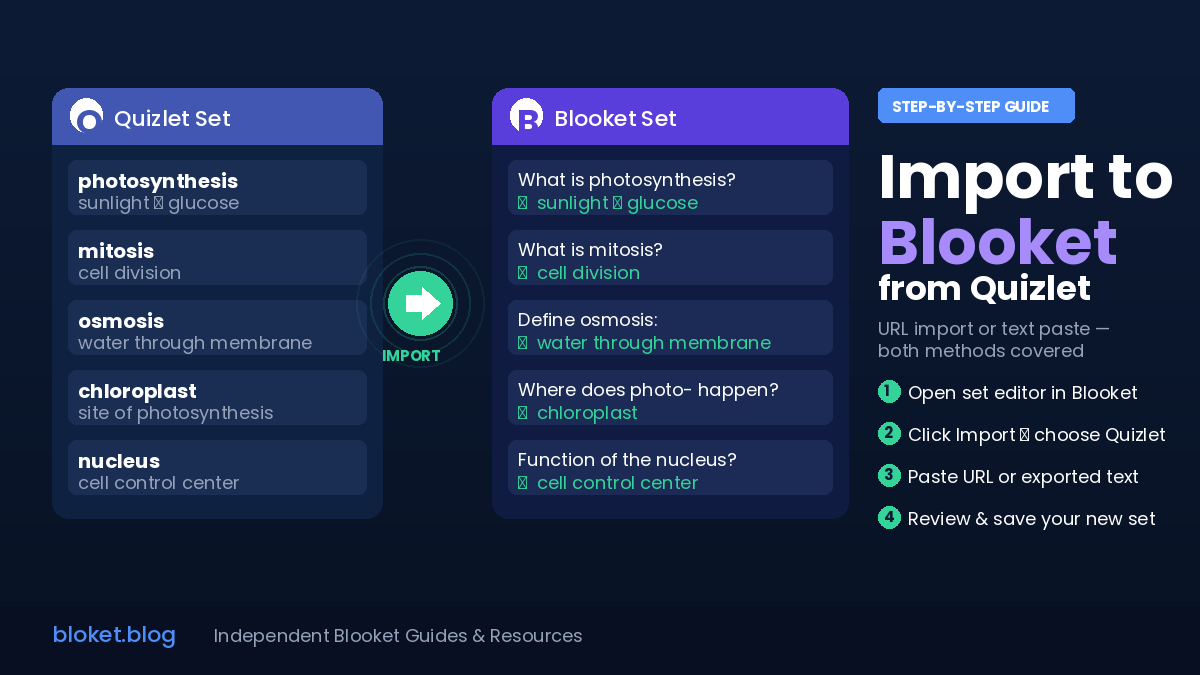
When you import from Quizlet, Blooket converts each flashcard’s term into the question prompt and the definition into the correct answer. The process takes under five minutes for a typical 30–40 card set, and the result behaves exactly like a question set you built from scratch inside Blooket — with one key limitation: only plain text transfers across.
What transfers and what does not
Blooket’s import reads text fields only. The term field becomes the question, and the definition field becomes the correct answer. Nothing else survives the trip. Images embedded in Quizlet cards, audio recordings, LaTeX-formatted equations, and any rich formatting like bold or italics get stripped during import.
If your entire Quizlet set is text-based, the import produces a clean, complete question set with minimal cleanup needed afterward. If any cards rely on images to make sense — questions like “Which structure is labeled X?” — those entries will appear as blank or text-only questions after import. Plan to rebuild those cards manually in the Blooket question editor.
Account requirements
A standard free Blooket account is everything you need to run an import. Blooket Plus, the paid subscription tier, is not required to access the import feature or to save the resulting set. Plus subscribers get additional hosting perks and extended analytics once the set is live, but the import step itself works on any account.
On the Quizlet side, the set you want to import must be publicly visible. Private or password-protected Quizlet sets block the import tool from reading the content, which is the single most common reason imports return empty or throw errors.
Why moving your content to Blooket makes sense
Quizlet and Blooket serve different functions. Quizlet is designed around self-paced individual study: flashcards, matching games, and adaptive Learn mode. Blooket is built for class-wide competitive play where a teacher hosts a live session and every student joins to compete in real time.
The same 30 vocabulary terms behave completely differently in each platform. In Quizlet, a student studies them alone at their own pace. In Blooket, those same terms fuel a Gold Quest battle, a Tower of Doom clash, or a Café round with the whole class. Moving content from Quizlet to Blooket extends its usefulness without any content-creation work on your end — and if you’d rather build fresh questions, our step-by-step guide to creating a Blooket quiz covers the editor from scratch.
How to import a Quizlet set into Blooket
Blooket provides two ways to import Quizlet content: a direct URL-based import that contacts Quizlet’s servers automatically, and a manual text-based import that you paste in yourself. Both land in the same place — a complete Blooket question set ready to host. Start with Method 1, and use Method 2 if you hit errors or if the direct route returns nothing.
Method 1: Direct import using the Quizlet URL
This is the fastest route and takes about two minutes when Quizlet’s API is accessible.
- Log in to Blooket: Go to blooket.com and sign in to your account.
- Navigate to your sets: Click your profile avatar in the top navigation and select “My Sets,” or click the “Create” button in the main header.
- Click “Create Set”: This opens the question set editor where you build and manage questions.
- Find the import button: Inside the set editor, look for an “Import” button near the top of the question area. It typically sits alongside the “Add Question” control.
- Select “Import from Quizlet”: A dialog or dropdown will appear listing import source options. Choose Quizlet from the list.
- Get your Quizlet set URL: Open the Quizlet set in a separate browser tab. Copy the full URL from the address bar. It follows this pattern:
quizlet.com/[numbers]/[set-name]-flash-cards/. - Paste the URL into Blooket and confirm: Blooket contacts Quizlet, reads the set data, and populates the question editor with each term-definition pair automatically.
- Review the imported questions: Scroll through the populated questions and check that the terms and definitions transferred correctly. Look for garbled characters, missing text, or blank entries.
- Name the set, add a subject tag, and save: Click save before navigating away. The set will not persist if you close the tab without saving first.
Method 2: CSV/text export from Quizlet, then paste into Blooket
When Method 1 fails or returns an error, this route is completely reliable. It requires two extra steps but bypasses all API restrictions and privacy issues entirely.
Step A: Export your Quizlet set as text
- Open your Quizlet set in the browser.
- Click the three-dot menu icon, labeled “…” or “More,” on the set page.
- Select “Export.”
- Quizlet displays your set content as tab-separated text, with terms on the left and definitions on the right, each pair on its own line.
- Select all the text in the export window and copy it to your clipboard.
Step B: Paste the text into Blooket
- Return to the Blooket set editor and click “Import.”
- Choose the text or paste import option rather than the Quizlet URL option.
- Paste the copied text into the input field.
- Blooket parses the tab-separated format and creates one question per row automatically.
- Review the resulting questions, then name and save the set.
This method works regardless of Quizlet’s API status because you copy the content directly from Quizlet’s interface rather than asking Blooket to fetch it remotely. In testing across multiple browsers, this approach has never failed to populate the question set correctly when the Quizlet export step was completed first.
Why the direct import sometimes fails
Direct Quizlet imports fail more often than most guides acknowledge. There are four common causes, and each has a straightforward fix. Knowing which one applies saves you from spending time on the wrong solution.
Quizlet API access restrictions
Quizlet controls which third-party applications can read set data through its API. When Quizlet adjusts those permissions, any app depending on API access — Blooket included — can lose the ability to fetch sets without warning. The import button may return a vague error message, load indefinitely, or produce zero questions with no explanation.
This is not a Blooket bug. It is a consequence of Quizlet’s platform policies, and it has caused import outages in the past. When it happens, Method 2 (the text export and paste method) is the correct fix. That approach does not depend on the API at all.
Private or password-protected Quizlet sets
Blooket’s import tool can only read sets that are publicly accessible. If the set visibility is set to “Private,” “Only visible to me,” or “Password,” Blooket will return an error or import nothing.
Fix: open the Quizlet set, click Edit, go to the visibility settings, and change it to “Everyone” or “Public.” Run the Blooket import, then switch the Quizlet visibility back to private if you prefer it that way.
Large set size and timeout errors
Sets with a very large number of terms — often 300 or more — can cause the Blooket import to time out before the full set loads. The import completes with only a partial question list or fails silently, leaving you with a set that looks complete but is missing cards.
The workaround is to split the Quizlet set into smaller subsets before importing. Duplicate the Quizlet set, delete the second half from the first copy and the first half from the second, then import each piece separately into Blooket. Merge them in the Blooket editor once both are saved as separate sets.
Special characters and formatting artifacts
Quizlet’s internal formatting occasionally injects characters like asterisks, angle brackets, or HTML tags into exported text. These appear in Blooket as question prompts reading “[HTML entity]” or displaying unexpected symbols alongside the actual term text.
After any import, do a quick visual pass through all questions. Any garbled or visually broken entries need a manual text fix in the Blooket question editor before the set is ready to host.
Preparing your Quizlet set before importing
A few minutes of prep on the Quizlet side prevents most post-import cleanup work in Blooket. These checks are worth doing before you start any import attempt, not after you have already hit problems.
Confirm the set is public
Before anything else, open the Quizlet set and verify the visibility setting. If it is not already public, change it. This single check prevents the most common import failure and takes about ten seconds.
Flag and fix image-dependent cards
Scroll through your Quizlet set and note any cards where the term or definition consists of an image rather than text. For each one, either add a text description directly to the card in Quizlet before importing, or make a note of those card numbers so you can rebuild them manually in Blooket afterward. There is no way to automate this recovery — image-only cards simply have no text for the import to read.
Tighten up long definitions
Quizlet definitions can run to multiple sentences without any problem, because they display as full flashcard flip-sides with plenty of space. Blooket answer buttons show short text, and long definitions get truncated or become difficult to read during fast-paced games.
Before importing, edit any Quizlet definition longer than roughly 15 words. Cut down to the core information. “A polygon with eight equal sides and equal angles” works well as a Blooket answer. A three-sentence explanation of why that polygon matters does not.
Remove duplicate and near-duplicate cards
Quizlet sets grow organically and often pick up duplicate or near-duplicate cards over time without the creator noticing. Every duplicate imports as a separate question in Blooket, inflating the question count and making repeated plays feel repetitive. Do a quick scan for obvious duplicates before importing and delete them.
Check for unusual characters
Search your Quizlet set for any terms or definitions containing symbols, special characters, or HTML-looking fragments. These are the most common source of garbled text post-import. Removing or replacing them in Quizlet takes less time than hunting down the broken questions in Blooket after the fact.
Cleaning up your imported Blooket set
An imported set is functional but not finished. The questions exist and the terms transferred, but the set still needs attention before it produces a smooth, engaging game experience. These edits take less than ten minutes on a typical 30-question set and make a significant difference in how students experience the game.
Review the auto-generated wrong answers
Blooket auto-generates wrong-answer distractors by pulling other terms from your question set. This works, but it occasionally produces distractors that are too obvious (a term from a completely unrelated part of the unit) or too similar (two near-synonyms sitting side by side as options).
Open each question in the editor, check the auto-generated options, and replace any distractor that would make the correct answer immediately obvious. Harder, plausible wrong answers create better and more educational games. In practice, swapping two or three distractors per set is usually enough to make a noticeable improvement.
Rewrite flat terms as real questions
Quizlet terms are labels: “Photosynthesis,” “The Battle of Hastings,” “Conjugate acid.” In Blooket, these become question prompts, and they read as incomplete when students see them in-game. Converting them to proper questions takes extra editing time but produces a noticeably better player experience.
Change “Photosynthesis” to “What is the process plants use to convert sunlight into glucose?” Change “The Battle of Hastings” to “In which year did the Battle of Hastings take place?” Question-format prompts work better in every Blooket game mode and are clearer for students who need the context.
Adjust per-question timers
Vocabulary terms with short correct answers usually work well with faster timers, around 15–20 seconds per question. Questions that require reading a full sentence-length prompt or choosing between similar answers benefit from a longer window, around 30–45 seconds.
In the Blooket set editor, you can set the time limit globally for the whole set or adjust per question individually. After your first test game, tune the timer based on where students are consistently running out of time or where the pace drags noticeably.
Add a clear title and subject tags
Students searching for sets to join need specific, descriptive titles. “Chapter 5 – Civil War Vocabulary” is far more useful than “Civil War Import.” Add the appropriate subject tag — History, Biology, Spanish, or whichever applies — so the set surfaces in relevant Discover searches and stays organized in your own dashboard.
How imported sets perform across Blooket game modes
Not every Blooket game mode suits every type of question set equally. Knowing which modes work best with imported vocabulary content helps you pick the right game for each class session without needing to rebuild the set differently for each one — our complete guide to using Blooket in the classroom breaks down each mode and when to use it.
Gold Quest
Gold Quest is a strong match for short-answer vocabulary sets. The pace is fast, students see one question at a time before each strategic “steal or keep” decision, and answer speed directly affects outcomes. This rewards students who have genuinely studied the material. An imported vocabulary set of 20–35 terms is a solid fit. Larger imported sets work fine too — students simply encounter more variety across the game.
Tower of Doom
Tower of Doom uses questions to determine battle outcomes in a turn-based format. This mode tolerates more complex questions than Gold Quest because the competitive stakes between turns naturally slow the overall pace. If you have rewritten your imported terms as proper questions with more reading involved, Tower of Doom gives students enough time to process them before the timer runs out.
Factory
Factory is a longer-form mode where students answer questions repeatedly over a session to keep their factory running. Because students see questions many times in a single game, a smaller imported set of 15–20 questions works better than a very large one. A 200-term vocabulary import would give each question very few repetitions over a class period, which reduces the reinforcement effect that makes the mode effective for studying.
Café
Café is often overlooked for vocabulary review, but it works well with imported sets that have been through post-import cleanup. Students serve orders by answering questions correctly, and the mode’s visual framing keeps lower-stakes students engaged. Sets with clean, concise definitions and clear prompts perform best here — yet another reason the post-import editing steps above are worth the time.
FAQs
Does importing from Quizlet require a paid Blooket account? No. The import feature is available on free Blooket accounts. A standard Blooket login is all you need to create, import, and save question sets. Blooket Plus adds extra hosting and analytics features, but the import process works on any account tier without restriction.
Can I import a Quizlet set that someone else created? Yes, as long as the set is publicly visible. Any Quizlet set marked “Public” or “Everyone” can be imported by URL regardless of who originally created it. Sets marked Private or Password-protected cannot be accessed by Blooket’s import tool and will return an error.
Will images from my Quizlet cards carry over to Blooket? No. Blooket imports text fields only. Cards where the term or definition is an image will appear as blank questions or simply will not import. Plan to rebuild those cards manually inside the Blooket question editor after the main text import is complete.
How many questions can I import in one session? There is no clearly published limit, but sets with more than 300 terms frequently cause timeout errors or partial imports. For large sets, split your Quizlet content into smaller chunks of 100–150 terms before importing and combine them in Blooket’s editor afterward.
The import button returns an error. What should I try first? Start by confirming the Quizlet set is set to Public. Then try clearing your browser cache or switching to a different browser. If those steps do not help, use the CSV text export method: export from Quizlet, copy the tab-separated output, and paste it directly into Blooket’s text import field. That bypasses the API entirely.
Will the imported set save automatically? No. After the import populates the question editor, you must click save manually before leaving the page. Navigating away without saving loses all imported data. Name the set and hit save before doing anything else.
Can students use the Blooket import feature, or only teachers? Both. Any Blooket account type can create and import question sets. Running a live hosted game with a game PIN typically requires a teacher-type host account. Students with standard accounts can use imported sets in solo study modes without any issue.
What happens if the same Quizlet term appears more than once in my set? Blooket imports every instance as a separate question, creating duplicates that inflate the question count and make repeated plays feel repetitive. Remove duplicates in Quizlet before importing to keep the final set clean.
Conclusion
Importing from Quizlet to Blooket removes the biggest barrier to running live classroom games: building the question set from scratch. The direct URL import handles most cases in a few minutes, and the CSV export and paste method covers every situation the direct route cannot reach.
After importing, spend ten minutes reviewing the questions, trimming long definitions, swapping out obvious distractors, and optionally rewriting flat vocabulary labels as full questions. That post-import work is what separates a frustrating, low-engagement game from one students actually want to play again in the next class.
Import your first set, run a test game, and see how it plays with your group. Once the workflow is familiar, moving the rest of a Quizlet library into Blooket becomes a quick, repeatable process — and our guide on sharing Blooket sets with other teachers shows how to pass a finished set to colleagues.
Build real skills with master keys—unlock advanced know-how in minutes.