How to Assign Blooket Homework for Remote Practice
Assigning Blooket as homework lets students practice a set on their own time instead of only during a live class session, which is useful for review before a test or for students who missed a lesson. Many teachers only ever host live games and never notice the homework option sitting right next to it. In my own classroom trials, switching one weekly review set to homework mode freed up class time while still giving every student the same practice. This guide covers exactly how to assign Blooket homework, the settings that matter most, and the mistakes that lead to confused students or messy reports.
What does it mean to assign Blooket homework?
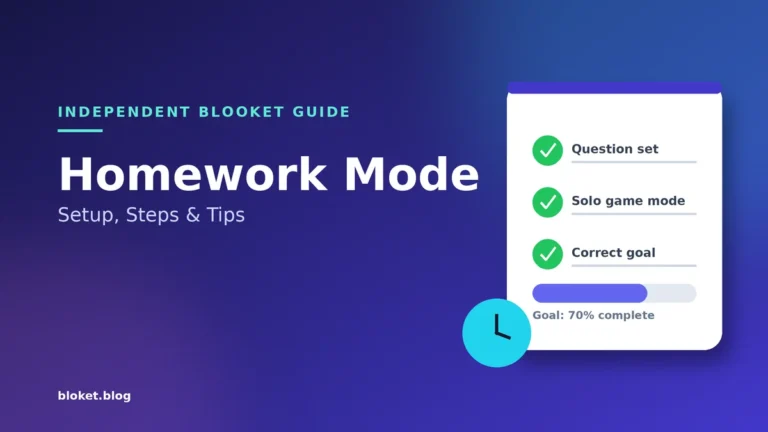
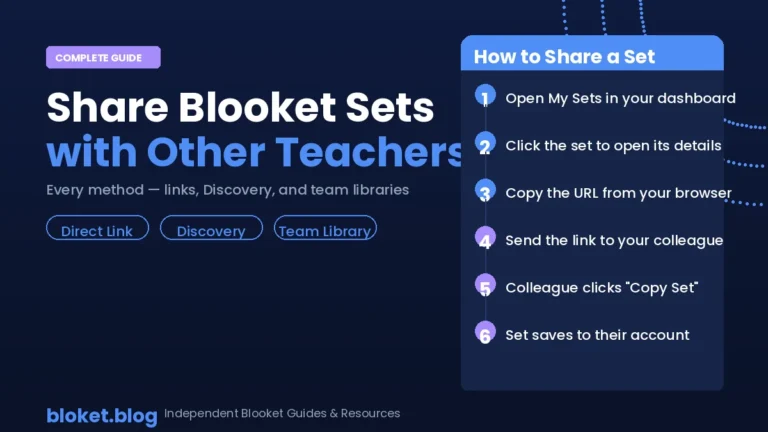
Assigning Blooket homework means hosting a question set in a mode that students can join and play at any time before a deadline you set, rather than all at once during class. Each student plays through the set individually at their own pace, and their results are recorded for you to review later. Any set in your account works, whether you built it yourself or favorited it from the discover library — if a colleague built the perfect set, our guide on sharing Blooket sets with other teachers shows how to copy it into your account. For a deeper look at the solo game modes that power these assignments, see our Blooket Homework Mode guide.
How homework mode differs from live hosting
A live hosted game needs everyone online at the same time, uses a shared game code, and ends as soon as the round finishes — our complete guide to using Blooket in the classroom covers live hosting end to end. Homework mode generates a link or code that stays active until the deadline you choose, and each student plays through the questions on their own schedule.
Because students play individually in homework mode, there is no shared leaderboard moment the way there is in a live game. The focus shifts from competing against classmates in real time to completing the set accurately within the time you allow.
What students need to join from home
Students need the link or code you share, plus a device with an internet connection and a way to identify themselves, usually by typing their name when they join. If your school uses a learning platform, pasting the homework link directly into an assignment there is often the easiest way to make sure every student finds it.
No separate account is required for students to join a homework assignment using a code, which keeps the setup simple for younger classes or for one-off review sessions.
Where the homework option appears when hosting
When you go to host a set, you typically see a choice between live game modes and a homework or assign option, often grouped separately from the live modes since it works so differently. If you only ever see live modes, look for a toggle or separate button near the hosting screen rather than inside the list of game modes itself.
Once you find it the first time, it stays in the same place for every set, so the search only takes longer the very first time you assign homework.
How do you assign Blooket homework step by step?
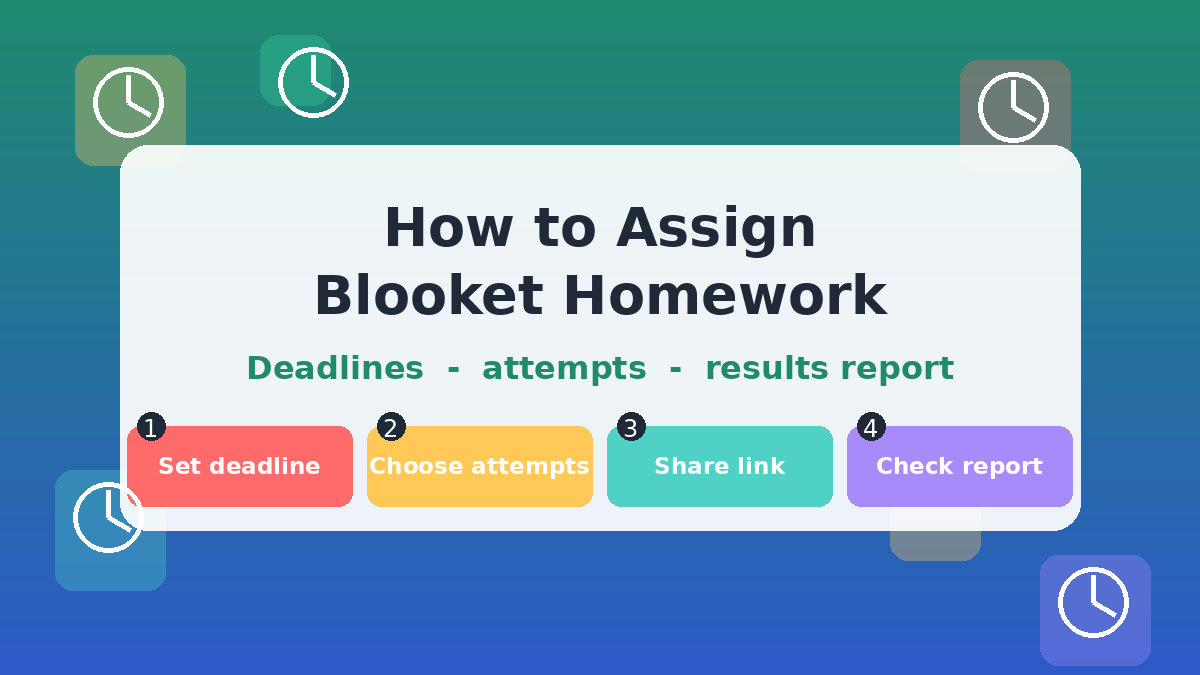
To assign Blooket homework, open the set you want to use, choose the homework option instead of a live game mode, set a deadline and any play limits, then share the generated link or code with students. They can then join and complete the set anytime before the deadline, and their results appear in your reports once finished.
Here is the process broken down in order.
- Open or create the set you want to assign. Any set in your account works, whether you built it yourself or favorited it from the discover library.
- Start the hosting process from your set. Instead of choosing a live game mode, look for the homework option among the hosting choices.
- Set the deadline. Pick the date and time after which students can no longer join or submit answers for this assignment.
- Choose how many times students can play. You can usually allow a single attempt for a graded check, or multiple attempts if the goal is practice and improvement rather than a one-time score.
- Adjust question-level settings if needed. Time limits per question carry over from the set itself, so review them before assigning if the homework version needs more thinking time than a fast-paced live game.
- Generate the join link or code. Once your settings are confirmed, Blooket creates a unique link and code for this specific assignment.
- Share the link with your students. Post it in your learning platform, email it, or write the code on the board, depending on how your class normally receives assignments.
- Monitor submissions as the deadline approaches. You can check how many students have completed the assignment before the deadline arrives, which gives you time to send a reminder if participation is low.
- Review the results report after the deadline. Once the assignment closes, the report shows each student’s score and answers, which you can use for grading or to spot topics the class struggled with.
Setting a deadline and play limits that fit the assignment
A short deadline, such as before the next class period, works well for quick review tied to that day’s lesson. A longer deadline, spanning several days, suits a broader review assignment covering a full unit before a test.
Play limits should match your goal for the assignment. One attempt keeps scores comparable across the class for grading, while allowing several attempts rewards students who go back, fix mistakes, and try to improve their score through repetition.
Sharing the assignment with students clearly
Students need more than just the link. A short note explaining the deadline, how many attempts they have, and whether the score counts toward a grade prevents most of the confused messages you would otherwise get afterward.
If your class uses a shared calendar or learning platform, adding the deadline there as well as in the message you send keeps the assignment visible alongside other coursework instead of getting lost in a chat thread.
Reusing an assignment link across a school day
If you teach the same lesson to several class groups on the same day, you can either generate one homework assignment and share it with every group, or create a separate assignment per group so each one has its own results report. Sharing one link is faster to set up, but separate assignments make it much easier to see how each class performed individually.
For most ongoing review work, separate assignments per class are worth the extra few minutes, since mixing several classes into one report makes it harder to spot patterns specific to any single group.
What settings and data should you check before assigning homework?
The most useful settings to check before assigning Blooket homework are the deadline, the number of allowed attempts, and the time limit on each question, since these three decide how the assignment actually feels for students. The results report afterward then tells you whether those settings worked as intended.
| Setting | Live hosted game | Homework assignment |
|---|---|---|
| Timing | Everyone plays at the same time | Each student plays anytime before the deadline |
| Join method | Shared game code for one session | Link or code valid until the deadline |
| Attempts | One round per session | Configurable, often one or multiple |
| Results | Visible immediately after the round | Available in a report, building as students finish |
Deciding how many attempts to allow
For a graded comprehension check, one attempt keeps the assignment fair, since every student answers the same questions under the same conditions. For general practice before a test, multiple attempts let students treat the set like a study tool, replaying it until the material feels familiar.
In my own use, review sets with multiple attempts allowed tended to get replayed two or three times by students who were behind on the topic, which matched exactly the kind of extra practice those students needed.
Choosing time limits for homework questions
Time limits set inside the question editor apply to homework assignments as well as live games, so a set built for a fast-paced live mode might feel rushed as homework if students are reading more carefully on their own. If a set was originally built for a quick live activity, consider opening it and increasing time limits slightly before assigning it as homework.
Questions involving longer reading passages or multi-step problems benefit most from extra time in a homework context, since students are working without the pressure of classmates finishing around them.
Reading the results report after the deadline
The results report lists each student along with their score and which questions they answered correctly or incorrectly. Sorting or scanning this list quickly shows which questions the whole class struggled with, which is often more useful than any single student’s overall score.
A question that most of the class gets wrong points to a gap in the lesson itself rather than a gap in any one student’s effort, and that is worth revisiting in the next class.
Using homework mode for makeup work
Homework mode is also useful outside of regular weekly review, particularly for students who missed a live session and need to cover the same material independently. Assigning the same set used in the missed class, with a deadline a few days out, lets that student catch up without needing a separate live session just for them.
This works especially well for sets that were originally hosted live, since the questions and difficulty are already tested on the rest of the class, and the absent student gets the same material everyone else worked through.
What common mistakes should you avoid when assigning homework?
The most common mistakes when assigning Blooket homework involve deadlines that are too tight, instructions that assume students already know how to join, and settings left at live-game defaults that do not suit independent practice. Each of these is easy to avoid once you know to check for it.
Setting a deadline that does not match how students actually work
A deadline set for late at night assumes every student has device access right up until that point, which is not true for every household. Setting deadlines earlier in the evening, or giving at least a full day, gives students with shared devices or limited evening access a realistic chance to complete the assignment.
Assuming students already know how to join a homework assignment
If this is the first time your class is using homework mode, a quick walkthrough of where to enter the code and how to type their name avoids a wave of messages asking for help right when the deadline is closest. A short example screenshot or a one-line written instruction solves this for most classes.
Leaving time limits set for a fast live game
A set built for a competitive live game often has short timers designed to create urgency in front of classmates. Assigned as homework without adjustment, those same timers can feel unfairly tight for students reading independently, especially for questions with longer text or images.
Not previewing the set from a student’s perspective first
Opening the homework link yourself before sharing it with the class catches issues like a broken image, a mislabeled correct answer, or a question that reads differently than you remembered when you built the set. This takes a few minutes and avoids discovering the problem only after students report it.
Ignoring the results report until grades are due
Checking the report only when grading is due means missing the chance to send a reminder to students who have not started yet while there is still time. Checking partway through the assignment window, instead of only at the very end, gives you room to follow up before the deadline closes.
Not telling students whether the score counts toward a grade
Students approach an assignment differently depending on whether they think it is graded or just practice. If the score counts toward a grade, say so clearly when sharing the link, and if it does not, say that too, since assuming students will guess correctly leads to either unnecessary stress or unexpected low effort.
FAQs
Do students need a Blooket account to complete homework? No, students can join a homework assignment using the link or code and typing their name, without needing to create their own account first.
Can I assign the same set as homework to more than one class? Yes, you can generate a separate homework assignment from the same set for each class or group, each with its own deadline and settings, without needing to duplicate the set itself.
What happens if a student joins after the deadline has passed? Once the deadline passes, the assignment closes and new attempts are no longer accepted, so any student who has not joined by then will not appear in the results report for that assignment.
Can I change the deadline after creating the assignment? Settings for an assignment are generally fixed once it is created, so if a deadline needs to change significantly, creating a new assignment with the updated deadline is usually the more reliable option.
Is homework mode suitable for younger students working independently? Yes, as long as students can read the join instructions and type their name, homework mode works well for independent practice, though younger classes benefit from a brief in-class walkthrough the first time.
Does homework mode work the same across different question types? Yes, multiple choice, true or false, short answer, and poll questions all function in homework mode the same way they do in a live game, with results recorded individually for each student.
Can I see how long each student spent on the assignment? The results report focuses mainly on scores and individual question answers rather than detailed time-on-task data, so it works best for checking accuracy and completion rather than timing analysis.
Should homework assignments be graded the same as live games? That depends on your goal. A single-attempt homework assignment used as a comprehension check can be graded directly, while a multiple-attempt practice assignment is often better used for completion credit or self-review rather than a strict accuracy grade.
Can I assign homework from a set I favorited but did not create myself? Yes, any set saved to your account, whether you built it or favorited it from another user, can be used to create a homework assignment in the same way as one of your own sets.
What should I do if very few students complete the assignment by the deadline? A low completion rate close to the deadline usually means students need a reminder or clearer instructions rather than a problem with the assignment itself, so sending a short follow-up message before the deadline closes is often enough to improve completion for next time.
Final thoughts
Assigning Blooket homework comes down to picking the right set, choosing a deadline and attempt limit that match your goal, and previewing the assignment before sending it out. Start with one low-stakes review assignment to get familiar with the settings and the results report, then adjust the deadline and attempts based on how your students respond. Once that first assignment runs smoothly, building the next one takes only a few minutes
Break old patterns using new lenses—thought-provoking pieces that shift your view.