Create a Blooket Quiz Step by Step: Complete Guide
Building a Blooket quiz set turns any lesson, study guide, or trivia topic into a game students actually want to play instead of a worksheet they want to avoid. Many people open Blooket, browse the public library, and never realize the question editor lets them build a set around their exact material in a few minutes. When I built my first custom set for a vocabulary review, the difference in focus compared to a random public set was obvious within the first round. This guide walks through the entire process: opening the question editor, choosing question types, setting time limits, adding images, and hosting your finished set, along with the habits that separate a smooth game from a chaotic one.
What is a Blooket quiz set and how does it work?
A Blooket quiz set is a saved collection of questions and answer choices that you build once inside the question editor. Each question can have one correct answer, up to three incorrect options, an optional image, and its own time limit. The set itself is just content, while the game mode you pick later decides how it looks and plays on screen.
Question sets versus game modes
A set is the raw material: questions, answers, and images. A game mode is the format wrapped around that material, such as a racing board, a card-collecting map, or a tower-building battle. The same 20-question history set can run as a calm review mode one day and a fast, competitive mode the next, without rewriting a single question.
This separation is one of the most useful things about Blooket for teachers and content creators alike. You build the question bank once, then reuse it across different modes depending on the energy level you want in the room. A set written for a unit test review works just as well for a quick warm-up activity in a different mode.
Where your sets live in your account
Once you create an account, every set you build appears under your personal sets area, separate from the public library you browse on the discover page. From there you can keep a set private so only you can use it, or make it public so anyone can find and play it — our guide on sharing Blooket sets with other teachers explains the difference between sharing privately and publishing to Discovery.
You can also favorite sets created by other users from the discover page and edit a copy of them to fit your own material. Sets can be organized into folders, which becomes useful once you have built more than a handful of them for different subjects or topics.
Duplicating and editing existing sets
If you have already built a set for one class or topic, you do not need to start from zero when a related topic comes up. Open the set in the editor, save a copy under a new name, then change only the questions that need to be different for the new topic.
This approach also works for sets you favorited from the discover library. Rather than editing someone else’s original directly, save your own copy first, then adjust wording, difficulty, or images so the content matches your class without affecting the version other users see.
How do you create a Blooket quiz step by step?
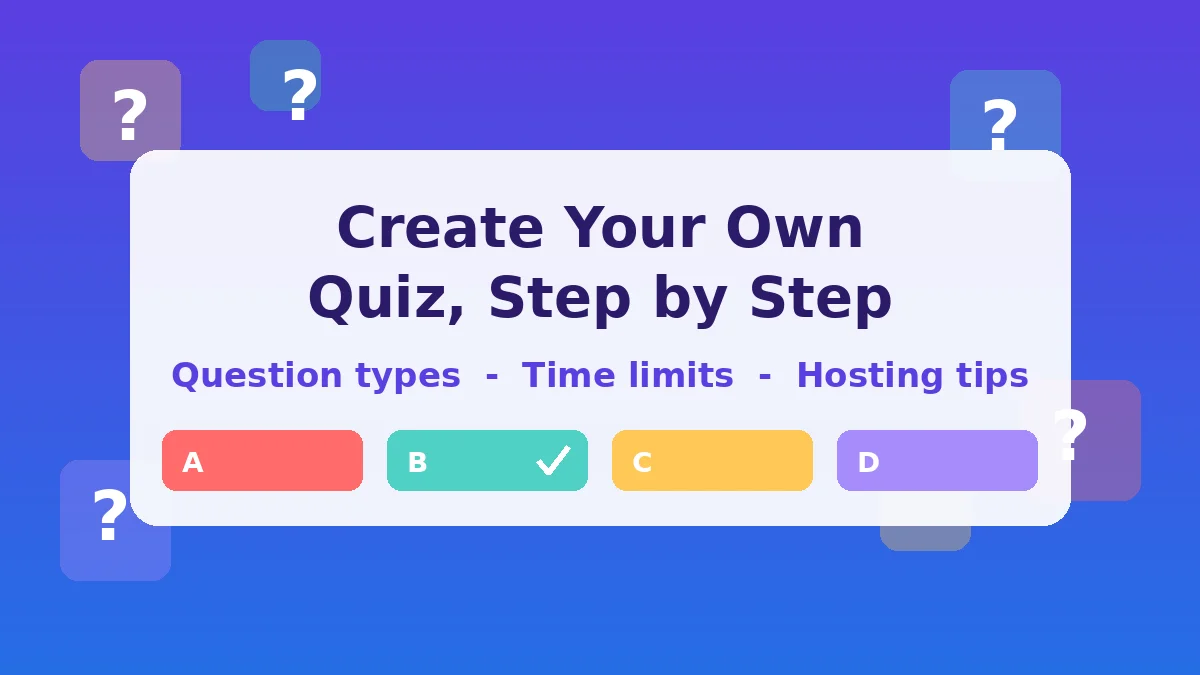
To create a Blooket quiz, log into your account, open the question set creator, give your set a name and cover image, then add questions one at a time using the question editor. Choose a question type, type the question text, fill in the answer choices, mark the correct answer, and set a time limit. Save the set when finished, then choose a game mode to host it live or assign it as homework — our complete guide to using Blooket in the classroom walks through hosting your first live game.
Here is the full process broken into clear steps.
- Log in to your account. You need an account to save sets, since sets created while signed out are not stored permanently.
- Open the set creation tool. Look for the option to create or build a new question set from your account dashboard. This opens a blank editor ready for your first question.
- Name your set and add a cover image. Pick a short, descriptive title so you can find it later among other sets, and choose or upload a cover image that hints at the topic.
- Choose your set’s visibility. Decide whether the set will be private, visible only to you, or public, visible to anyone browsing the discover library. You can usually change this later.
- Add your first question. Type the question text into the question field, then select a question type before filling in the answers.
- Fill in answer choices and mark the correct one. For multiple choice, write the correct answer plus up to three incorrect options, then mark which one is correct. Order does not matter, since Blooket shuffles answers for players by default.
- Set a time limit for the question. Each question can have its own timer, separate from any global time setting in the game mode you choose later. Shorter timers work well for quick recall facts, while longer timers suit questions that require reading a passage or working through a calculation.
- Add an image if it helps the question. Diagrams, maps, charts, and labeled illustrations all work well as question images, especially for subjects like science or geography where a visual makes the question clearer.
- Repeat for every question, then save the set. Once every question has a type, answer choices, a correct answer, and a time limit, save the set. It now appears in your personal sets list, ready to host.
Previewing and testing your set before hosting
After saving a set, open it again and read through each question as if you were a player seeing it for the first time. Check that question text is not cut off, that images load correctly, and that answer choices fit comfortably on screen without wrapping awkwardly.
A short test game with one or two other people, or even just yourself in a second browser tab, shows how the set feels under an actual timer. This step catches issues that are easy to miss while scrolling through the editor, such as a correct answer that was accidentally marked on the wrong option.
Importing questions from a spreadsheet
Typing dozens of questions one at a time is slow, so Blooket offers a bulk import option that reads questions from a spreadsheet. You fill in columns for the question text, each answer choice, and which answer is correct, then upload the file and the editor fills in every question at once.
This method works particularly well if you already have a question bank in a spreadsheet from a previous quiz tool, since you can reformat the columns to match Blooket’s template and import the whole bank in one step. In my own classroom prep, converting an existing 40-question spreadsheet took far less time than retyping each question manually.
Importing questions from Quizlet
If you or your students already have a Quizlet study set for the same topic, Blooket can pull terms and definitions from that set and convert them into questions automatically. This is a fast way to turn an existing vocabulary list into a playable game without rebuilding the content from scratch.
After the import finishes, review each generated question. Our dedicated guide on importing to Blooket from Quizlet covers the direct and manual methods plus common import errors. Automatically converted definitions sometimes need shortening or rewording so they read clearly as quiz questions rather than dictionary entries.
Which question types and settings work best?
Blooket’s editor supports several question types, and picking the right one for each piece of content makes the difference between a question that tests understanding and one that just tests reading speed. Multiple choice works for most factual recall, true or false suits quick concept checks, and short answer fits material where guessing from options would make the question too easy.
| Question type | Best used for | Notes |
|---|---|---|
| Multiple choice | General recall, vocabulary, dates, formulas | Up to four answer choices, one correct |
| True or false | Quick concept checks, myth-busting | Fast to answer, good for warm-ups |
| Short answer | Spelling, exact terms, math results | Players type the answer, so wording must match closely |
| Poll | Opinions, predictions, class surveys | No correct answer, useful for discussion starters |
Setting time limits for each question type
Time limits should match how much thinking a question requires, not just how long the question text is. A short true or false question about a fact students just covered can have a tight timer, since the goal is quick recall. A short answer question that requires typing an exact term or working out a calculation needs a noticeably longer timer so players are not penalized for typing speed alone.
In my testing across different subjects, questions that involve reading a short passage or interpreting an image consistently needed more time than plain recall questions, even when the answer choices themselves were short. If players are regularly running out of time on a particular question, that is a clear signal to lengthen its timer rather than assume the content was too hard.
How many questions should a set have?
The right number of questions depends on how long you want the session to run and which game mode you plan to use, since some modes move faster per question than others.
| Session length | Suggested question count | Notes |
|---|---|---|
| Quick warm-up (5 to 10 minutes) | 10 to 15 questions | Works well for daily review |
| Standard class activity (15 to 25 minutes) | 20 to 30 questions | Common size for unit reviews |
| Extended review session (30 minutes or more) | 35 to 50 questions | Good for pre-test review covering a full unit |
A set with too few questions ends quickly and leaves faster players waiting, while a set with too many can drag once most players have already mastered the easier questions. Reviewing how long a session actually takes once you host it lets you adjust the question count for next time.
Mixing question types for better engagement
A set made entirely of multiple choice questions can start to feel repetitive after the first ten or so, especially in longer sessions. Mixing in a few true or false questions for quick concept checks, and an occasional short answer question for material that needs precise recall, keeps players paying closer attention.
Poll questions work well placed every ten to fifteen questions as a brief pause. They have no correct answer, so they do not affect scoring, but they give players a moment to share an opinion or prediction before returning to graded questions.
What common mistakes should you avoid when building a set?
The most common mistakes when building a Blooket set involve answer choices that are too easy to guess, skipping a test run before using the set live, and ignoring settings like randomization that affect fairness. Each of these is simple to fix once you know to check for it.
Writing answer choices that give away the correct one
If the correct answer is noticeably longer, more specific, or more formally worded than the incorrect options, players will spot the pattern quickly without knowing the actual content. Write all answer choices in a similar length and style, and make sure incorrect options are plausible rather than obviously wrong.
Skipping a test run before hosting live
Reading through questions on screen feels different from playing them under a timer. Hosting a quick solo or small test game before using a set with a full class catches typos, mismatched correct answers, and timers that feel too short or too long.
Leaving randomize settings off when they matter
Most game modes shuffle answer order by default, but it is worth confirming this for any set you plan to reuse often, especially if students might compare notes between rounds. Randomized question order also helps when the same set gets used across multiple class periods on the same day.
Using images you do not have rights to use
Adding images makes questions clearer, but pulling images directly from a search engine can raise copyright issues, particularly for sets you plan to make public. Stick to your own photos, original diagrams, or images explicitly licensed for reuse.
Setting visibility incorrectly for the intended audience
A set built for your own class does not need to be public, and a set you want other teachers to find will not help anyone if it stays private. Decide on visibility before you finish building, since it affects whether the set appears in the discover library at all.
Not checking how the set looks on the device students will use
A set that looks fine on a laptop screen can display very differently on a tablet or phone, especially questions with images or longer answer choices. If your students will join on a mix of devices, preview the set on a smaller screen at least once before hosting.
FAQs
Do I need an account to create a Blooket quiz set? Yes. You can browse and play public sets without one, but creating, saving, and editing your own sets requires a free account so your work is stored under your profile.
Can I edit a quiz set after I have already used it? Yes, any set you created can be opened in the editor again to add, remove, or change questions, answers, images, and time limits at any point.
What is the difference between a public and private set? A private set only appears in your own account and cannot be found by other users, while a public set can appear in the discover library for anyone to find, favorite, and play.
Can I use the same set in different game modes? Yes, the question set and the game mode are separate. Once a set is saved, you can host it using any game mode that supports standard question sets without rebuilding the questions.
Is there a limit to how many questions a set can have? There is no fixed limit that prevents you from adding many questions, but practical limits come from session length and player attention, so most useful sets stay within the ranges covered earlier in this guide.
Can students create their own Blooket sets? Yes, as long as they have an account, students can build sets the same way teachers do, which makes set creation a useful activity for student-led review projects.
Why are some of my imported questions formatted strangely? Spreadsheet and Quizlet imports follow the structure of the source file closely, so unusual line breaks, extra punctuation, or long definitions in the original often carry over and need manual cleanup after import.
Do answer choices need to be in a specific order? No, since most game modes shuffle the order answers appear in for each player, so you only need to mark which option is correct rather than worry about its position in the editor.
Can I add an image to only some questions in a set? Yes, images are optional per question, so you can add one to questions where a visual helps and leave others as plain text. There is no requirement for every question in a set to follow the same format.
What happens if I edit a set that students have already played? Editing a saved set changes it for any future game hosted from that set, but it does not affect results from games that already finished. Future sessions will use whatever version of the set is currently saved.
Final thoughts
Creating a Blooket quiz set is mostly about clear questions, fair answer choices, and settings that match how you plan to use it. Start with one set built around material you already know well, test it with a small group first, and adjust time limits or question count based on what you observe. Once that first set feels right, building the next one takes a fraction of the time.
Get clarity now with core insights—no jargon, just the essential points.