Blooket for Elementary Teachers: A Complete Classroom Guide
Blooket for elementary teachers works as a free, browser-based review game that turns multiple-choice questions into fast, colorful mini-games young students play using just a six-digit code, with no separate student accounts or app downloads required. That single feature, an instant join with zero setup on the student side, is a big part of why it spreads through elementary schools faster than most classroom tools.
This guide covers how Blooket works in an elementary classroom, how to set up a first session in minutes, which modes fit five, six, and seven-year-olds versus older elementary students, and the mistakes that turn an exciting first round into a loud, confusing one. Everything here comes from actually running Blooket with elementary classes, not from a marketing page.
What is Blooket, and how does it work in an elementary classroom?
Blooket is an independent, browser-based review game platform where a teacher hosts a set of questions and students answer them inside a themed mini-game, earning in-game currency for correct answers. Elementary teachers use it mainly for live, whole-class review sessions and short solo practice assignments, since young students respond well to its visual, low-pressure game format.
How a typical Blooket session runs
A teacher signs into a free account, picks or builds a question set, and chooses a game mode that matches the lesson. Students open the join page on any laptop, tablet, or phone, type the six-digit code the teacher shares, and pick a nickname. Once everyone is in, the questions appear on each student’s own screen while the mini-game animation plays out at the same time. Our complete guide to using Blooket in the classroom covers the full setup and hosting flow for any grade.
Why young students respond to it
Elementary students are drawn to the collectible creatures, called Blooks, that they earn with the in-game currency from correct answers. The game format hides repetition inside something that feels more like a reward system than a worksheet. In my own classroom trials with second and third graders, even reluctant readers stayed focused through a full review set because the next Blook pack felt within reach.
What makes it different from a basic quiz app
A standard quiz tool shows one question and one shared leaderboard, asking every student to keep pace with each other. Blooket instead wraps the same question into more than a dozen visual formats, which keeps the experience fresh across an entire term. Younger students tend to disengage from constant leaderboard pressure, so a format that hides the pressure behind a game theme matters more in an elementary room than it does with older students.
Where Blooket fits among other classroom review tools
Elementary teachers often already use a simple quiz tool with one format and a public leaderboard for every question. Blooket sits next to those tools rather than replacing them, since its real strength is the variety of mini-games built around the same question set. Rotating between a calm Blooket mode one week and a different review tool the next keeps any single format from becoming routine.
Treating every grade level the same
A mode that works well with fourth graders does not always work with kindergartners, even when the question content is identical. Younger students need slower mini-games and simpler controls, while upper elementary students can handle more complexity and friendly competition. Testing a new mode with one class before rolling it out across an entire grade level avoids surprises during a lesson you only have one chance to run well.
How do you set up and run your first Blooket game with elementary students?
Running a first Blooket game with elementary students takes four steps: create a free teacher account, choose or build a question set at the right reading level, pick a beginner-friendly game mode, and share the join code on a shared screen so every student can type it in within a minute.
Step-by-step setup for your first session
- Create a free teacher account at the Blooket website using a school email address.
- Search the public set library for your topic, or build a short set of ten to fifteen multiple-choice questions written at your students’ reading level.
- Choose a calm, low-stimulation game mode for the first session, since young students need a round or two to learn the controls before a fast-paced mode makes sense.
- Start a live game from your teacher dashboard and display the six-digit join code on the screen.
- Walk the class through joining once together: open the join page, type the code, choose a nickname, and wait on the lobby screen.
- Start the round once every student’s name appears in the lobby.
Choosing a question set that fits young readers
Many sets in the public library are written for middle or high school reading levels, which can slow an elementary class down or cause frustration. Shorter questions with simple sentence structure and answer choices under six words work far better for students still building reading fluency. When I rebuild a set for a first or second grade class, I usually trim every answer choice down to a single word or short phrase.
Managing devices and noise in a young classroom
Elementary students react out loud to game animations more than older students do, so a session can get loud fast. Setting a simple signal, such as lights off means freeze, before the game starts gives the room a way to reset without stopping the game. Our Blooket classroom rules guide has a short set of expectations worth introducing before the first round. Pairing younger students who cannot type well yet with a partner also keeps the first few sessions moving.
Supporting shy or anxious students during a live game
A small number of students in any elementary class feel anxious about a visible leaderboard or a fast-moving mode, even when the rest of the class is having fun. Letting an anxious student play in a quieter corner of the room, or pairing them with a calm partner, usually solves this without singling anyone out. Some teachers also let a nervous student watch the first round before joining the second one.
How much prep time a Blooket session actually takes
Building a short set from scratch for a specific lesson usually takes ten to fifteen minutes once a teacher has done it a few times. Reusing or lightly editing an existing public set cuts that down to a few minutes of reading through questions and answers for grade-level fit. The time investment drops fast after the first two or three sets, which is part of why Blooket sticks as a regular habit rather than a one-time novelty.
Using solo mode for homework or independent practice
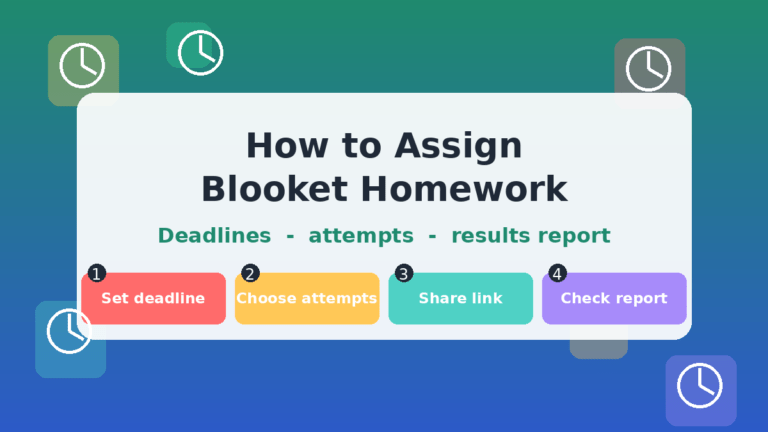
Outside of live sessions, a teacher can share a direct link to a question set in solo mode, which lets a student play through it independently without a host running the game. This works well for morning work, sub days, or extra practice for a student who finished early. Solo links skip the live lobby and code entirely, so a student can start the moment they click.
Which Blooket game modes work best for elementary students?
The most elementary-friendly Blooket modes are the slower-paced, lower-pressure ones such as Classic, Café, and Gold Quest, since they reward correct answers without fast reflexes or direct competition. Faster, combat-style modes such as Battle Royale or Crypto Hack suit upper elementary and older students who already know the platform.
A simple way to match modes to grade level
Kindergarten through second grade tends to do best with modes that move at the student’s own pace and do not punish a wrong answer too harshly. Third through fifth grade students can usually handle modes with light competition or timed elements once they have played a few rounds. I sort every mode into one of three speed levels before bringing it to a young class: calm, moderate, or fast.
Game modes by pace and best-fit age group
| Game mode | Pace | Best for | Why it works |
|---|---|---|---|
| Classic | Calm | Kindergarten to grade 2 | Simple multiple choice with no extra mechanic to learn |
| Café | Calm | Grade 1 to grade 3 | Students build a virtual menu at their own speed |
| Gold Quest | Moderate | Grade 2 to grade 4 | Light risk-and-reward choices without direct player contact |
| Tower Defense | Moderate | Grade 3 to grade 5 | Combines planning skills with content review |
| Fishing Frenzy | Moderate | Grade 2 to grade 5 | Visual reward loop that holds attention during longer sets |
| Battle Royale | Fast | Grade 4 and up | Direct competition suits students used to the platform |
| Crypto Hack | Fast | Grade 5 and up | Steal mechanic can upset younger or sensitive players |
Modes to introduce only after students know the basics
Modes built around direct competition, such as stealing currency from another player, can upset younger students who take a setback personally. I wait until at least the third or fourth session before introducing any mode where one student’s actions can affect another student’s progress. By that point, most elementary classes understand that losing a round is part of the game rather than a personal loss.
What to do if a mode does not fit your class
Not every mode works for every group, even within the same grade level. If a class seems confused or overstimulated five minutes into a mode, switching back to Classic for the rest of the session works better than pushing through. Keeping a backup calm mode ready before class starts saves a session that begins to go sideways.
What mistakes do elementary teachers make with Blooket, and how do you avoid them?
The most common mistakes with Blooket for elementary teachers are skipping the practice round, using a question set written above the class reading level, picking a competitive mode too early, assuming every student can type fast enough to keep up, and never opening the post-game report. Each mistake is easy to avoid once a teacher knows to expect it.
Skipping the practice round
Starting straight into a graded review without a short, ungraded practice round leaves part of the class confused about how to answer on their screen. A two-minute practice round with two or three throwaway questions fixes this every time. Students spend that round learning the interface instead of the content, which protects the real review that follows.
Picking a set above the class reading level
A set built for older students often uses longer sentences and harder vocabulary in the answer choices, not just the questions. Elementary students can know the content well and still pick the wrong answer because they could not read the choice fast enough. Building or editing sets specifically for your grade level removes this problem almost entirely.
Choosing a high-pressure mode for a first session
A mode with direct competition or a visible live leaderboard can overwhelm students who are still learning how the platform works. Save modes with combat or stealing mechanics for a class that already understands the basic flow. A calm first session builds the comfort that a faster session later depends on.
Assuming every student types or reads at the same speed
Younger elementary students vary widely in typing speed and reading fluency, even within the same grade. Pairing slower readers with a partner, or reading questions aloud while they appear on screen, keeps the whole class moving together. Without that support, a handful of students spend the entire game behind everyone else.
Skipping the post-game report
Every Blooket game generates a report showing exactly which questions tripped up the most students, but many teachers close the tab without opening it. That report takes less time to read than planning the next lesson and points directly at what to reteach. I check it before planning anything for the next class period, since it tells me more than a quick raise-of-hands check ever could.
Running the exact same mode every single time
A class that plays the identical mode every week starts to treat Blooket as routine rather than a treat, which lowers the energy in the room over time. Rotating through three or four modes across a month keeps the novelty that makes the platform effective in the first place. I keep a short list of go-to modes for my grade level and cycle through them instead of defaulting to the same one every time.
FAQs
Is Blooket safe and appropriate for elementary students? Blooket does not require students to create a personal account to join a live game, since they only need a six-digit code and a nickname they choose. Teachers control the question content and the game mode, so the platform carries no built-in age restriction beyond what a school already requires for classroom devices.
Do elementary students need their own Blooket account? No. Students join live games through the play page using only the host’s code and a nickname, with no email, password, or account required. Only the teacher hosting the game needs an account, which keeps setup simple for young classes.
How long should a Blooket session run with young students? Most elementary classes hold focus for ten to fifteen minutes of active play, including the join process and one or two short rounds. Stretching a session past twenty minutes with kindergarten or first grade students usually leads to restlessness rather than better review.
Can Blooket work without individual devices for every student? Yes. Pairing two or three students per device works well for elementary classrooms with limited technology, especially if one partner reads the question aloud while the other selects the answer. Many teachers also run a single shared-screen version where the class answers together as a group.
What is Blooket Plus, and do elementary teachers need it? Blooket Plus is a paid subscription that adds extra game modes and raises the number of students who can join a single live game. Most elementary classrooms run well on the free tier, since class sizes rarely come close to the free live player limit.
What are Blooks, and why do students care about them? Blooks are the collectible avatar creatures students can claim using the in-game currency they earn from correct answers, with designs ranging from common to rare. The collection element gives students a reason to want another review round, which is part of why engagement stays high in elementary classrooms.
Can a substitute teacher run a Blooket game with an elementary class? Yes, as long as the regular teacher prepares a question set and leaves the login details or a direct solo link beforehand. Solo mode is often the simpler option for a substitute, since it removes the need to host a live lobby or manage the join process — our Blooket substitute teacher guide covers setting up a no-prep game a sub can run alone.
Does Blooket work well on the tablets and Chromebooks common in elementary schools? Yes. Blooket runs in a standard web browser, so it works on school Chromebooks, tablets, and shared lab computers without installing anything. The join page and game screens are built to work on a touchscreen, which matters for classrooms where younger students share tablets.
Start with one Blooket session this week
Blooket for elementary teachers works best when the game mode, question set, and session length all match the age of the class in front of you. Start with a calm mode, a short set written at your students’ reading level, and a brief practice round before the real review begins. Run one session this week with a lesson you already have ready, then adjust the pace once you see how your specific class responds.
Stay inspired daily through fresh picks—our rotating selection of standout content.