Best Browser for Blooket: Top Picks for Smooth Play
Your browser choice directly affects how well Blooket runs. Pick the wrong one and you get lag, frozen screens, audio glitches, or a game that refuses to load mid-session. Pick the right one and every round runs clean, fast, and without interruption. This guide ranks the best browsers for Blooket, explains exactly why each one performs the way it does, and walks you through the settings that make a real difference — whether you’re a student chasing a leaderboard or a teacher running a class of thirty.
Why your browser matters more than most people think
Blooket is a fully browser-based platform. Every game, every blook animation, every real-time score update runs through your browser’s JavaScript engine and network stack. If that engine is slow, your game is slow. If it’s efficient, everything feels snappy. Combine the right browser with the techniques in this guide on how to answer faster in Blooket and the snappy feel turns into a real competitive edge.
What Blooket actually asks of your browser
Blooket loads a React application, maintains a live WebSocket connection to its game servers, plays audio effects, and renders animated elements — all at the same time. That combination puts real pressure on three browser resources: JavaScript execution speed, memory management, and network handling.
Browsers with faster JavaScript engines process game logic quicker. Browsers that manage memory well avoid the slowdowns that appear after a game has been running for several minutes. And browsers that handle persistent WebSocket connections cleanly keep your score updates and game state in sync with the server.
Hardware acceleration and what it changes
Hardware acceleration lets your browser offload visual rendering to your GPU rather than your CPU. With it enabled, blook animations, screen transitions, and the game board all render more smoothly. Most modern browsers enable it by default, but it sometimes gets disabled after an update or a bad driver install. Checking this setting takes about twenty seconds and can fix lag that no amount of troubleshooting otherwise touches.
The best browsers for Blooket, ranked
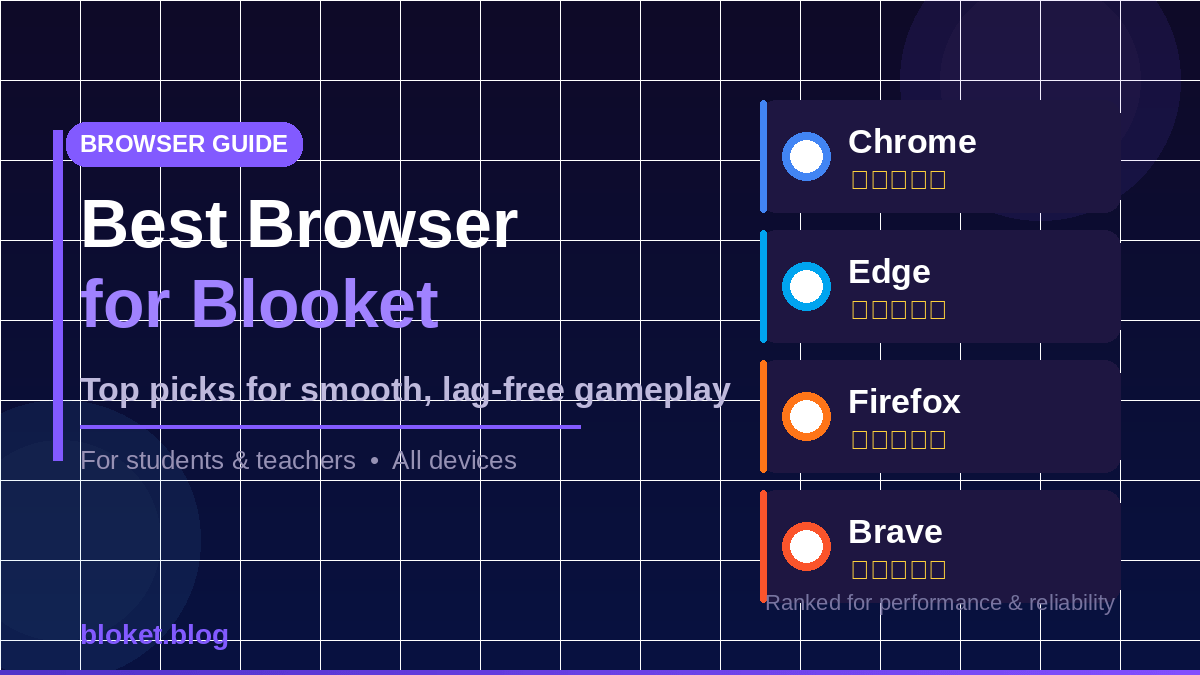
After testing each browser across multiple Blooket game modes — including Gold Quest, Battle Royale, and Factory — here is how they stack up for everyday players and classroom use.
Google Chrome: the strongest all-around pick
Chrome is the best browser for Blooket for most users. Its V8 JavaScript engine is consistently fast, its WebSocket handling is stable, and Blooket itself is developed and tested primarily on Chrome. That last point matters: when Blooket’s developers test a new feature, Chrome is usually the first browser they check it on.
In practice, this means Chrome gets the fewest rendering bugs, the most reliable audio playback, and the smoothest game joins. On a mid-range laptop, Chrome handled every game mode without a single dropped connection across a full school-day session.
The trade-off: Chrome is a memory hog. On older devices with 4 GB of RAM or less, it can slow down when multiple tabs are open. The fix is simple — close every tab except Blooket before starting a game.
Microsoft Edge: the best Chrome alternative
Edge runs on the same Chromium engine as Chrome, which means Blooket performance is nearly identical. Where Edge pulls ahead is memory efficiency. Microsoft has done real optimization work on Edge’s memory scheduler, and it shows on lower-spec Chromebooks and school-issued laptops that struggle under Chrome.
Edge also includes a built-in sleeping tabs feature that suspends inactive tabs automatically, freeing up RAM for Blooket without you having to close anything manually. For teachers managing a classroom browser session on shared devices, that makes a meaningful difference.
Mozilla Firefox: reliable, with one caveat
Firefox uses a different JavaScript engine (SpiderMonkey) and performs well on Blooket in normal gameplay. Game joins, answer submission, and score tallies all work correctly. The one area where Firefox occasionally falls behind is audio — some users report that Blooket’s sound effects play with a slight delay or cut out entirely on Firefox, depending on the device and OS version.
If audio is important to your Blooket sessions, test Firefox first before relying on it for a class. If it sounds fine on your specific setup, Firefox is a solid, privacy-respecting choice.
Brave: Chrome performance with built-in privacy
Brave is built on Chromium, so its JavaScript performance mirrors Chrome. The browser comes with a built-in ad and tracker blocker, which is where its relationship with Blooket gets complicated. Brave Shields — the default blocking feature — occasionally interferes with Blooket’s game connection or blocks the loading of certain assets.
The fix is straightforward: open Brave Shields for the Blooket tab and lower the blocking level to Standard, or add blooket.com to your exceptions list. Once that’s done, Brave runs Blooket as cleanly as Chrome does, with less background data collection.
Safari: acceptable on Mac, problematic on iOS
On a Mac running a recent version of macOS, Safari handles Blooket reasonably well. Apple has improved Safari’s JavaScript engine (JavaScriptCore) considerably, and standard gameplay is smooth enough for most purposes.
The problem is iOS and iPadOS. Blooket works in the browser on iPads and iPhones, but Safari on those devices has historically had issues with WebSocket connections dropping during fast-paced game modes. If students are joining on school-issued iPads, expect occasional disconnects in modes like Battle Royale. The dedicated Blooket experience on iOS is better handled through the app rather than Safari.
Opera GX: good option for students on gaming PCs
Opera GX is a Chromium-based browser marketed at gamers, and its built-in RAM and CPU limiters are genuinely useful. You can cap how much of your system resources Opera GX uses, which prevents Blooket from competing with other processes when you’re on a machine that’s also running Discord, a second game, or a screen recorder.
For pure Blooket performance, Opera GX is not faster than Chrome or Edge — it’s the same engine underneath. But the resource controls make it a smart pick for students who game on the same machine they use for Blooket.
Browser comparison at a glance
| Browser | JavaScript speed | Memory use | Blooket audio | Mobile support | Privacy defaults |
| Chrome | Excellent | High | Excellent | Good | Low |
| Edge | Excellent | Medium | Excellent | Good | Medium |
| Firefox | Good | Medium | Occasional issues | Good | High |
| Brave | Excellent | Medium | Good (after setup) | Good | Very high |
| Safari | Good | Low | Good on Mac | Fair on iOS | High |
| Opera GX | Excellent | Controllable | Excellent | N/A (desktop only) | Medium |
How to set up any browser for better Blooket performance
The browser you choose matters less than how you configure it. A well-set-up Firefox will outperform a neglected Chrome on the same device.
Clear your cache before a big game session
Cached files that are outdated can conflict with Blooket’s latest game code. This is one of the most common causes of Blooket loading errors or buttons that don’t respond. Clearing the cache takes under a minute and removes stale data that causes invisible conflicts.
In Chrome and Edge: Settings → Privacy and security → Clear browsing data → select Cached images and files → Clear data.
In Firefox: Settings → Privacy and Security → Cookies and Site Data → Clear Data → check Cached Web Content.
Disable extensions that interfere with Blooket
Extensions are the single biggest source of Blooket problems in Chrome and Edge. Ad blockers, content filters, VPNs, and anti-tracking extensions can all block WebSocket connections, prevent assets from loading, or inject CSS that breaks the game layout.
The fastest test: open Blooket in an Incognito or InPrivate window, where extensions are disabled by default. If Blooket runs fine there but struggles in your normal window, an extension is the culprit. Disable them one by one until the issue disappears.
Verify hardware acceleration is on
In Chrome: type chrome://settings/system in the address bar and confirm “Use hardware acceleration when available” is toggled on.
In Edge: edge://settings/system — same toggle, same location.
In Firefox: Settings → General → Performance → uncheck “Use recommended performance settings” → confirm “Use hardware acceleration when available” is checked.
Turning this on after it’s been off can immediately improve rendering smoothness, especially on game modes with lots of simultaneous blook movements on screen.
Use a wired connection or move closer to your router
This one sounds obvious but gets overlooked. Blooket maintains a persistent connection to its servers throughout the game. A weak or unstable Wi-Fi signal causes the connection to drop and reconnect repeatedly, which looks like lag inside the game. A wired ethernet connection eliminates this entirely. If wired is not an option, moving to the same room as your router often makes a measurable difference.
Keep only one Blooket tab open
Opening Blooket in multiple tabs, or leaving an old game session in the background while starting a new one, creates conflict. Blooket’s session cookies and WebSocket connections can get confused across tabs. Always close old Blooket tabs completely before starting a new game.
Common Blooket browser problems and how to fix them
Blooket won’t load at all
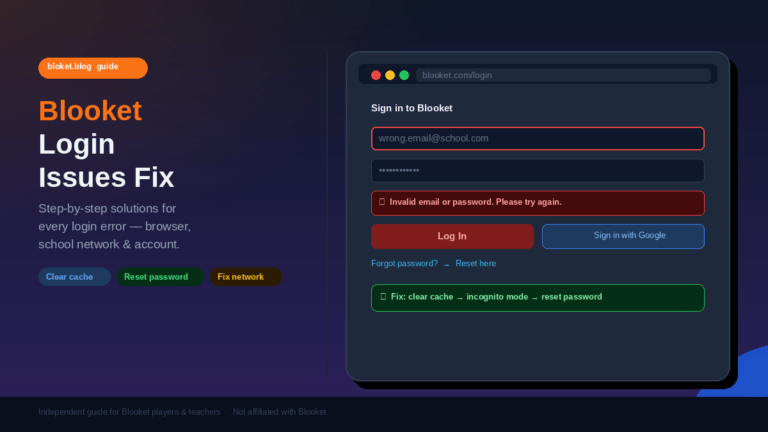
This usually means one of three things: a cached conflict, a blocking extension, or a DNS issue. Try in this order: clear cache → open in Incognito → try a different browser. If it loads in Incognito but not normally, an extension is blocking it. If it won’t load in any browser, check whether blooket.com is accessible by opening it on a different device or network.
The game freezes or lags during play
Freezing mid-game on an otherwise stable connection points to a memory issue. Close all other tabs and applications. If you’re on Chrome, check Task Manager (Shift+Esc on Windows in Chrome) to see which tabs are using the most RAM and close anything unnecessary. Restarting the browser entirely — not just the tab — clears the memory state and usually fixes freezing that returns repeatedly. For step-by-step fixes that go beyond the browser itself, see this Blooket lag fix guide to stop freezing and slow games.
Audio is not working in Blooket
Browser audio is controlled at two levels: the OS volume and the browser’s own site permissions. First check that your device volume is not muted. Then check that your browser has not muted the Blooket tab — right-click the tab and look for an “Unmute tab” option. In Chrome and Edge, you can also check site-level audio permissions at chrome://settings/content/sound. If audio still won’t come back, this complete Blooket audio not working fix guide walks through every remaining cause and solution.
If you’re on Firefox and audio is delayed or choppy, try switching to Chrome for audio-heavy game modes. This is a known inconsistency on some Firefox and OS combinations.
Can’t join a game even with the correct code
A correct code that won’t work usually means the connection to Blooket’s game server is being blocked. This happens most often on school or library networks that use content filters. The filter may allow the Blooket website to load but block the WebSocket port the game uses for real-time updates. In a school setting, ask your IT department to whitelist *.blooket.com on WebSocket ports. At home, disable any VPN and try again.
FAQs
Does Blooket work on Chromebooks?
Yes. Chromebooks run Chrome OS, and since Chrome is native to that system, Blooket performs well on Chromebooks. The main limitation is RAM — budget Chromebooks with 4 GB can slow down if many Chrome tabs are open at once. Keep the session lean and Blooket runs without issue.
Is Blooket better on a phone or a computer?
Blooket is built primarily for desktop and laptop browsers, and that is where it performs best. On phones, the screen is small enough that some game mode interfaces become cramped. Joining as a student works fine on a phone browser, but hosting a game is much easier on a full-size screen.
Can students join Blooket games on Firefox?
Yes. Students can join and play Blooket games on Firefox without any special setup. The occasional audio delay issue mainly affects certain OS and driver combinations, and many students never encounter it at all. If audio is important, a quick test before the session is enough to confirm whether Firefox works on that specific device.
Does using a VPN affect Blooket?
VPNs can cause two problems: they add latency to the connection (making the game feel slower), and some VPN clients block the WebSocket connection Blooket uses for real-time updates. If Blooket is lagging or failing to connect while a VPN is active, disable the VPN and test again. Most school and home Blooket sessions do not need a VPN.
Why does Blooket run better on my school computer than at home?
School computers are often managed devices running lean browser profiles with no extra extensions, minimal background processes, and a fast network connection. At home, a browser loaded with ten extensions, multiple background apps, and a busy home Wi-Fi network creates more interference. Matching those conditions at home — fewer extensions, browser freshly restarted, nothing else running — usually closes the gap.
Does browser version matter?
Yes. Running an outdated browser version can cause compatibility issues with Blooket’s JavaScript and WebSocket code. All major browsers update automatically by default. If you have disabled auto-updates, check your browser’s About page and install any available update before running a Blooket session.
Is Chrome always the best choice for Blooket?
Chrome is the safest default choice because Blooket is tested on it first. But Edge performs identically on most devices and uses less memory, making it the better pick on lower-spec hardware. For any device with 8 GB of RAM or more, Chrome and Edge are interchangeable for Blooket purposes.
Conclusion
Chrome is the most reliable browser for Blooket, and it is the one to start with if you are unsure. Edge is the smarter pick for older or lower-memory devices. Brave works just as well as Chrome once you adjust its shields settings. Firefox is a solid option for most users, with audio worth testing first. Safari is fine on Mac but less consistent on iOS.
Whichever browser you pick, the settings matter as much as the brand: clear your cache, turn off extensions, confirm hardware acceleration is on, and keep only one Blooket tab open at a time. Make those four adjustments and almost any modern browser will run Blooket well.
Start with Chrome or Edge, test your audio before class or a game session, and you will not run into problems.
Looking for answers? Find them in our handpicked articles packed with expert advice.