Blooket Login Issues Fix: Complete Troubleshooting Guide
Getting locked out of Blooket right before a live game is one of the most common frustrations for students and teachers alike. In most cases, the cause is something small: a stale browser cache, a mismatched Google account, or a school network filter. This guide covers every real login error reported across Blooket — with step-by-step fixes that work on desktop, Chromebook, tablet, and phone. Each fix is tied to a specific cause, so you’re not guessing your way through generic advice.
Why Blooket login fails
The single clearest answer: most Blooket login failures come down to one of four causes — browser cache conflicts, Google account mismatches, school network blocks, or using the wrong sign-in method for your account type. Identifying which one applies cuts troubleshooting time significantly.
Blooket supports two sign-in methods: email and password, or Google OAuth. These two paths are separate, so credentials from one won’t work on the other — a fact that catches many users off guard.
Browser cache and cookie conflicts
Your browser stores session data from every Blooket visit. When that cached data becomes outdated or corrupted, it blocks a fresh login even when your credentials are correct.
This is the most common cause of Blooket login failures by a wide margin. The symptom is usually a blank screen after clicking “Log In,” or a page that simply refreshes without signing you in.
Google account mismatches
If you signed up for Blooket using a personal Gmail but your school Chromebook is logged into a Google Workspace account, Blooket’s Google login will authenticate the wrong account. The result is either an “account not found” error or a redirect loop that goes nowhere.
Each Blooket account is tied to one specific Google account. Switching devices or Google accounts breaks the match.
School network and firewall restrictions
Many school districts filter web traffic and can block Blooket’s authentication endpoints — sometimes without blocking the main site. This often happens after IT system updates, making it look like Blooket suddenly stopped working.
A tell-tale sign: Blooket loads fine on mobile data but fails on the school Wi-Fi.
Wrong credentials or account type
The login technically succeeds, but Blooket’s dashboard fails to render. This is almost always a cache or extension problem. Clear your cache first, then test in incognito mode. If the dashboard loads but the connection later drops during a live game, this Blooket disconnect problems complete fix guide is the right next step. If the login goes through but the game itself refuses to join, that’s a separate problem — this Blooket code not working fix guide covers the proven solutions there.
How to fix Blooket login issues step by step
Work through these fixes in order. The majority of problems resolve by Fix 3.
Fix 1: Clear your browser cache and cookies
- Open your browser settings (in Chrome: three-dot menu > Settings > Privacy and security).
- Select “Clear browsing data.”
- Set the time range to “All time.”
- Check “Cookies and other site data” and “Cached images and files.”
- Click “Clear data,” then close and reopen the browser completely.
- Navigate to blooket.com and attempt login again.
Clearing cache forces Blooket to start a completely fresh session. This step alone resolves the majority of blank-screen and login-loop errors.
Fix 2: Use incognito or private mode
Open an incognito window (Ctrl+Shift+N in Chrome, Ctrl+Shift+P in Firefox) and go to blooket.com. Incognito mode disables browser extensions and uses no stored cookies.
If you can log in via incognito but not in your regular browser, the issue is either a browser extension or corrupted cookie data — both handled by Fix 1 or Fix 5.
Fix 3: Verify which Google account is active
Click your profile picture in the top-right corner of any Google page and confirm the active account. Switch to the account linked to your Blooket account, then return to blooket.com and try again.
On shared school devices, sign out of all Google accounts first. Log in with the correct account before attempting Blooket. This eliminates the most common source of redirect loops.
Fix 4: Reset your Blooket password
- Go to blooket.com and click “Log In.”
- Click “Forgot password?” below the login form.
- Enter the email address linked to your account.
- Check your inbox (and spam/junk folder) for the reset email.
- Click the link in the email and set a new password.
- Return to blooket.com and log in with the new credentials.
Reset emails from Blooket come from a noreply address. If nothing arrives within five minutes, check your spam folder and confirm you entered the correct email.
Fix 5: Disable browser extensions
Ad blockers, privacy tools, and script blockers frequently interfere with Blooket’s authentication flow. Go to chrome://extensions (Chrome) or about:addons (Firefox) and toggle all extensions off.
Attempt login. If it works, re-enable extensions one by one to find the offending one. The most common culprits are uBlock Origin, Privacy Badger, and Ghostery.
Fix 6: Try a different browser or device
If nothing above has worked, open blooket.com in a different browser or on a completely different device. A successful login on the alternative confirms the problem is specific to your original browser or device setup — not your Blooket account itself.
Understanding specific Blooket login errors
Different error messages point to different fixes. Here is what each one actually means.
| Error message | Likely cause | Fastest fix |
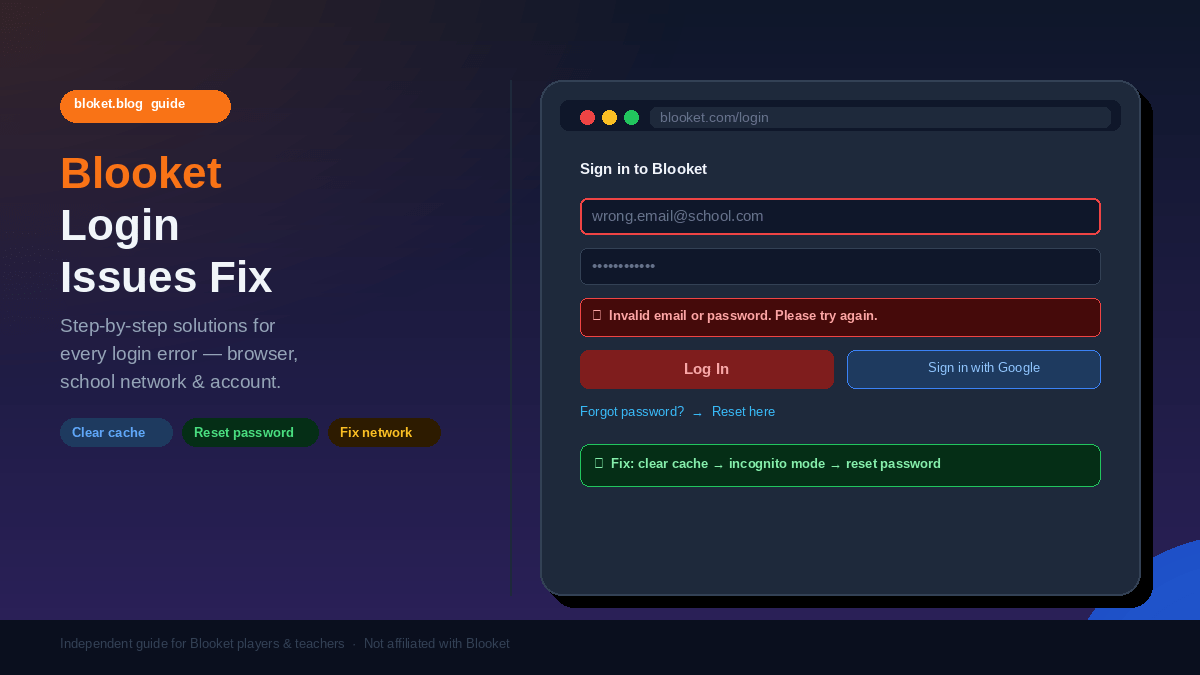
| “Invalid email or password” | Typo in credentials or wrong sign-in method | Check email for typos, then reset password |
| “Account not found” | Wrong Google account or method mismatch | Try email/password login instead |
| Blank screen after login | Cache or extension conflict | Clear cache, test in incognito |
| Google sign-in redirect loop | Workspace restriction or cookie conflict | Clear cookies, check active Google account |
| “Too many attempts” lock | Multiple failed login tries | Wait 15–30 minutes, then reset password |
“Invalid email or password” error
This error means Blooket found no account matching that specific email-and-password combination. Check for common typos in the email address — .con instead of .com is more common than you’d expect.
If the email address is definitely correct, use the password reset link. If no reset email arrives, the email itself is wrong or was registered under a different address.
“Account not found” error
This error appears when you try Google sign-in but that Google account isn’t linked to any Blooket account. You either created the account with email and password rather than Google, or you used a different Google account when registering.
Try logging in with email and password instead. If you don’t remember the password, use the reset option.
Blank screen or infinite loading after login
The login technically succeeds, but Blooket’s dashboard fails to render. This is almost always a cache or extension problem. Clear your cache first, then test in incognito mode. If the dashboard loads but the connection later drops during a live game, this Blooket disconnect problems complete fix guide is the right next step.
If the dashboard loads in incognito, a browser extension is blocking page rendering after authentication. Identify and disable it using Fix 5.
Google sign-in redirect loop
A redirect loop means Blooket and Google can’t agree on the authentication state. On school devices, this usually means the Workspace account has restricted third-party app access.
The proper fix requires a school administrator to approve Blooket in the Google Workspace Admin Console. As a workaround, use email and password login if your account supports it.
“Too many attempts” lockout
After several failed login attempts, Blooket temporarily restricts account access. Wait 15 to 30 minutes before trying again. Use that time to reset your password so the next attempt uses the correct credentials.
School and Chromebook login problems
School environments add a layer of complexity that personal devices don’t have. These fixes apply specifically to students and teachers on managed school networks.
Blooket blocked by the school network
If blooket.com loads but the login button does nothing — or the site won’t load at all on school Wi-Fi — your district’s firewall may be blocking Blooket’s servers.
Test by opening Blooket on your phone using mobile data. If it works there but not on school Wi-Fi, the network is the problem. Contact your IT department and ask them to whitelist blooket.com and *.blooket.com.
Google Workspace SSO problems
School Google accounts are managed by the district, and administrators can restrict which third-party apps those accounts can access. If signing in with a school Google account gives you a “Google hasn’t verified this app” error, that restriction is set at the district level — not something you can fix yourself.
Teachers can submit an approval request through the Google Workspace Admin Console. Students should ask their teacher to escalate the request to IT.
Chromebook-specific fixes
Managed Chromebooks sometimes hold stale authentication tokens that standard browser cache-clearing doesn’t touch. Standard cache-clearing only affects the browser layer; managed device tokens sit at the OS level.
Steps for a managed Chromebook:
- Click the clock in the bottom-right corner of the screen.
- Select your account avatar and click “Sign out.”
- On the login screen, click the down arrow next to your account name.
- Select “Remove this account.”
- Re-add the account by signing back in fresh.
- Open Chrome and try Blooket again.
This forces re-authentication at the device level, not just the browser level. It resolves cases where cache-clearing alone made no difference.
How to recover a Blooket account
Forgot which email you used
Search old email inboxes for any Blooket welcome or confirmation email. Check your school email, personal Gmail, and any accounts you created a few years ago. The registration confirmation will show the address linked to your Blooket account.
Forgot your password
Use the “Forgot password?” link on the Blooket login page. If you don’t receive the reset email after checking spam, the address you entered doesn’t match the one on the account. Try every email address you’ve ever used.
Lost access to your linked Google account
If you signed up with a Google account you no longer control — common for students who’ve graduated or switched schools — you can’t recover the Blooket account through Google login. Contact Blooket support through their official help center.
Provide as much identifying information as possible: the email used, your Blooket username, and an approximate account creation date. The more specific you are, the faster the support process moves.
FAQs
Why can’t I log in to Blooket even though my password is correct?
The most common cause is a browser cache conflict. Clear your cookies and cached data, then try again. If that doesn’t work, open an incognito window and attempt login there. A successful incognito login confirms the problem is your browser setup — either an extension or stale cookie data — and Fix 1 or Fix 5 in this guide will resolve it.
Does Blooket work on all browsers?
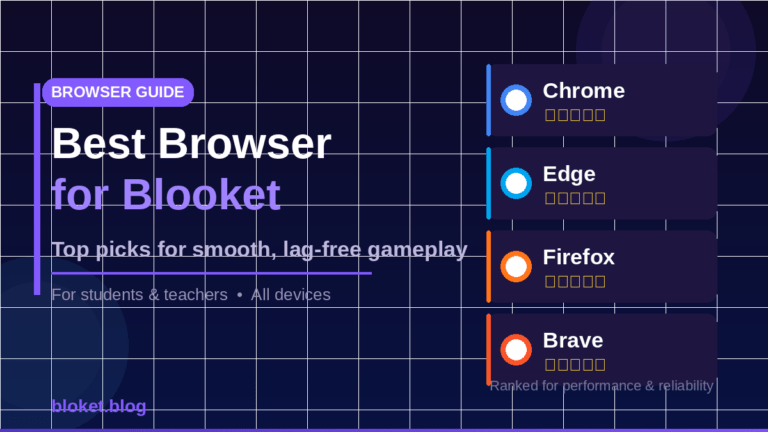
Blooket works on Chrome, Firefox, Edge, and Safari. Chrome is the most tested and is the recommended option. Older browser versions occasionally cause login issues, so keeping your browser updated reduces compatibility problems. Mobile browsers on Android and iOS also work, though the experience is best on desktop. For a deeper performance and audio comparison across every option, see this guide on the best browser for Blooket.
Why does my Google login keep redirecting without signing me in?
A redirect loop usually means your Google Workspace account doesn’t have permission to access Blooket, or there’s a cookie conflict between google.com and blooket.com. On school accounts, an administrator needs to approve Blooket. On personal accounts, clearing browser cookies for both google.com and blooket.com typically resolves it.
Can students create Blooket accounts without a Google account?
Yes. Blooket allows account creation with any email address and a password, completely separate from Google. Students whose school Google accounts have third-party restrictions can sign up and log in using the standard email-and-password route without any issues.
Why is Blooket not loading on my school Chromebook?
Managed Chromebooks can block sites through network filters or device policies set by IT. Test whether Blooket loads on a different network — like mobile data. If it does, the school network or device policy is the cause, and your IT department needs to whitelist blooket.com. If it doesn’t load anywhere, follow the Chromebook-specific steps in this guide.
How long does a Blooket account lockout last?
Account lockouts from too many failed login attempts typically lift after 15 to 30 minutes. Blooket doesn’t publish an exact duration, but waiting half an hour and then logging in with a reset password resolves the vast majority of lockout cases.
What should I do if I think someone else is using my Blooket account?
Reset your password immediately using the “Forgot password?” link on the login page. After resetting, review your account settings. If you see game history or account changes you didn’t make, contact Blooket support through their official help center and report the issue. Change your password to something unique that you don’t use on any other site.
Conclusion
Blooket login problems almost always have a clear fix. Clear your browser cache, confirm the right Google account is active, or reset your password — those three steps resolve the overwhelming majority of cases. School-specific issues take one extra step, usually a conversation with IT about network whitelisting or Workspace permissions.
The fastest diagnostic right now: open an incognito window and try logging in. That single test tells you whether the issue is your browser setup or your actual account, and points you straight to the right fix in this guide.
Tap into hidden opportunities with our exclusive market analysis.