Blooket Keyboard Shortcuts List: Complete Guide for Players
Clicking through every question with your mouse works — but it slows you down when every second counts. Blooket’s keyboard shortcuts let you select answers, confirm choices, and manage a game without ever touching the trackpad. This guide covers every shortcut that actually works in Blooket, organized by where you use them: during gameplay, in the lobby, and at the host dashboard.
What keyboard shortcuts does Blooket support?
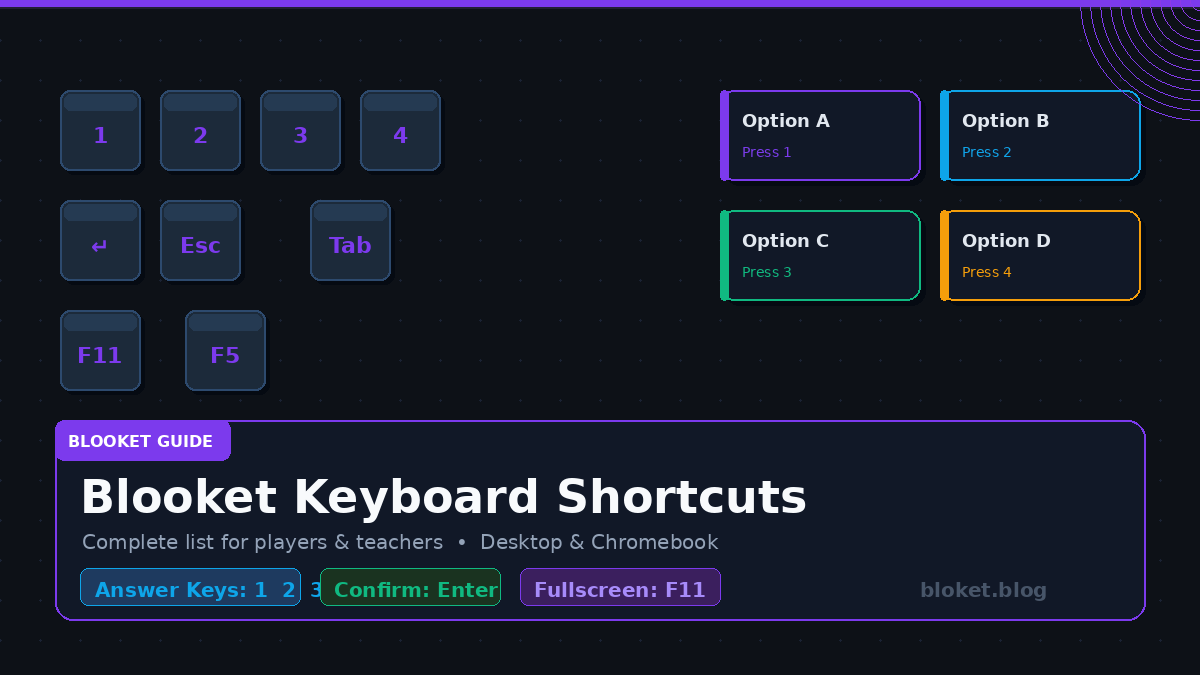
Blooket supports a focused set of keyboard shortcuts built around answering questions quickly. The number keys 1, 2, 3, and 4 select answer choices in the same order they appear on screen. Pressing Enter confirms a selection in modes that require it. Beyond those core shortcuts, a handful of browser-level keys improve the overall experience without any setting changes. Shortcuts on their own only get you so far — combining them with the strategic mindset in this complete Blooket pro player tips guide is what separates casual play from consistent wins.
These shortcuts work on desktop browsers — Chrome, Firefox, Edge, and Safari. They do not apply to the Blooket mobile app, where tap controls replace keyboard input.
The complete Blooket keyboard shortcuts list
Answer selection shortcuts
These are the most-used shortcuts in any Blooket game. When a question appears, the four answer tiles map directly to the number row.
| Key | Action |
| 1 | Select answer option A (top-left) |
| 2 | Select answer option B (top-right) |
| 3 | Select answer option C (bottom-left) |
| 4 | Select answer option D (bottom-right) |
| Enter | Confirm selection / advance past result screen |
| Space | Advance or interact in certain game modes |
The layout follows a Z-pattern: 1 is top-left, 2 is top-right, 3 is bottom-left, 4 is bottom-right. Once you memorize the pattern, you stop reading button positions and just press the number — shaving real time off each answer.
Browser shortcuts that improve Blooket
These are standard browser commands, but they make a noticeable difference during hosted sessions or competitive play.
| Key | Action |
| F11 | Toggle fullscreen mode (removes browser chrome) |
| F5 | Reload the page (useful if a game freezes) |
| Ctrl + Shift + R (Win) / Cmd + Shift + R (Mac) | Hard reload — clears cache |
| Ctrl + + / Ctrl + – | Zoom in / Zoom out |
| Ctrl + 0 | Reset zoom to 100% |
| Alt + Left Arrow | Browser back |
| Tab | Move focus between interactive elements |
| Escape | Close open modals or pop-ups |
Fullscreen mode (F11) is especially useful in classroom settings — it removes the address bar and tab strip so the game fills the screen cleanly.
Host dashboard shortcuts
Blooket’s host controls are mouse-driven, but keyboard navigation still applies to several actions.
| Key | Action |
| Tab | Move between buttons (Start Game, Settings, etc.) |
| Enter | Activate the focused button |
| Escape | Close the settings panel or overlay |
| Ctrl + C | Copy the game code from any input field |
There is no dedicated “next question” key for hosts in most modes — question pacing is either player-driven or timer-driven depending on the mode.
How to use Blooket shortcuts effectively
Step 1: Switch from mouse to number keys
Open any solo or practice game. When the question loads, press 1, 2, 3, or 4 instead of clicking. The tile highlights immediately. In timed modes, this alone can cut your response time significantly because your hand never leaves the keyboard. For a complete breakdown of reading and reflex techniques to pair with these keys, see this guide on how to answer faster in Blooket.
Step 2: Use Enter to skip result screens
After an answer is confirmed, most modes show a brief result screen (correct/incorrect). Pressing Enter or Space moves past it faster than clicking the continue button. In a 20-question set, those skipped clicks add up.
Step 3: Go fullscreen before a class game
Press F11 before launching a game for students to join. The full-browser display looks cleaner on a projector and reduces accidental tab switches when presenting.
Step 4: Keep Ctrl + R within reach
If a student reports the game is stuck or their screen froze, a simple F5 or Ctrl + R reloads without losing their progress in most modes. For persistent freezes, Ctrl + Shift + R forces a hard reload.
Shortcuts by game mode: what works where
Not every shortcut behaves the same across modes. Here is how the core keys apply to the most popular Blooket game modes.
Gold Quest
Number keys 1–4 work normally for answering. After each correct answer, a chest selection prompt appears — this requires a click or touch. No keyboard shortcut selects chests.
Battle Royale
Answer shortcuts (1–4) work throughout. The elimination announcements between rounds respond to Enter to continue. Speed matters here, so committing to number keys is worthwhile.
Tower Defense and Tower Defense 2
Question answering with 1–4 works the same way. The tower placement and upgrade interface is fully mouse-driven — no keyboard shortcut places or upgrades towers.
Café
Answer shortcuts (1–4) apply to each question. The Café management panel (buying ingredients, serving customers) is mouse-driven only.
Factory
The answer phase supports 1–4 keys. Upgrading factory components uses the mouse interface.
Classic and Solo modes
Full support for 1–4 answer selection and Enter to advance. These are the cleanest modes for keyboard-only play since there is no secondary interface to manage.
Common mistakes and misconceptions
Thinking shortcuts work on mobile
Blooket’s mobile browser version and any app-based access do not respond to keyboard inputs the same way. Number keys tied to answer selection are a desktop-only feature. On a phone or tablet, tap controls are the only option.
Pressing keys before the question loads
If you press a number key while the question is still animating in, the input may not register. Wait for the answer tiles to fully appear before pressing 1–4. In fast-paced games, a missed keypress from early input wastes more time than it saves.
Assuming all modes have the same shortcuts
As covered above, game modes with secondary interactive panels (tower placement, Café orders) rely entirely on mouse input for those panels. Keyboard shortcuts cover the question-answering layer only.
Forgetting Tab navigation on the dashboard
Many teachers and hosts rely on the mouse for every action on the Blooket dashboard. Using Tab and Enter to navigate the lobby and settings screens is faster once learned, especially when launching games repeatedly in a class period.
FAQs
Does Blooket have official keyboard shortcut documentation?
Blooket has not published a dedicated shortcuts help page. The shortcuts documented in this guide come from direct testing across game modes on desktop browsers. The answer key (1–4) and Enter/Space behaviors are consistent across supported browsers.
Do keyboard shortcuts work on Chromebooks?
Yes. Chromebooks run the Chrome browser natively, and all shortcuts listed here — including number key answer selection, F11 fullscreen, and Tab navigation — work on Chromebook without any configuration.
Can I change or remap Blooket keyboard shortcuts?
Blooket does not offer a built-in shortcut remapping feature. Browser extensions that remap keys at the system level could theoretically reassign inputs, but Blooket’s own settings have no shortcut customization options.
Why isn’t my number key registering in a game?
Two common causes: the answer tiles have not finished loading, or browser focus is on a different element (like the address bar or a chat panel). Click once inside the game area to return focus, then use number keys normally.
Do shortcuts still work when the game is embedded in Google Classroom or another LMS?
Blooket games opened in a new tab behave normally. If Blooket is embedded inside an iframe within another platform, keyboard focus may be held by the parent page. Opening the game in its own tab is the reliable fix.
Is there a shortcut to copy the game join code?
There is no dedicated Blooket shortcut for this, but clicking into the displayed game code field and pressing Ctrl + A then Ctrl + C (or Cmd + A / Cmd + C on Mac) copies it instantly for pasting into a chat or slide.
Are keyboard shortcuts the same on all desktop browsers?
Answer selection (1–4) and Enter/Space work consistently across Chrome, Firefox, Edge, and Safari. F11 for fullscreen is Windows/Linux only — Mac users use Ctrl + Cmd + F for fullscreen in most browsers. All other listed shortcuts follow standard browser behavior.
Conclusion
The core Blooket keyboard shortcuts are simple: 1, 2, 3, 4 to select answers and Enter to advance. Add F11 for a clean fullscreen classroom view and Tab + Enter for faster dashboard navigation, and you have covered the full practical shortcut set. Start with the number keys in your next game — it takes one or two rounds to build the reflex, and you will not go back to clicking. Combine these keys with the rest of these Blooket speed tips for faster wins and more coins to turn saved seconds into a real coin lead.
Save this page so you have the full reference whenever you set up a new game or introduce Blooket to a class.
Find solutions, tips, and strategies to help you thrive—start reading today!