How to Transfer Google Photos to OneDrive Without the Headache
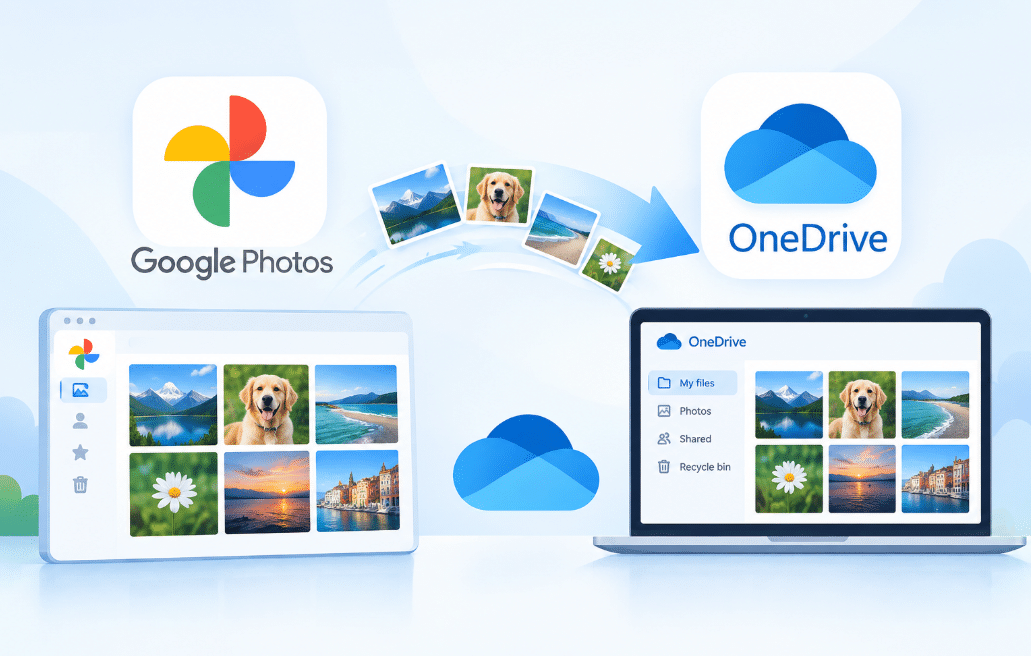
Google Photos and OneDrive run on different platforms, which means there’s no native direct move button. Google provides every registered account just 15GB of free cloud storage, and that storage fills up fast if your phone is backing up the RAW files, 4K videos, and HEIC images. OneDrive, by contrast, bundles neatly into Microsoft 365 and frequently ships free with a work or school account. That mismatch is exactly why so many users decide to move Google Photos to OneDrive when they switch phones, change employers, or simply run out of room.
So how to transfer Google Photos to OneDrive easily and smoothly? Don’t worry, we will show you the easiest way to move Google Photos to OneDrive.
Why Move Google Photos to OneDrive?
There are many reasons you might consider transferring Google Photos to OneDrive:
- Free up Google storage. Once your account hits its 15GB ceiling, new backups stall. Shifting your library to OneDrive clears space for Gmail and Drive.
- Centralize your Microsoft workflow. If your team lives in Office apps, keeping photos inside OneDrive means fewer tabs and a single login to remember.
- Escape vendor lock-in. Nobody enjoys being stuck. Spreading archives across two providers protects you if one service changes its pricing overnight.
- Keep a clean second backup. A copy on OneDrive is cheap insurance against accidental deletion or a corrupted cloud sync.
Before you begin, take a quick inventory: check how many gigabytes you’re moving and confirm your OneDrive quota can absorb it. A mismatch here is the number one cause of half-finished migrations.
The Best Way to Transfer Google Photos to OneDrive
Here’s the thing — you don’t need to download 80GB of JPEGs just to re-upload them somewhere else. A web-based multiple cloud storage manager, MultCloud, handles the move server-to-server, so your laptop’s hard drive stays completely out of the loop. The free cloud transfer tool we keep coming back to connects both accounts through secure OAuth and shuttles files in the background, no manual copying required.
- Direct cloud-to-cloud transfer with zero local downloading — your bandwidth stays free for everything else.
- Support for 40+ services, including Google Photos, OneDrive, Dropbox, iCloud, and Google Drive.
- Scheduled tasks so big migrations run overnight while you sleep.
- Email alerts the moment a job finishes or hits a snag.
- Smart file filtering — move only photos, only videos, or skip thumbnails entirely.
- Resume-on-failure, so a dropped connection doesn’t restart the whole job from scratch.
Ready to see it in action? The walkthrough below uses the transfer photos between clouds workflow that’s purpose-built for exactly this scenario.
How to Transfer Google Photos to OneDrive in 4 Steps
Important note: Make sure your OneDrive account has enough free space for the incoming library and that your internet connection is reliable before beginning any transfers. The progress tracker may become confused and duplicate files may be left behind if you update or remove files in Google Photos while they are being transferred.
You just need to perform the task once if you’ve been wondering how to transfer videos from Google Photos to OneDrive alongside your stills. The same four procedures apply to both file types.
Here is how to transfer Google Photos to OneDrive without downloading via MultCloud:
1. Sign up and log in — Head to multcloud.com and create a free account, or log in if you already have one. You can also log in with your Google, Facebook, or Apple account.
2. Add Google Photos and OneDrive accounts — Click “Manage Clouds and Emails” and hit Google Photos. Then grant access to MultCloud. Add OneDrive in the same process.
3. Create a Cloud Transfer task — Open the “Cloud Transfer” tab, pick the Google Photos folders you want, set OneDrive as the target path, and set up Options like scheduling or file filters. You can even choose to transfer Google Photos to OneDrive with metadata preserved if your plan supports it.
4. Start the transfer — Hit “Transfer Now” to transfer Google Photos to OneDrive immediately, or save the task on a daily or weekly schedule for hands-off syncing. Monitor progress from the task manager in real time.
Tips:
- Turn on email notifications to be notified as soon as the task is finished for the most seamless experience.
- To move images from Google Photos to OneDrive without downloading unnecessary duplicates, use file filtering. If you’re moving a live, continuously expanding library, think about setting up a repeating plan with Schedule.
- To keep things tidy, you may also move files from Google Photos to OneDrive in chunks.
Conclusion
Moving your memories doesn’t have to mean a weekend of manual downloading. With a direct cloud-to-cloud approach, you can move Google Photos to OneDrive in an afternoon and get back to actually enjoying the photos. Beyond one-off transfers, the same platform handles ongoing sync and scheduled backups — so your archive stays safe wherever life takes it next.
Disclaimer: The information provided in this article is for general informational and educational purposes only and does not constitute professional technical, software, or data security advice. Cloud storage features, pricing, and transfer tools may change. Readers should verify current capabilities, privacy policies, and terms of service with each provider before transferring data. The mention of MultCloud or any specific tool is illustrative and does not imply endorsement. The author and publisher disclaim all liability for data loss, sync errors, or security issues arising from reliance on this content. Always back up important files before initiating any migration.
Curated for readers who want substance and heart: our sincerely written articles deliver both.